
Your home inside Kollekt — find artists, browse their pages, switch between communities, and share your favourites. This is the fan’s starting point for everything.

Empty State

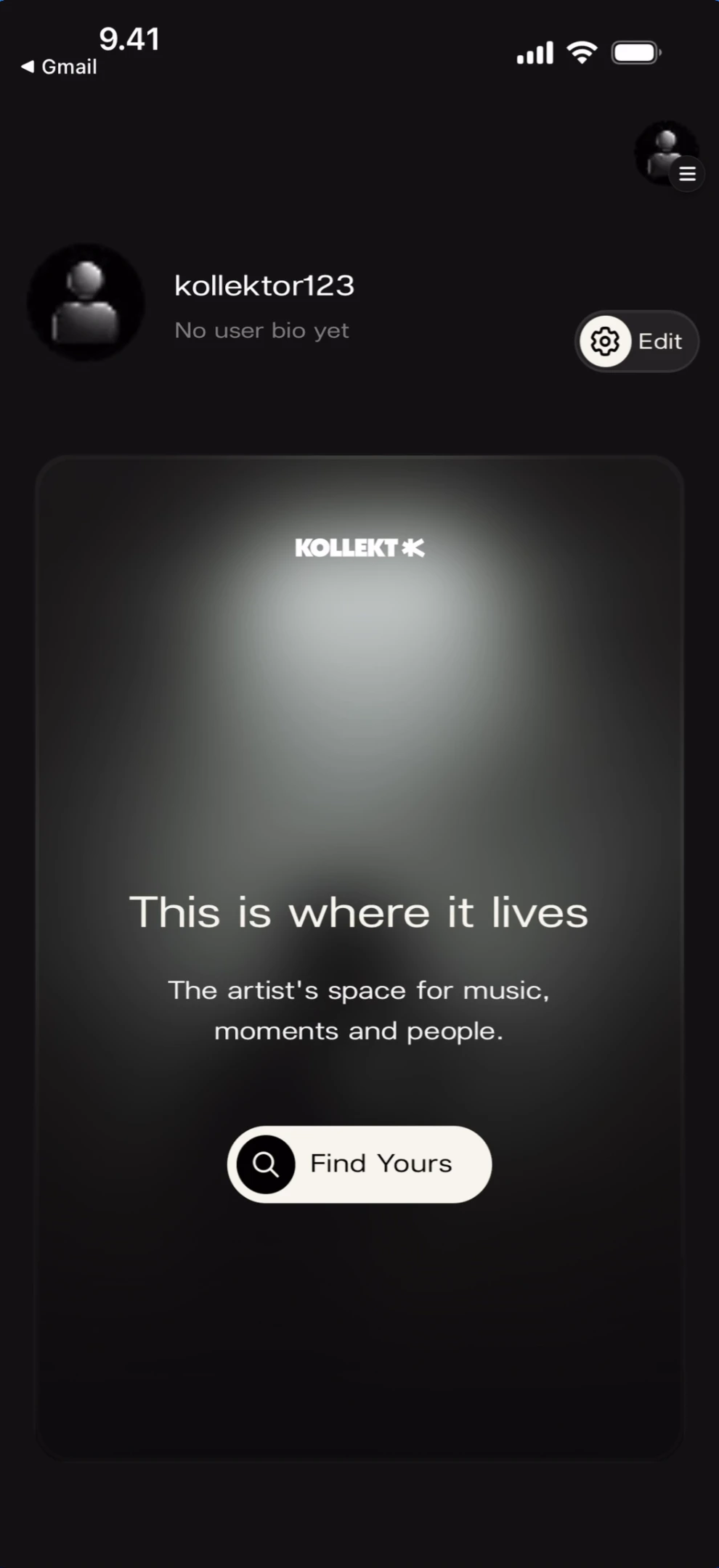
When you first open Kollekt without following any artists, you see the empty home screen with a prompt to find your first artist. Empty home screen What you’ll see: Top-left: ”< Gmail” back link. Your profile section showing “kollektor123” with “No user bio yet” and a gear/Edit button on the right. Below: a dark card with the KOLLEKT K logo, a spotlight glow, and the text “This is where it lives” followed by “The artist’s space for music, moments and people.” At the bottom of the card: a black “Find Yours” button with a search icon.
Finding an Artist

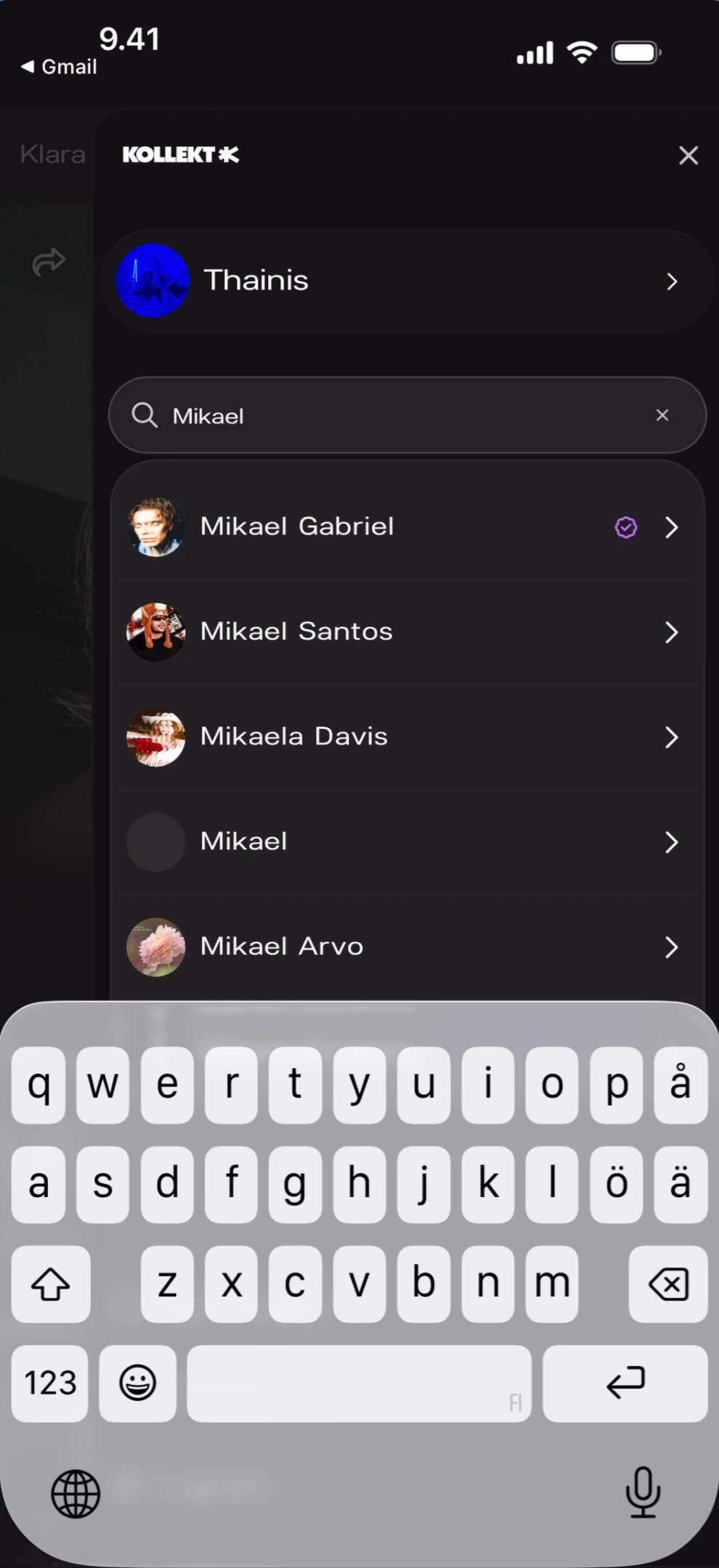
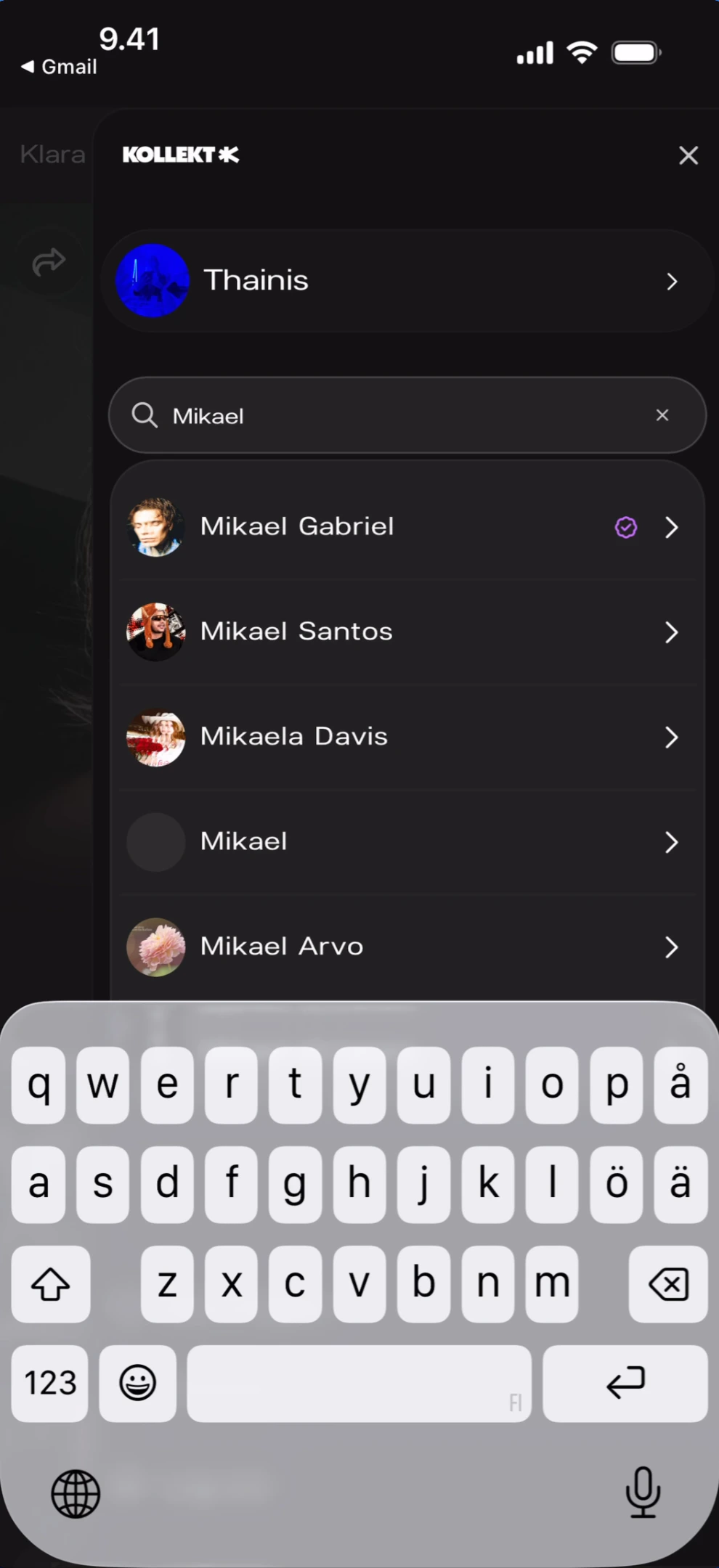
Tap Find Yours from the empty state (or use the search in the side menu) to search for artists by name. Artist search results What you’ll see: A search overlay with the KOLLEKT K logo at the top and an X close button. Your profile “Thainis” with a right arrow is shown above the search. A search field with “Q Mikael” typed and a clear (x) button. Below: search results listing “Mikael Gabriel” (with a green checkmark indicating already followed), “Mikael Santos”, “Mikaela Davis”, “Mikael”, and “Mikael Arvo” — each with an avatar and right arrow. The keyboard is open.
Fan Feed

After following one or more artists, the home screen becomes your fan feed showing artist cards you can swipe through.

Single Artist

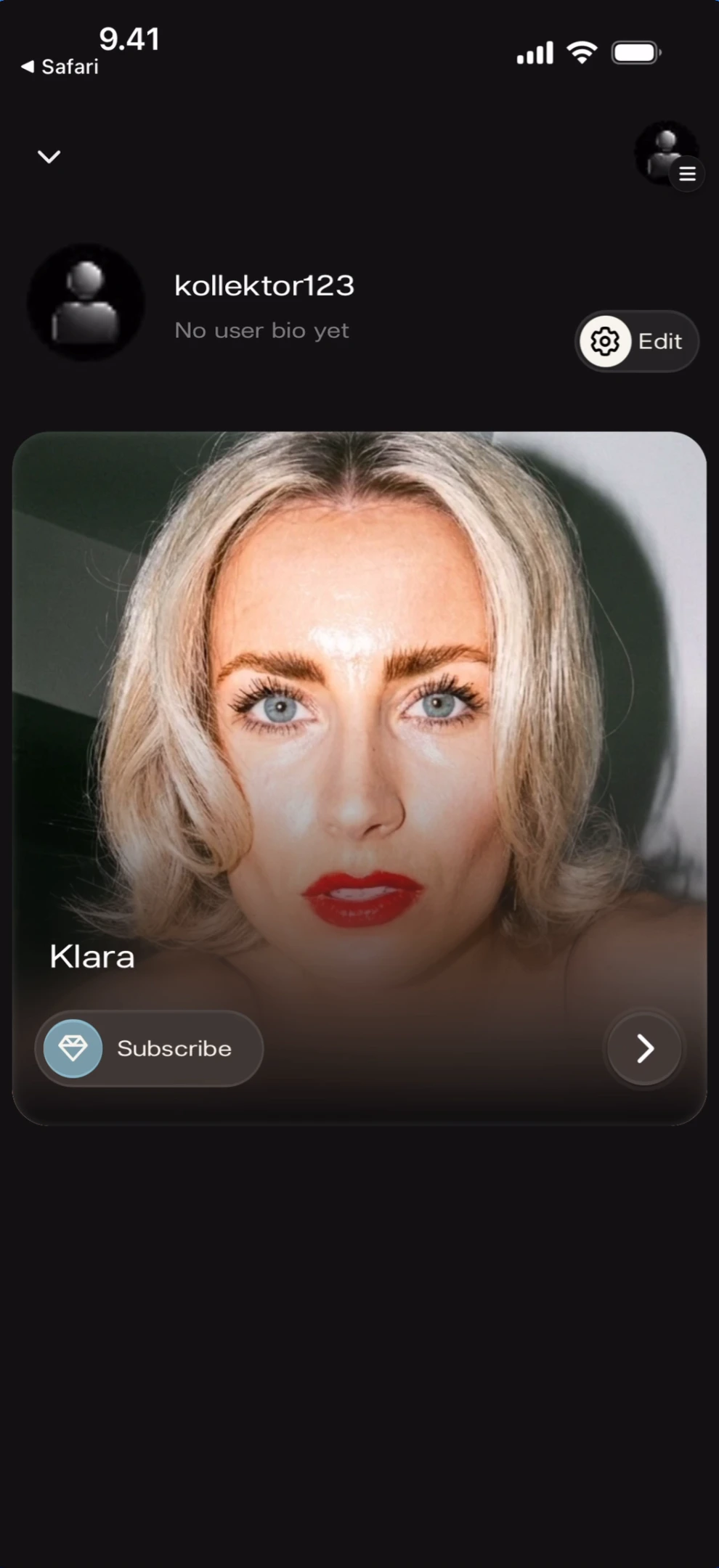
Home feed with one artist What you’ll see: Top-left: ”< Safari” back link and down chevron. Your profile “kollektor123” with “No user bio yet” and gear/Edit button. Below: a large artist card for “Klara” with her cover photo, name overlay at the bottom-left, a Subscribe button (with heart icon) at the bottom-left, and a right arrow to enter the artist’s page.

Multiple Artists

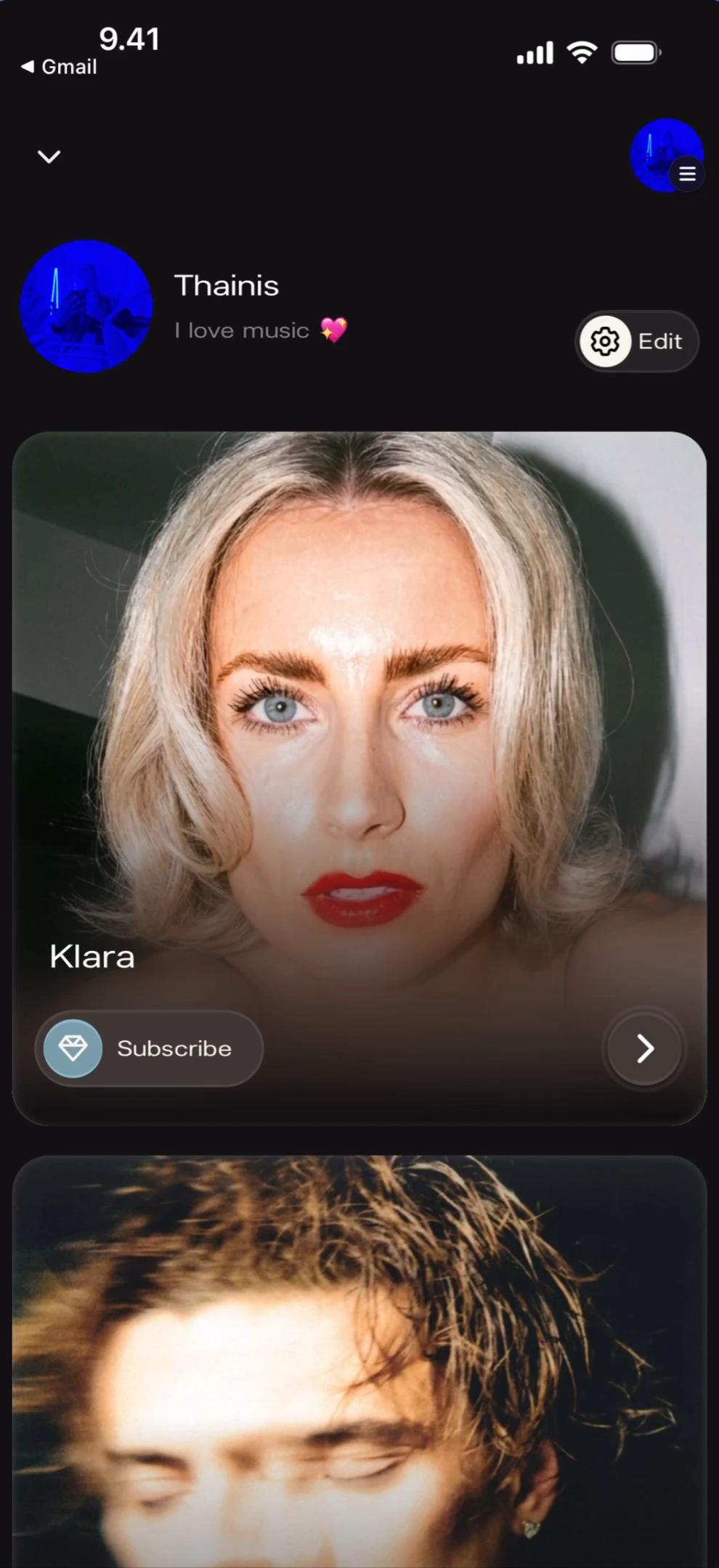
Home feed with multiple artists What you’ll see: Top-left: ”< Gmail” back link and down chevron. Top-right: blue profile icon and hamburger menu. Your profile “Thainis” with bio “I love music 💖” and gear/Edit button. Below: a large artist card for “Klara” with cover photo, name, Subscribe button, and right arrow. A second artist card is partially visible below (different artist with darker photo).

Multiple Artists (Scrolled)

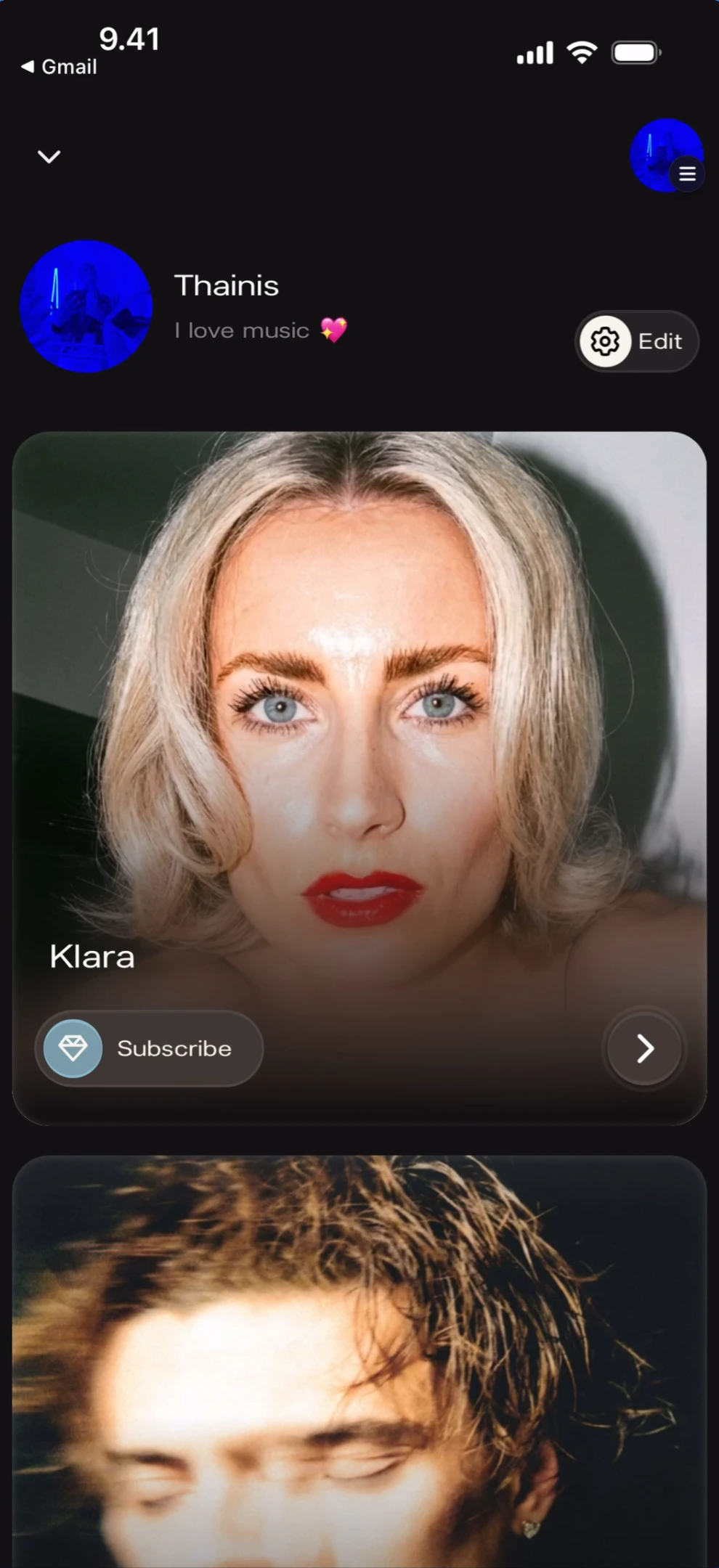
Feed scrolled to show second artist What you’ll see: Same layout as above. The “Klara” card is fully visible with Subscribe button and right arrow. Below it, a second artist card is partially visible showing a different cover photo, confirming that the feed is scrollable with multiple artist cards stacked vertically.

Artist Name Tooltip

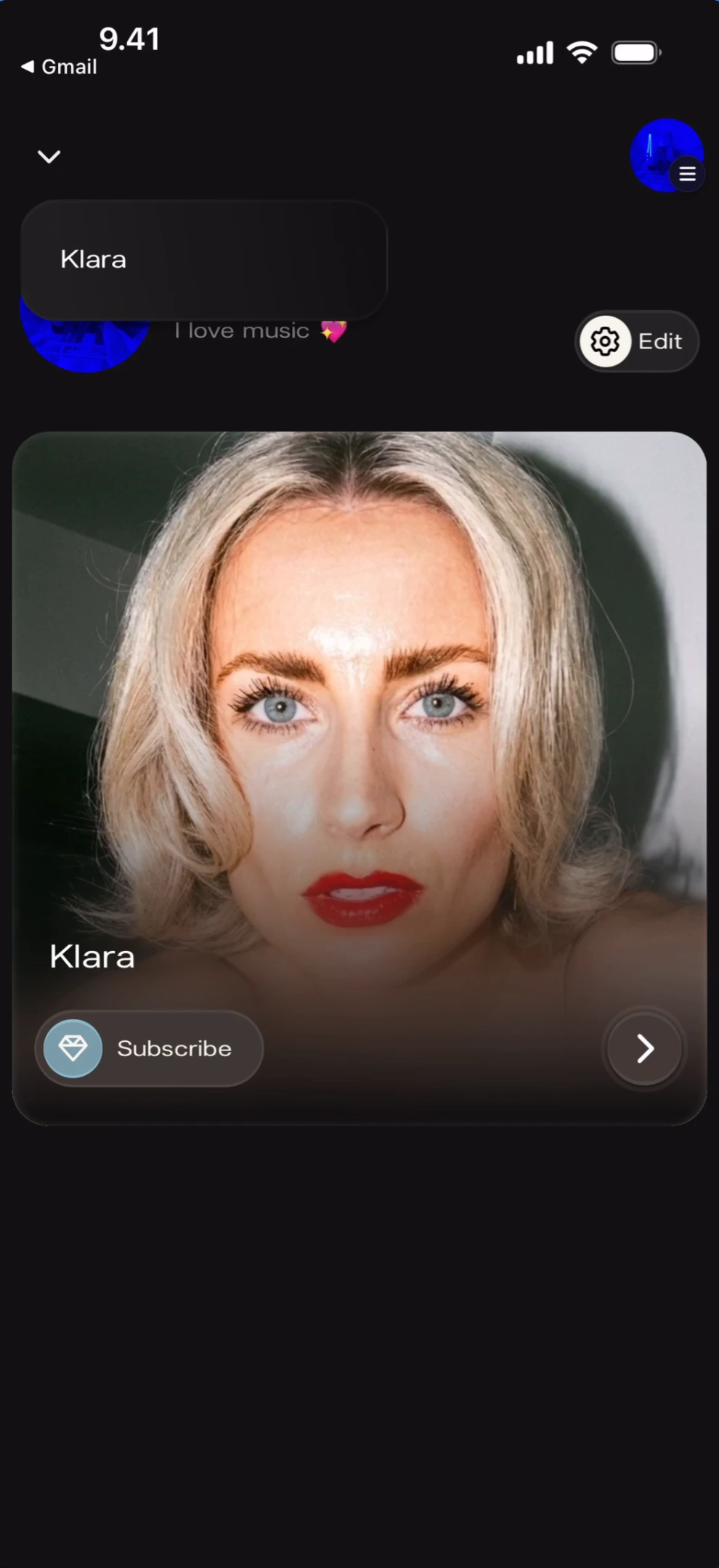
When hovering or long-pressing on an artist card, the artist name appears as a tooltip. Artist name tooltip on card What you’ll see: Top-left: ”< Gmail” back link and down chevron. Top-right: blue profile icon and hamburger menu. Your profile “Thainis” with bio. A tooltip pill showing “Klara” appears above the artist card, which shows the cover photo with name, Subscribe button, and right arrow.
Artist Page

Tap the right arrow on an artist card to enter their full page.

Top of Page

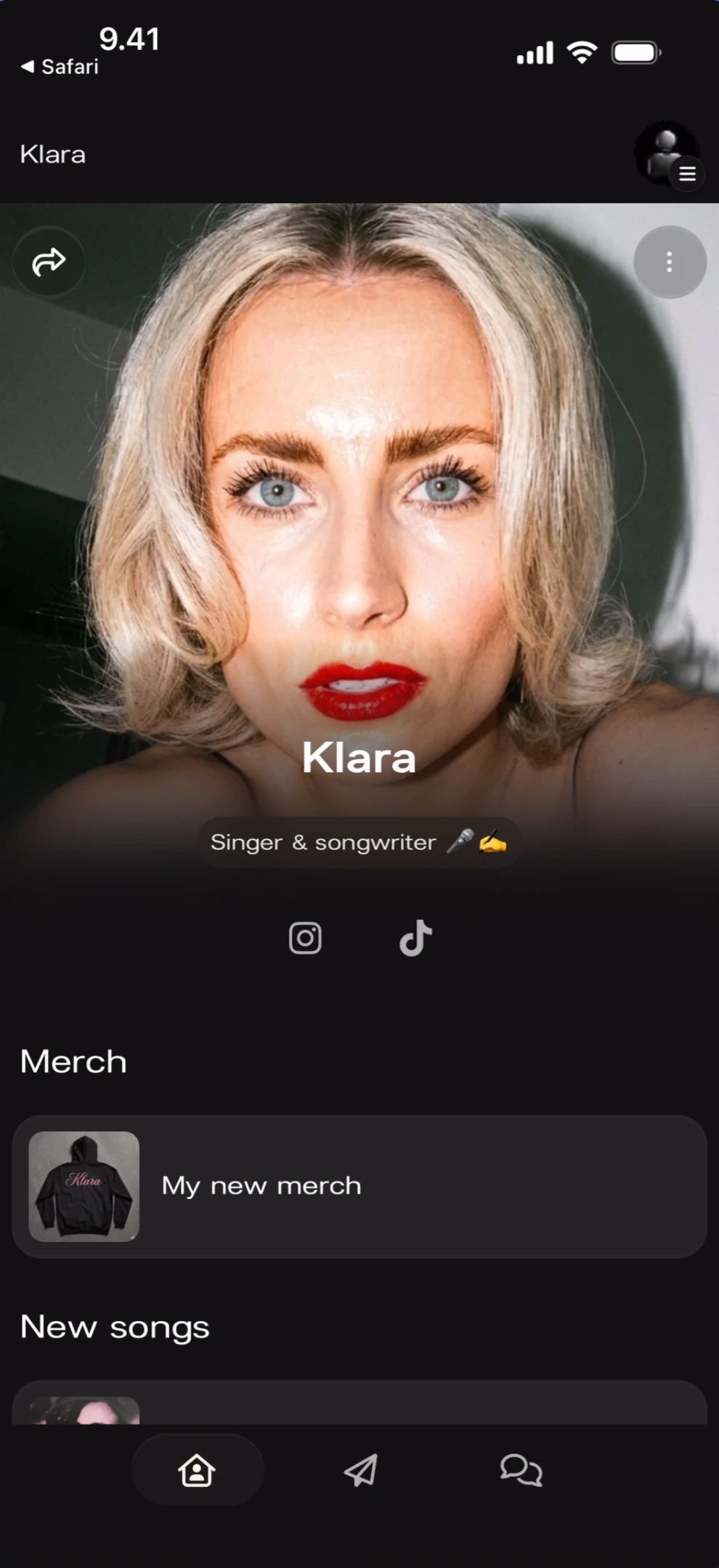
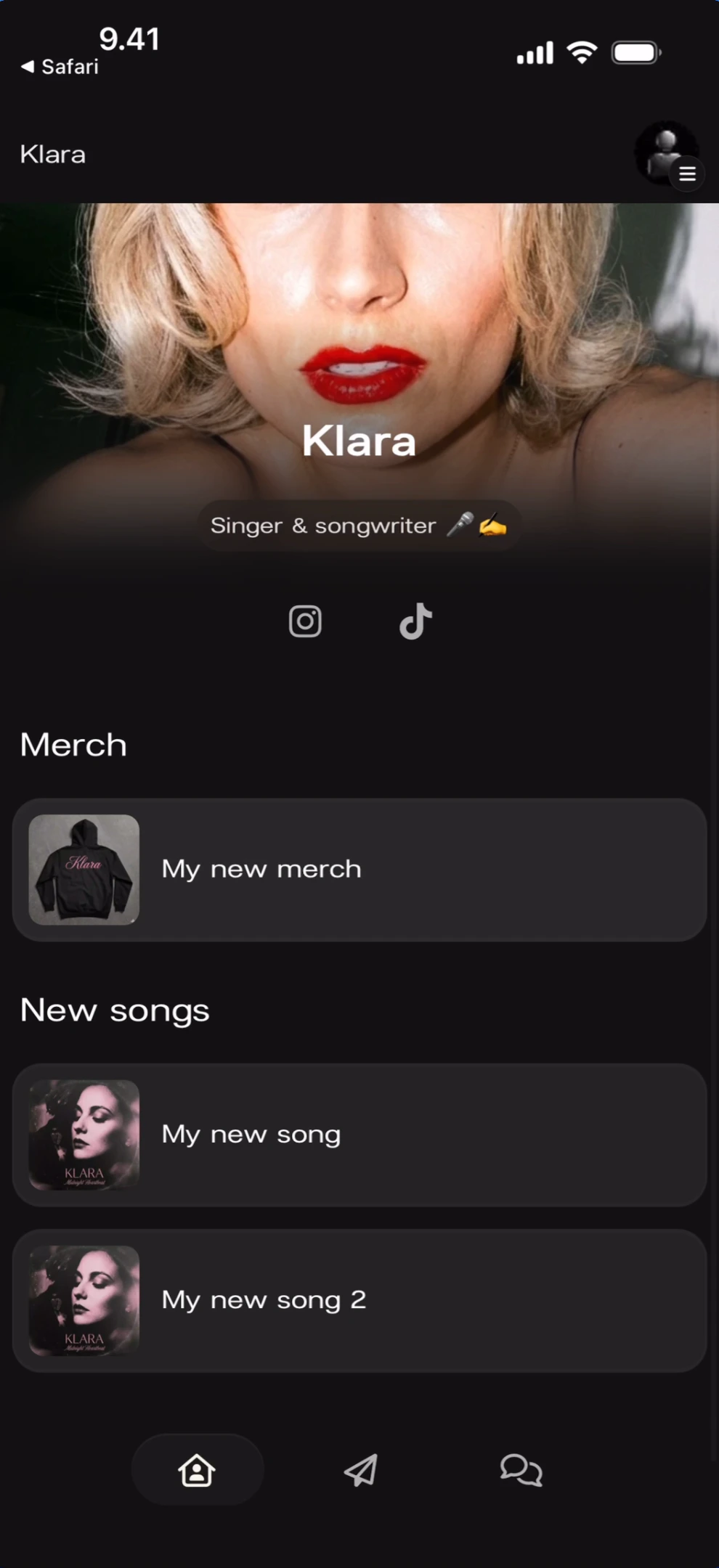
Artist page top section What you’ll see: Top-left: ”< Safari” back link and “Klara” artist name. Top-right: profile avatar. Share icon (curved arrow) on the left and three-dot menu on the right over the cover photo. Large artist photo with name “Klara” and subtitle “Singer & songwriter 🎤 ☁️” centered below. Social icons: Instagram and TikTok. Section header “Merch” with a card showing “My new merch” (hoodie thumbnail). Section header “New songs” partially visible. Bottom navigation: Home (active, yellow), Direct Line, Chat, Profile.

Scrolled Down

Artist page scrolled to show content sections What you’ll see: The page scrolled down past the full cover photo. The artist photo is partially visible at top with name “Klara” and subtitle “Singer & songwriter 🎤 ☁️”. Social icons: Instagram and TikTok. “Merch” section with “My new merch” card. “New songs” section with two cards: “My new song” and “My new song 2”, each with album art thumbnails. Bottom navigation: Home (active, yellow), Direct Line, Chat, Profile.

Unfollow Menu

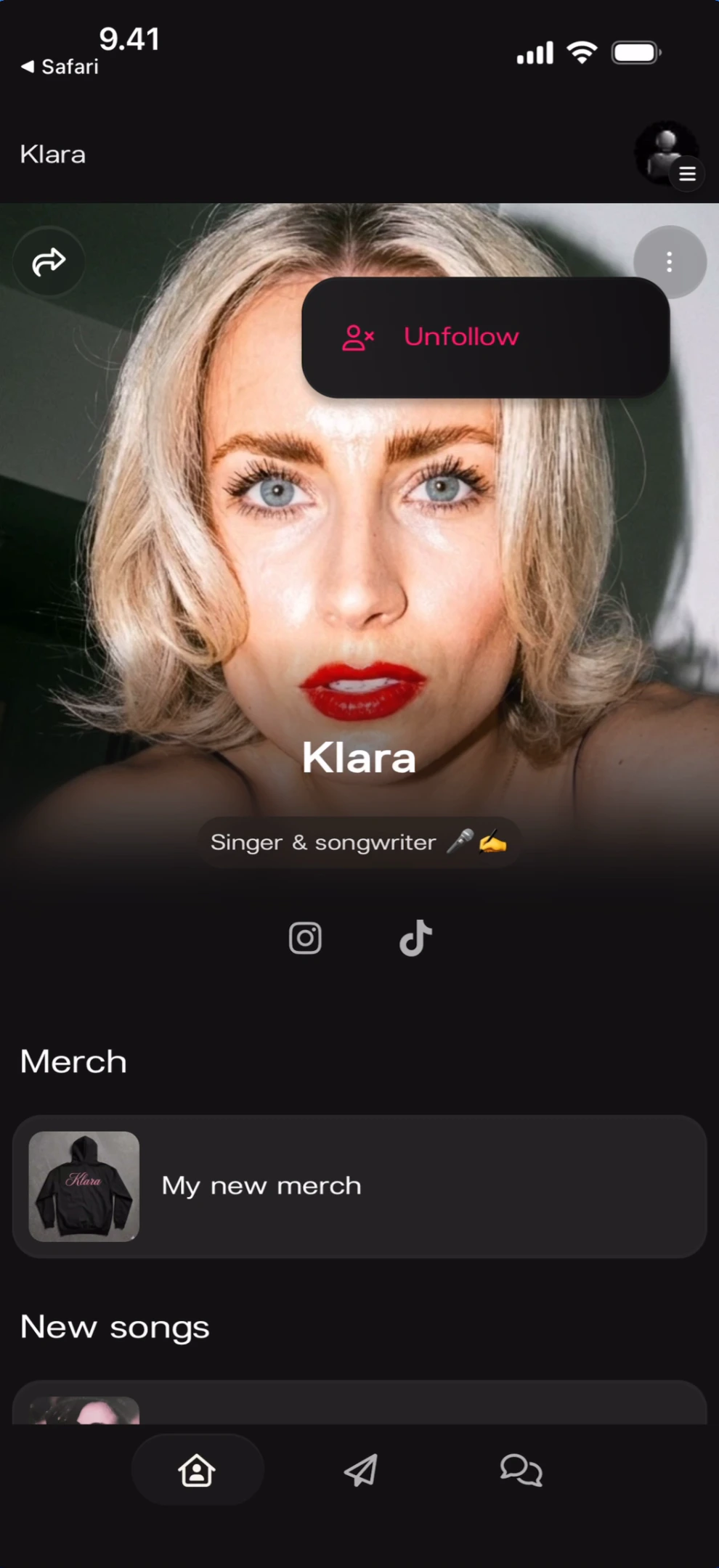
Tap the three-dot menu (⋮) in the top-right of the artist page to reveal the unfollow option. Unfollow dropdown menu What you’ll see: The artist page with Klara’s cover photo and details visible. A dark dropdown popover appears near the top showing a people icon and red “Unfollow” text. The share icon is visible on the left. Below: “Merch” and “New songs” sections. Bottom navigation bar.
Side Menu

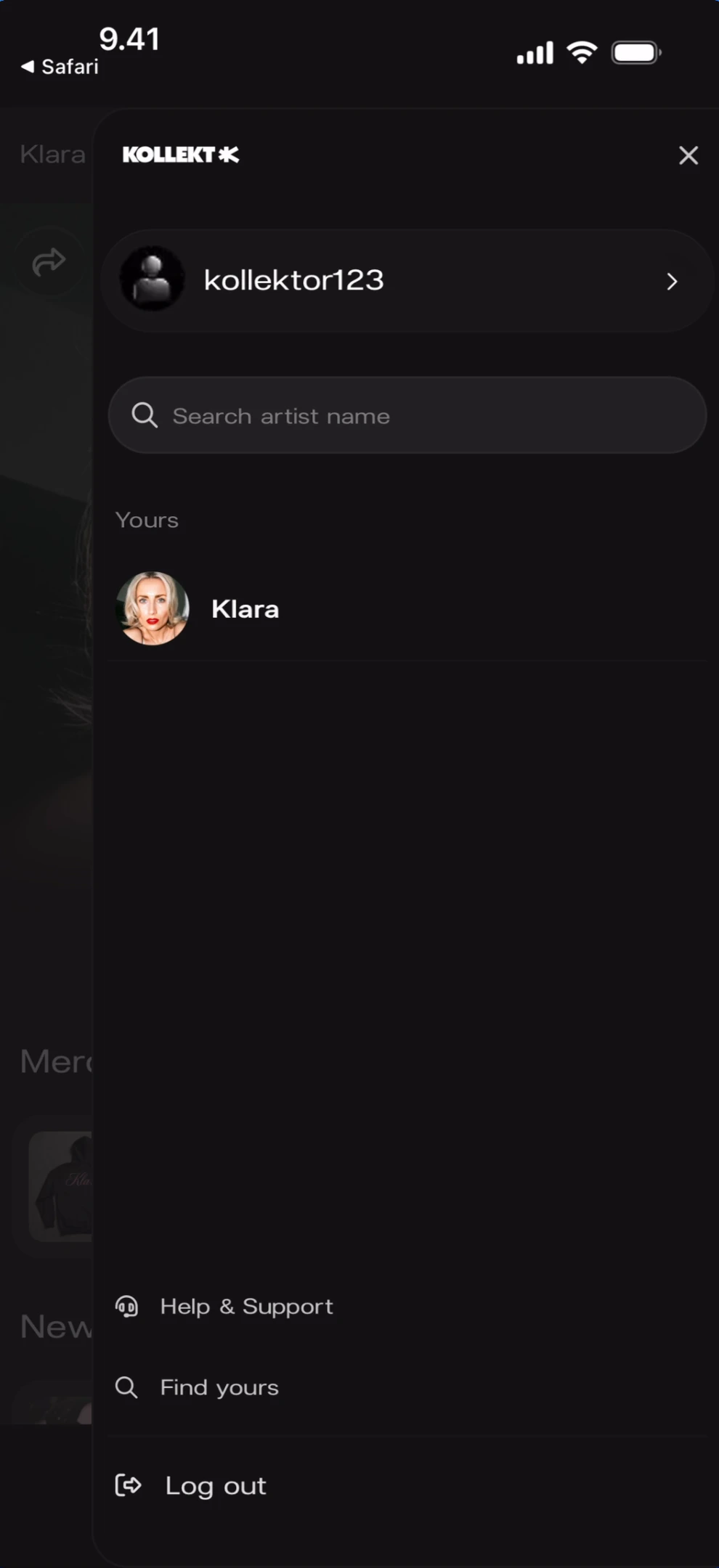
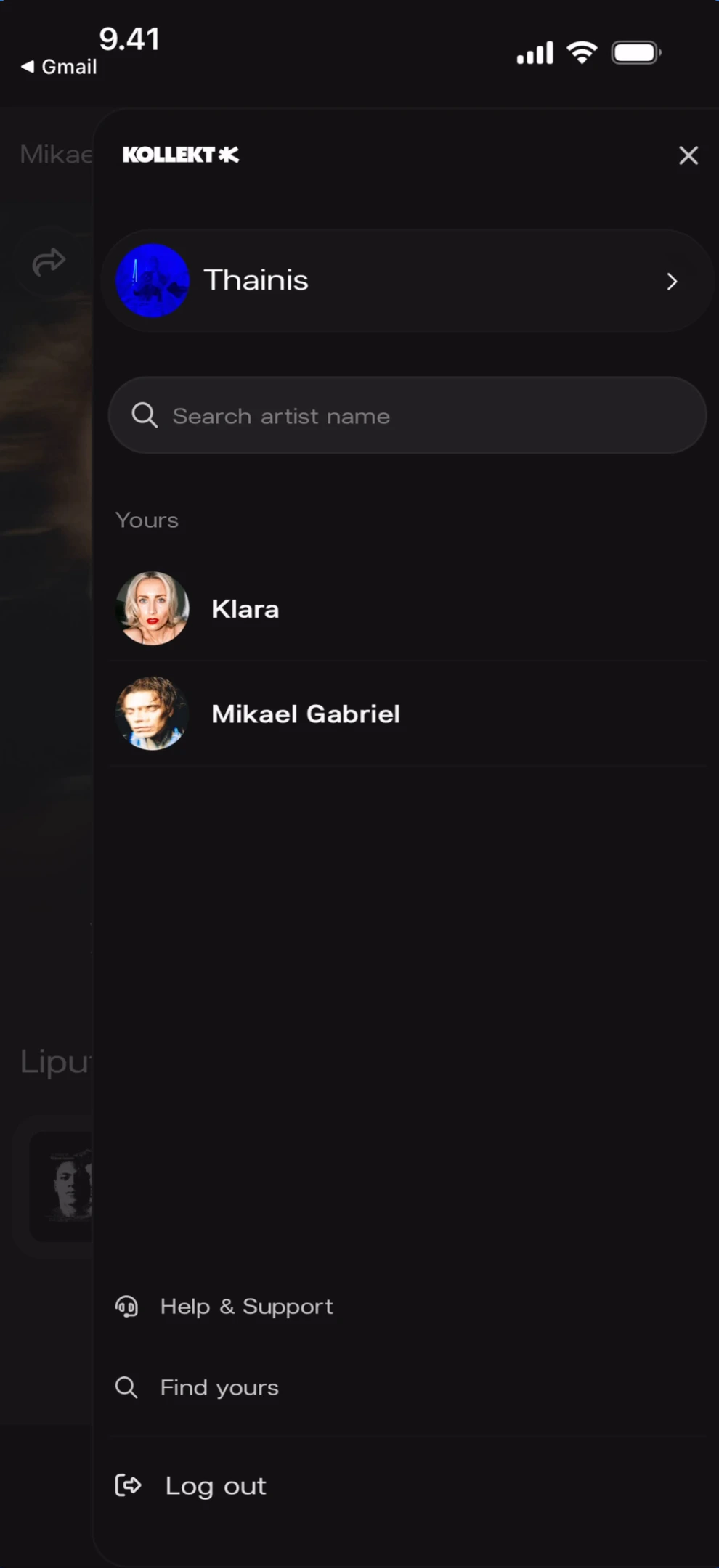
Tap the hamburger menu icon (top-right) to open the side menu. This is your navigation hub for switching between artists, searching, getting help, and logging out.

Single Artist

Side menu with one artist What you’ll see: A slide-over panel from the right with the KOLLEKT K logo at top and X close button. Your profile “kollektor123” with right arrow. A search field: “Search artist name”. Under “Yours” heading: “Klara” with avatar. At the bottom: “Help & Support” (with info icon), “Find yours” (with search icon), and “Log out” (with exit icon).

Multiple Artists

Side menu with multiple artists What you’ll see: Same side menu layout. Profile “Thainis” with right arrow. Search field: “Search artist name”. Under “Yours”: “Klara” and “Mikael Gabriel” — each with avatars. Bottom: Help & Support, Find yours, and Log out links.

Searching for Artists

The search field in the side menu lets you search for new artists to follow. Side menu search results What you’ll see: The side menu with KOLLEKT K logo and X close. Profile “Thainis” with right arrow. Search field with “Q Mikael” typed and clear (x) button. Results: “Mikael Gabriel” (green checkmark — already followed), “Mikael Santos”, “Mikaela Davis”, “Mikael”, “Mikael Arvo” — each with avatars and right arrows. The keyboard is open.
Help & Support

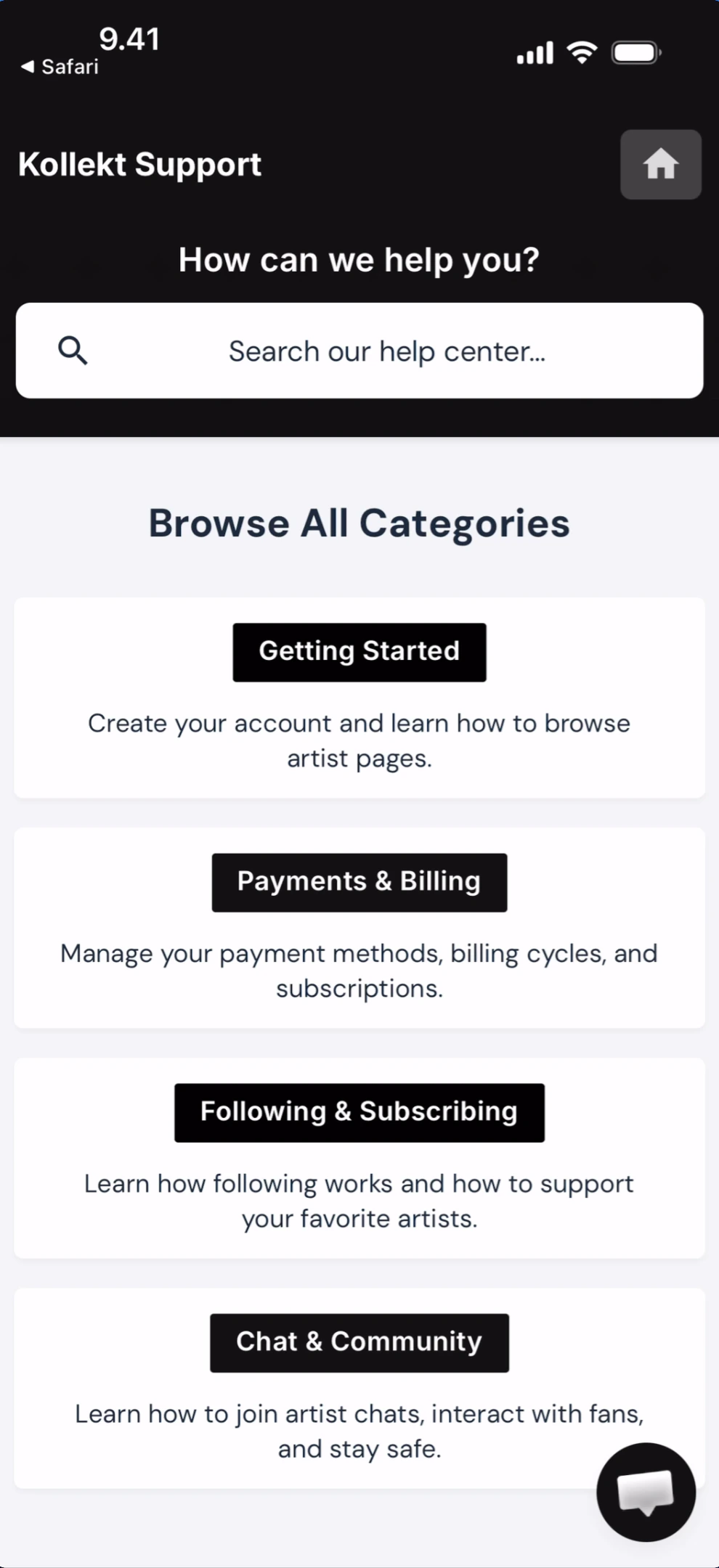
Tap Help & Support in the side menu to open the Kollekt help center. Kollekt Support help center What you’ll see: A white-background page with “Kollekt Support” header and a home icon (top-right). Heading: “How can we help you?” A search bar: “Search our help center…” Below: “Browse All Categories” with category pills — “Getting Started” (“Create your account and learn how to browse artist pages.”), “Payments & Billing” (“Manage your payment methods, billing cycles, and subscriptions.”), “Following & Subscribing” (“Learn how following works and how to support your favorite artists.”), “Chat & Community” (“Learn how to join artist chats, interact with fans, and stay safe.”). A chat widget icon appears in the bottom-right.
Sharing

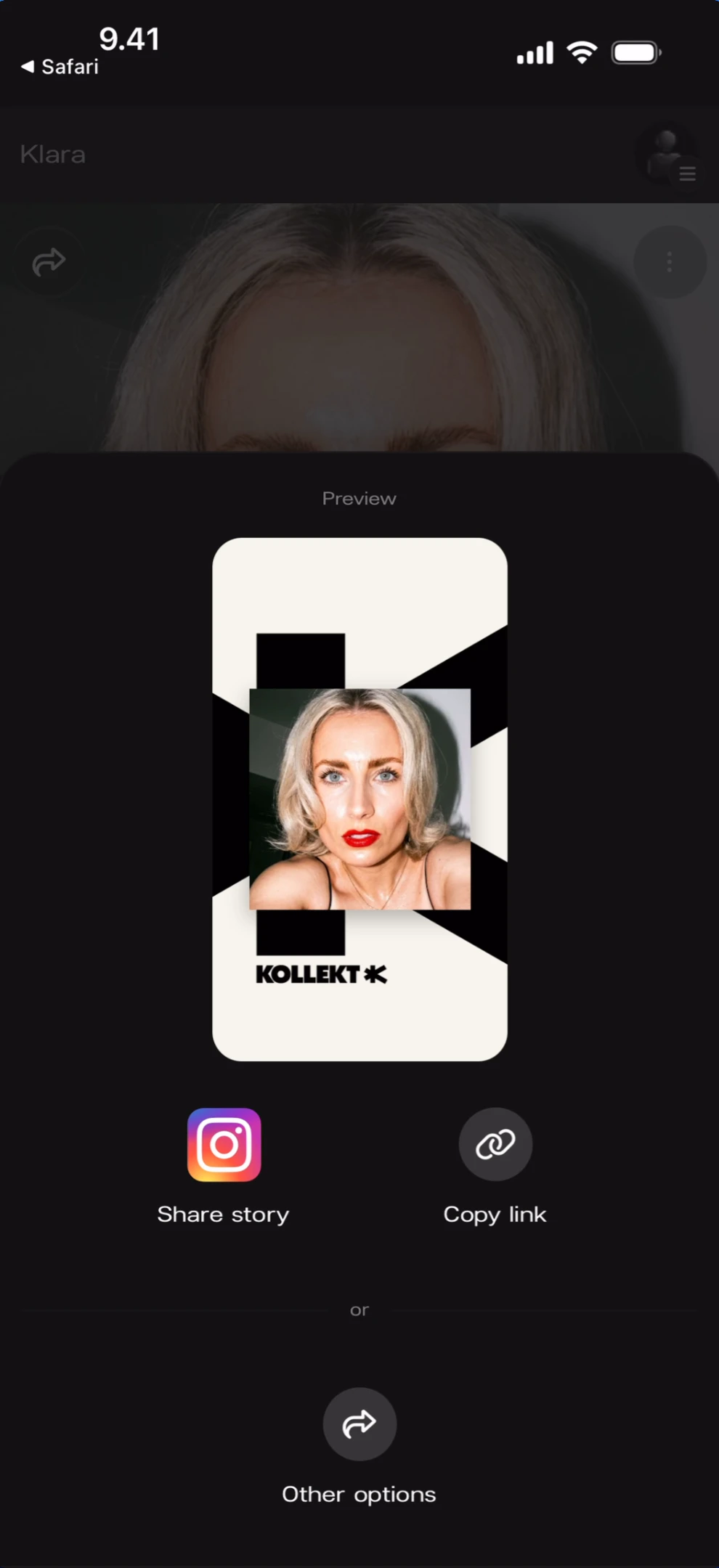
Tap the share icon (curved arrow) on the artist page to open the Share Sheet.

Share Sheet

Share sheet from artist page What you’ll see: The artist page dimmed behind a bottom sheet overlay. “Preview” label at top. A branded Kollekt Card showing the artist’s photo on a black-and-white geometric background with the “KOLLEKT K” logo. Two action buttons: “Share story” (Instagram icon) and “Copy link” (link icon). Below: “or” divider and “Other options” button (share arrow icon).

Native Share Sheet (Other Options)

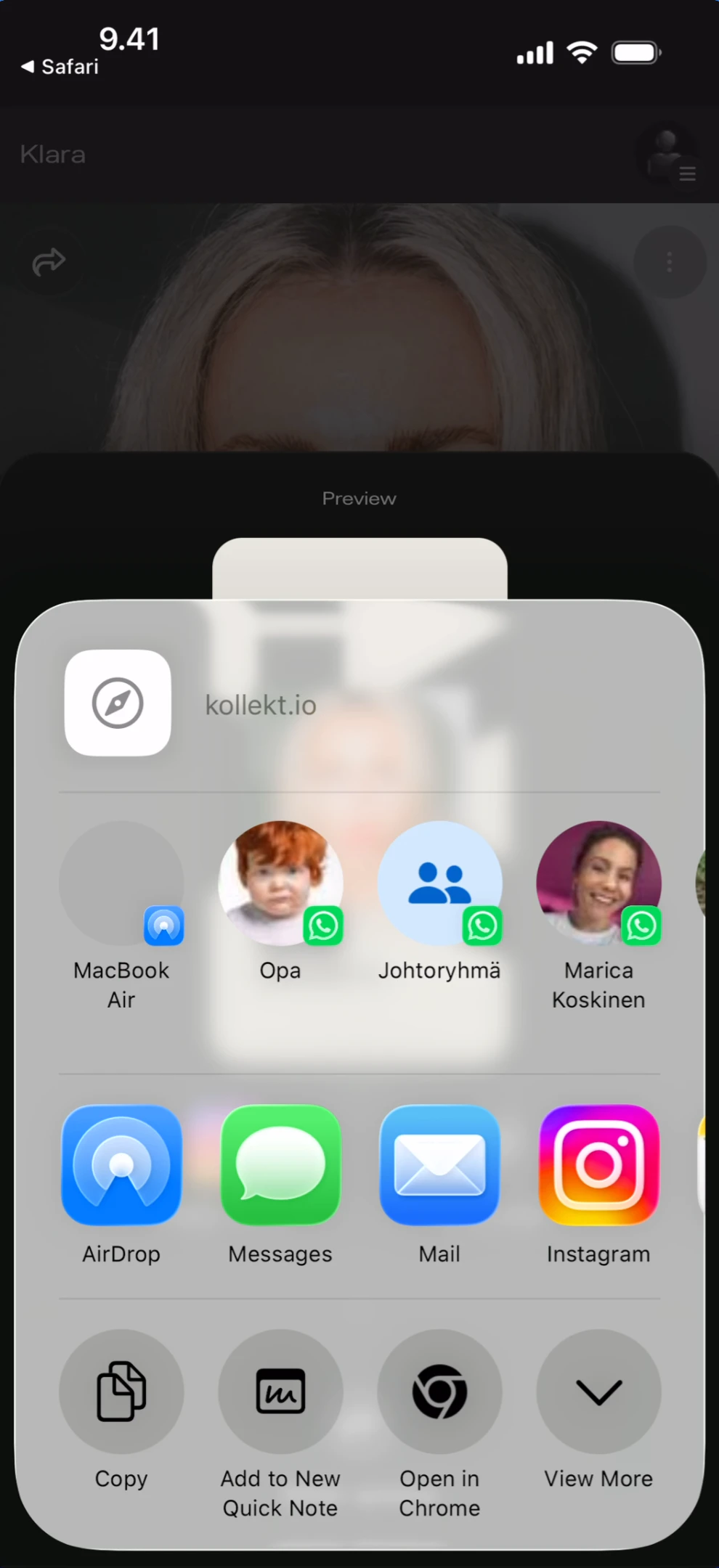
Tapping Other options opens the device’s native share sheet. iOS native share sheet What you’ll see: The Kollekt Share Sheet dimmed behind the iOS native share sheet. At the top: a link icon with “kollekt.io” URL preview. Contact/device suggestions: “MacBook Air”, “Opa”, “Johtoryhmä”, “Marica Koskinen”. App row: AirDrop, Messages, Mail, Instagram. Action row: Copy, Add to New Quick Note, Open in Chrome, View More.
Sharing to Instagram Stories

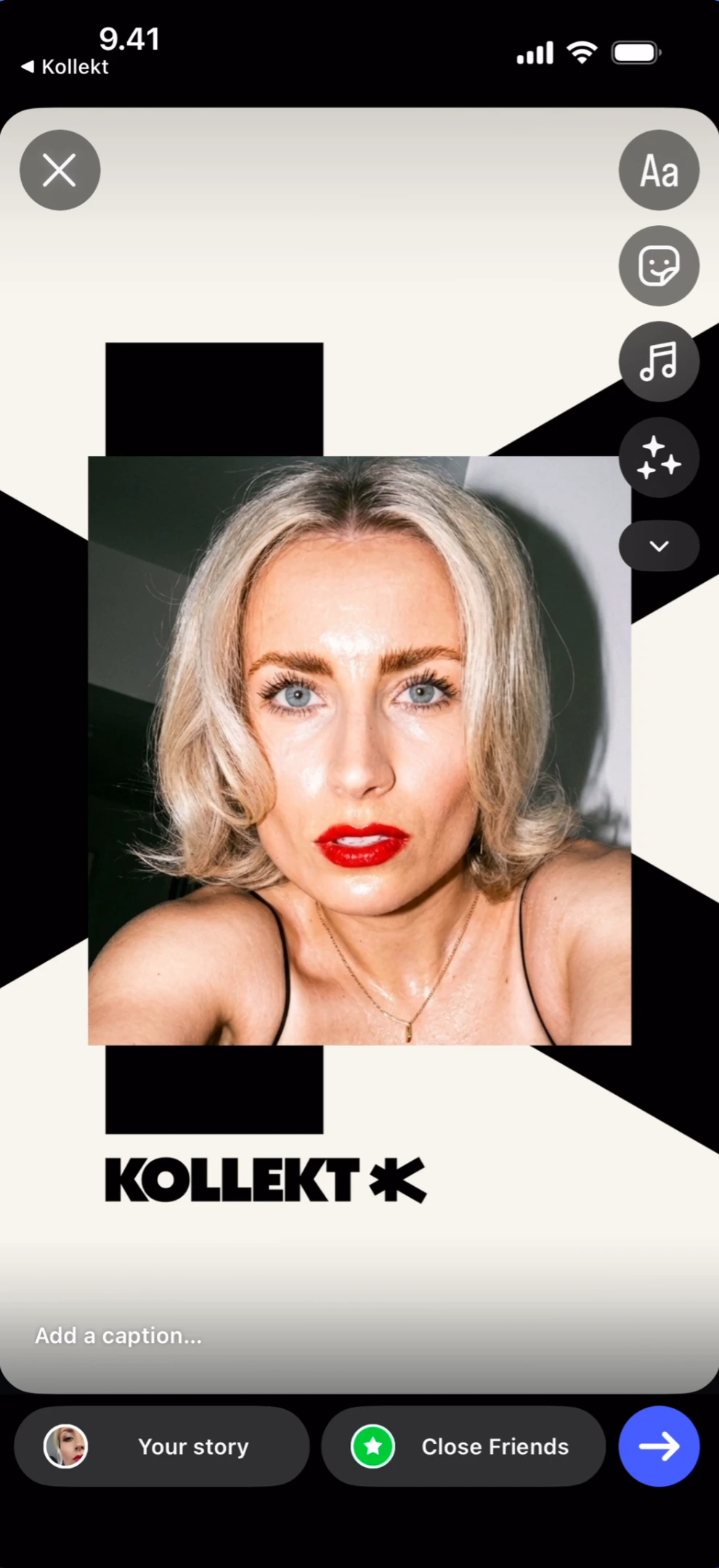
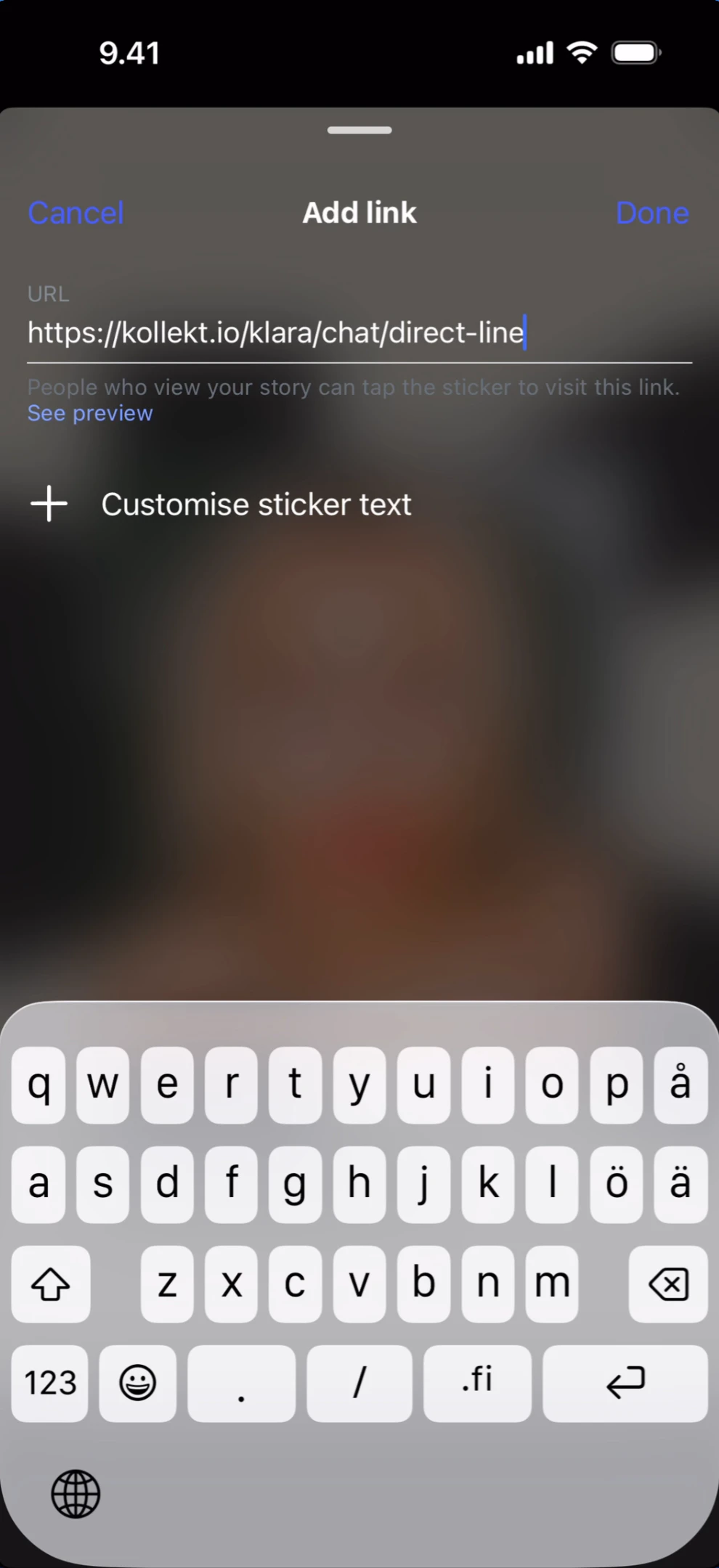
Tap Share story to post the Kollekt Card directly to Instagram Stories. Kollekt Card in Instagram Stories What you’ll see: Instagram Stories editor. Top-left: ”< Kollekt” back link and X close button. Top-right: text (Aa), sticker, effects, music, and more icons. Center: the Kollekt Card with the artist photo and “KOLLEKT K” branding on the geometric background. Bottom: “Add a caption…” text field. Footer: “Your story” and “Close Friends” share targets with a blue arrow send button. Tap the sticker icon in Instagram and select the Link sticker. Paste the Kollekt URL. Adding link in Instagram What you’ll see: Instagram “Add link” screen. Top bar: “Cancel” (left), “Add link” title (center), “Done” (right). URL field contains https://kollekt.io/klara/chat/direct-line. Helper text: “People who view your story can tap the sticker to visit this link.” Below: ”+ Customise sticker text” option. The keyboard is open.
Final Story with Link
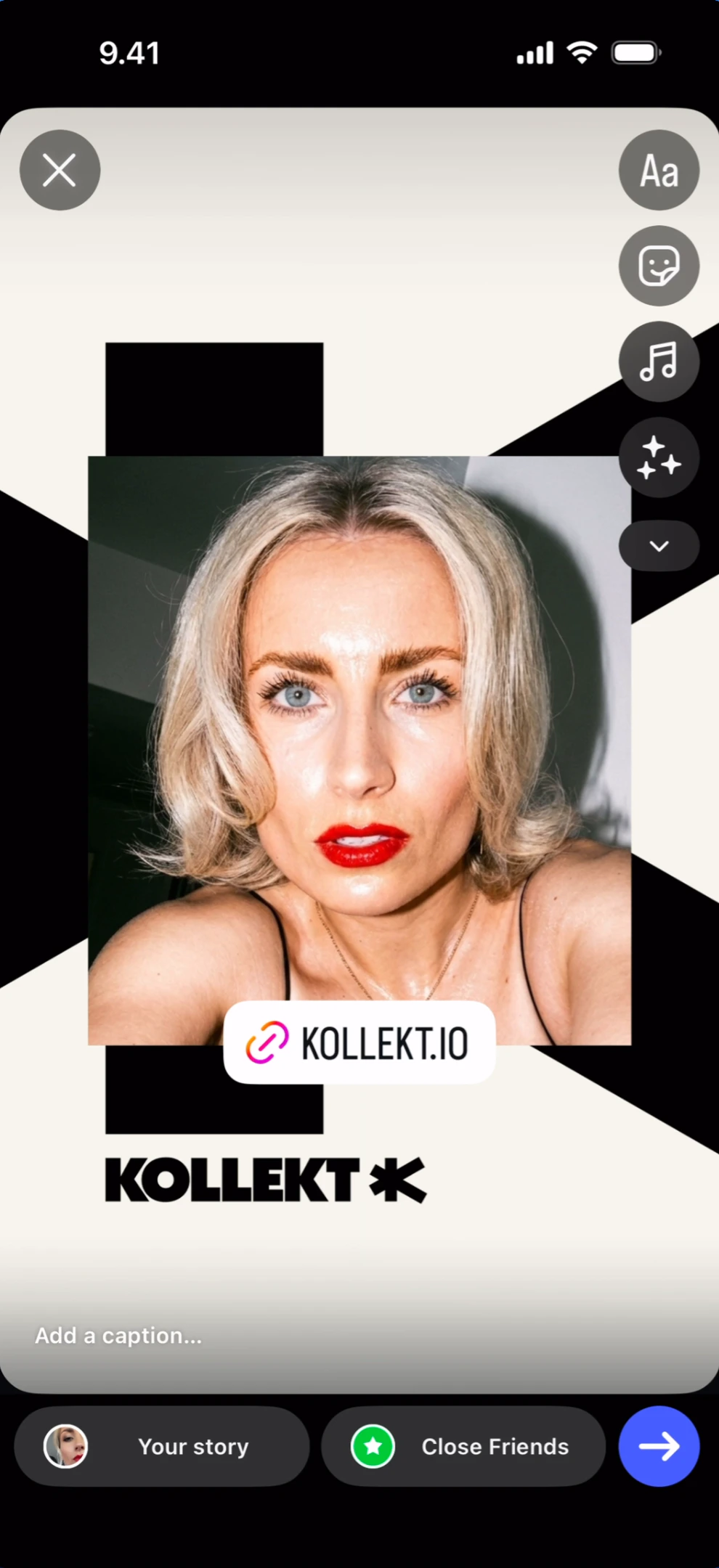
Final story with link sticker What you’ll see: Instagram Stories editor with the Kollekt Card displayed. A white link sticker reading ”🔗 KOLLEKT.IO” is placed over the artist photo. Top-right: text, sticker, effects, music, and more icons. Bottom: “Add a caption…” text field. Footer: “Your story” and “Close Friends” share targets with a blue arrow send button.

Known Limitations

  • The empty state “Find Yours” button and the side menu “Find yours” link appear to lead to the same search — the exact flow difference is not documented.
  • Custom links the artist adds (Merch, New songs) open in the browser, but the external browser view is not shown in the current screenshots.
  • The Subscribe button on artist cards in the feed is visible but the subscription flow from this entry point is not demonstrated — the subscribe modal is documented in the Chat and Direct Line docs.
  • The green checkmark on already-followed artists in search results is visible but not explicitly explained in the UI.
  • Profile editing (tapping the gear/Edit button) is not covered in this doc.