
Your Kollekt profile is how you show up inside artist communities — in chat, reactions, and member lists. When you first sign up, Kollekt gives you a temporary username like “kollektor123”. You can change your avatar, username, bio, and personal details at any time.

Edit Profile

Tap the gear/Edit button next to your profile on the home screen to open the Edit profile page.

Empty State

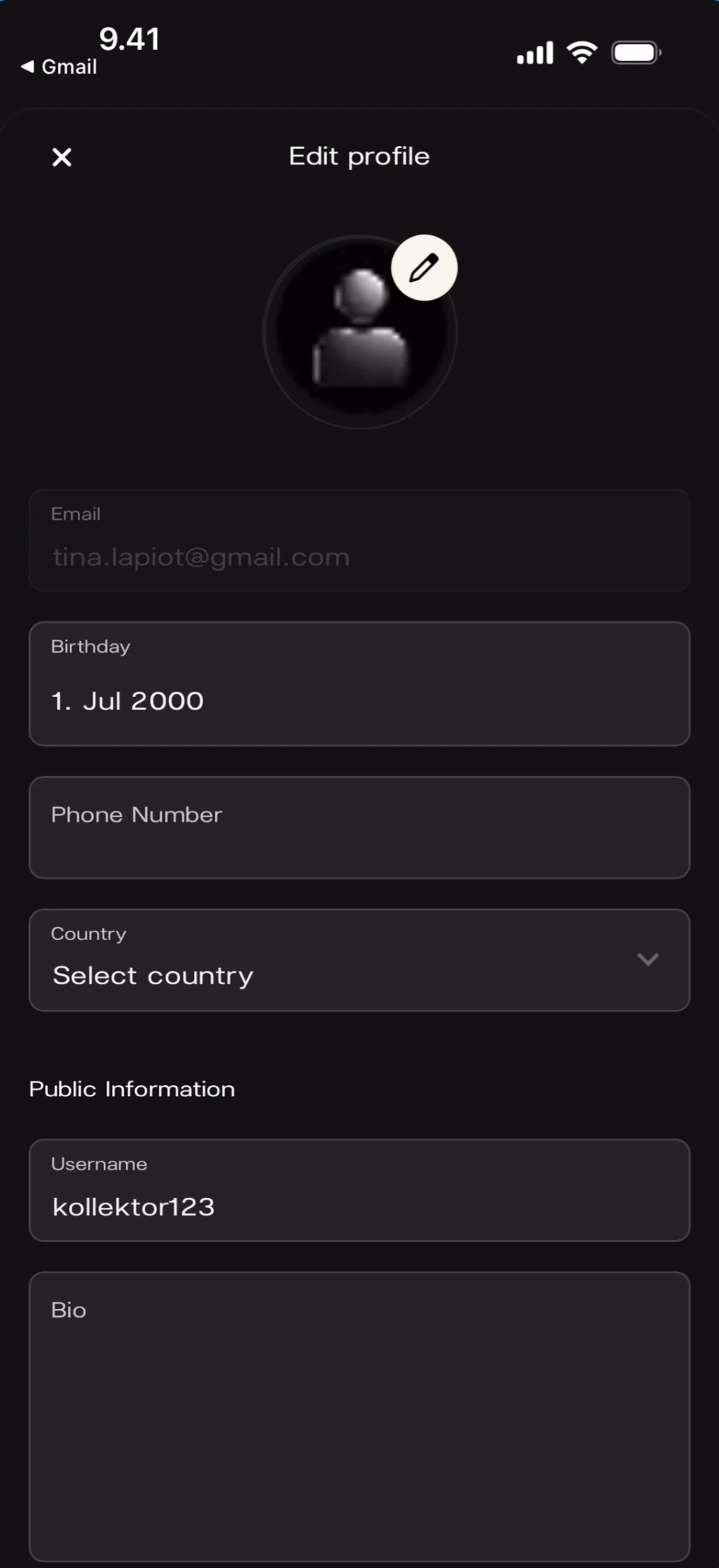
Edit profile — default state What you’ll see: Top bar: X close button (left) and “Edit profile” title (center). A default placeholder avatar with a pencil icon overlay. Below: Email field (read-only, showing “tina.lapiot@gmail.com”). Editable fields: Birthday (“1. Jul 2000”), Phone Number (empty), Country (“Select country” with dropdown arrow). Section header: “Public Information”. Fields: Username (“kollektor123”) and Bio (empty).

Avatar

Choosing a Photo

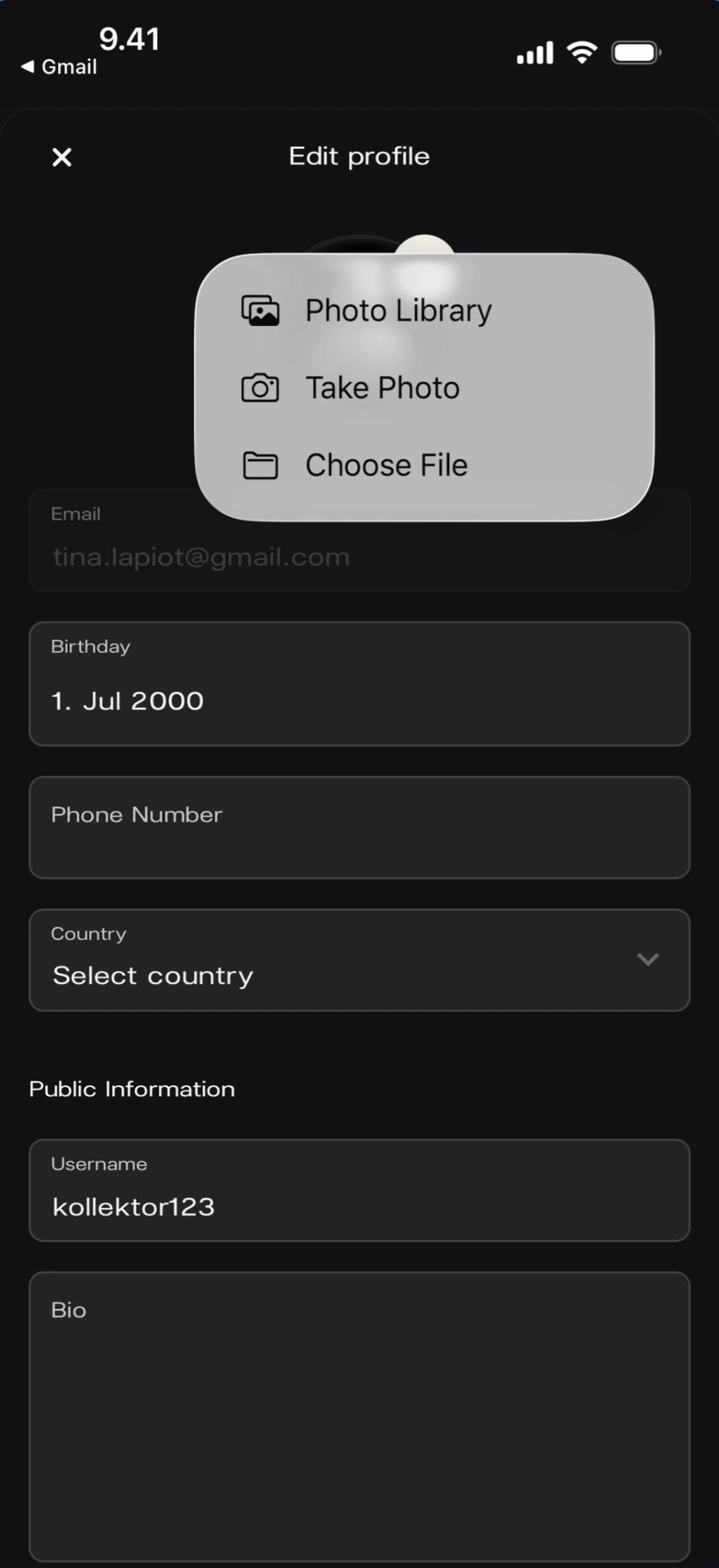
Tap the pencil icon on the avatar to open the photo source picker. Avatar photo source picker What you’ll see: The Edit profile page with a white popover appearing near the avatar. Three options: “Photo Library” (gallery icon), “Take Photo” (camera icon), and “Choose File” (folder icon). The profile fields are visible behind the popover.
Avatar Set

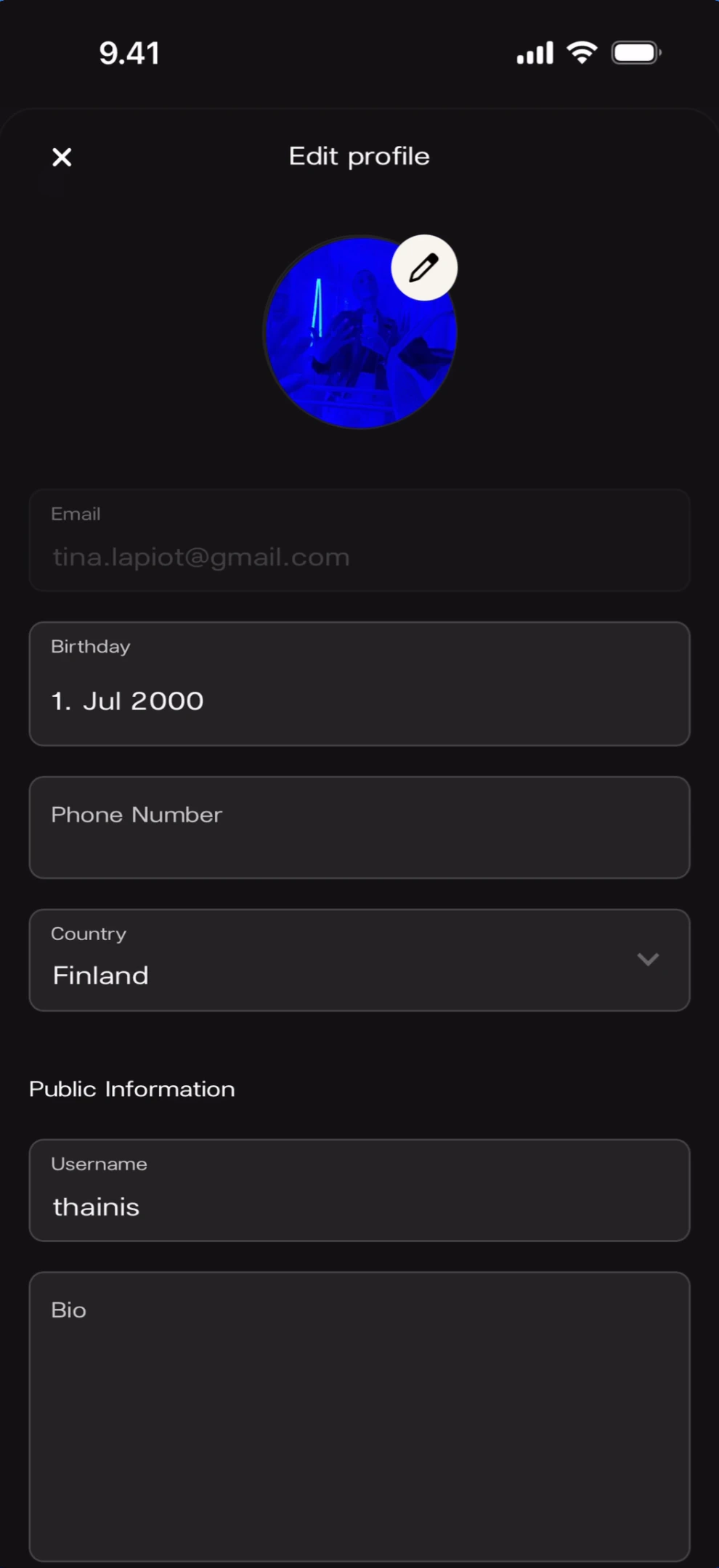
After selecting a photo, the avatar updates immediately on the Edit profile page. Avatar updated with custom photo What you’ll see: The Edit profile page with the avatar now showing a custom blue circular photo. The pencil icon remains on the avatar for future changes. Fields show: Email (“tina.lapiot@gmail.com”), Birthday (“1. Jul 2000”), Phone Number (empty), Country (“Finland”), Username (“thainis”), Bio (empty).
Personal Details

Username

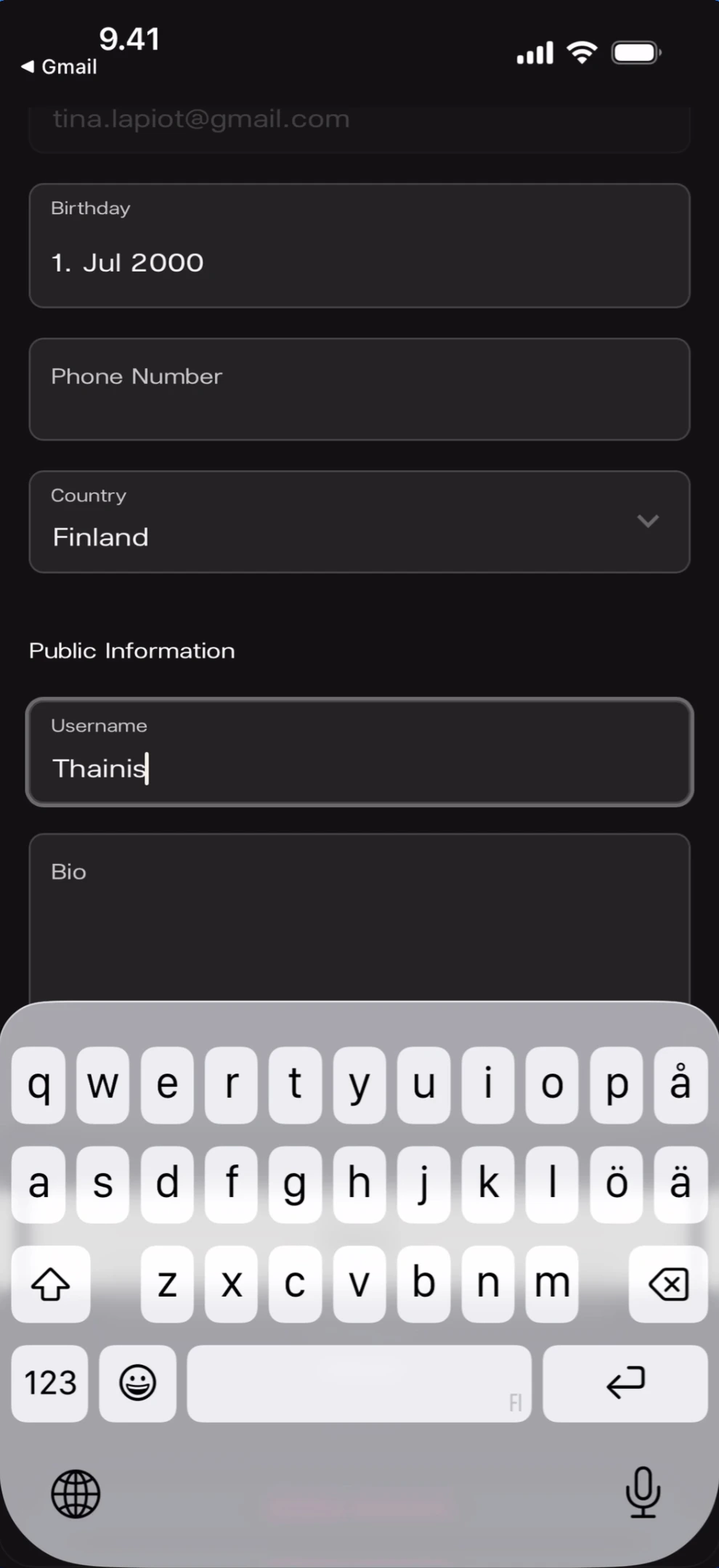
Tap the Username field under Public Information to type a new username. This is what other fans and artists see in chat and reactions. Typing a username What you’ll see: The profile page scrolled to show the fields. Email (greyed out), Birthday (“1. Jul 2000”), Phone Number (empty), Country (“Finland” with dropdown). Public Information section: Username field active with “Thainis” being typed (cursor visible). Bio field empty below. The keyboard is open.
Bio

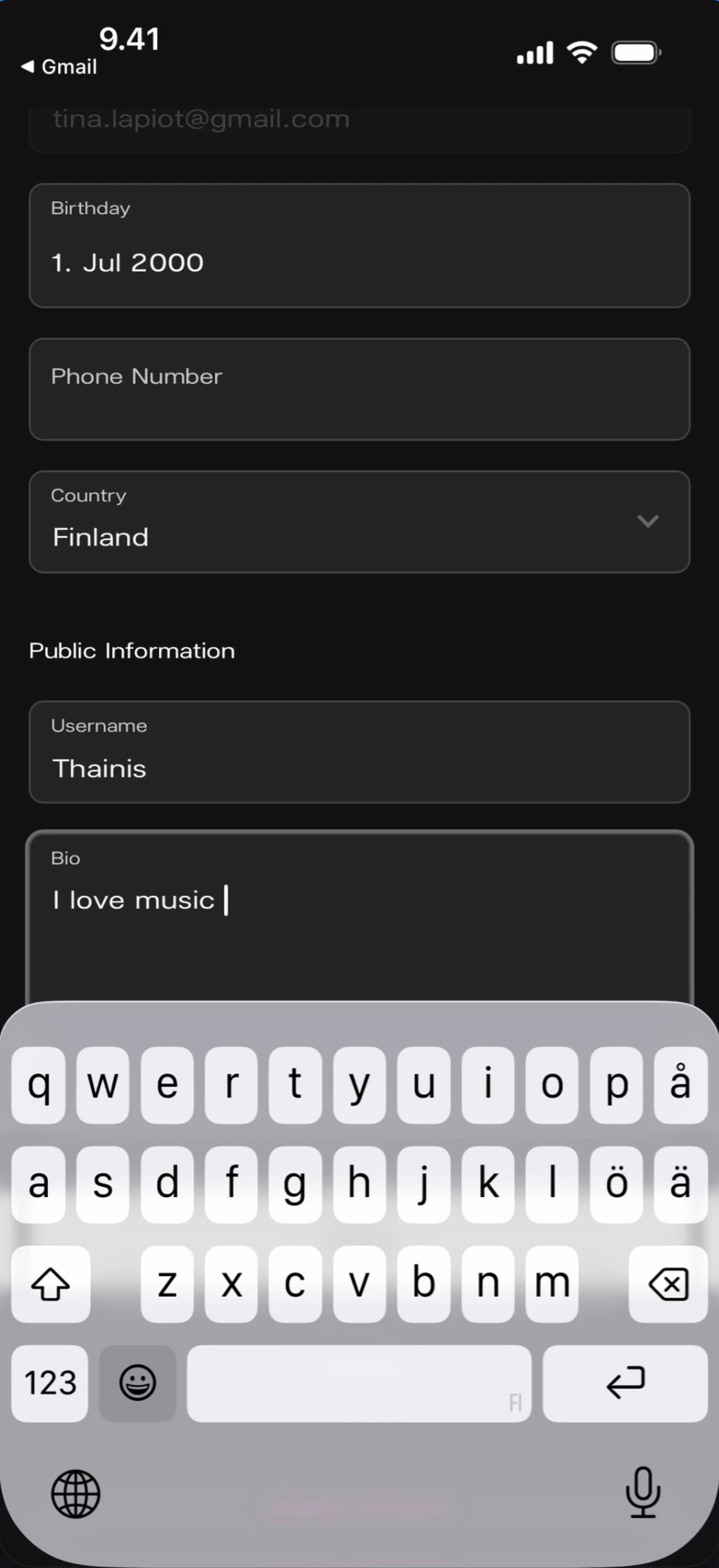
Tap the Bio field to add a short description about yourself. This appears on your profile card when other fans tap your name in chat. Typing a bio What you’ll see: The profile page scrolled to the same section. Username shows “Thainis” (saved). Bio field active with “I love music” being typed (cursor visible). The keyboard is open.
Phone Number

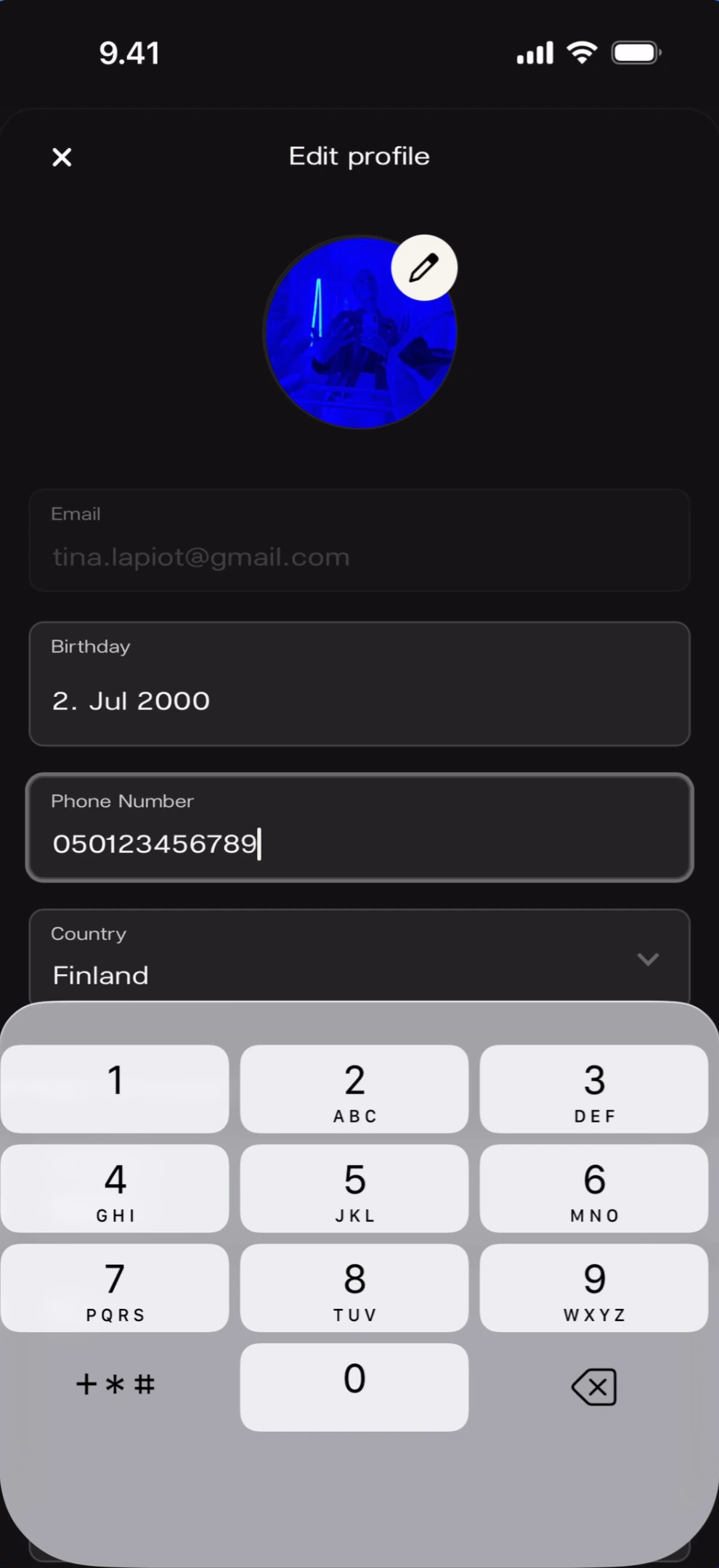
Tap the Phone Number field to add your phone number. Typing a phone number What you’ll see: The Edit profile page with avatar (blue custom photo) and pencil icon. Email (greyed out), Birthday (“2. Jul 2000”). Phone Number field active with “050123456789” being typed (cursor visible). Country (“Finland”). The numeric keyboard is open.
Birthday

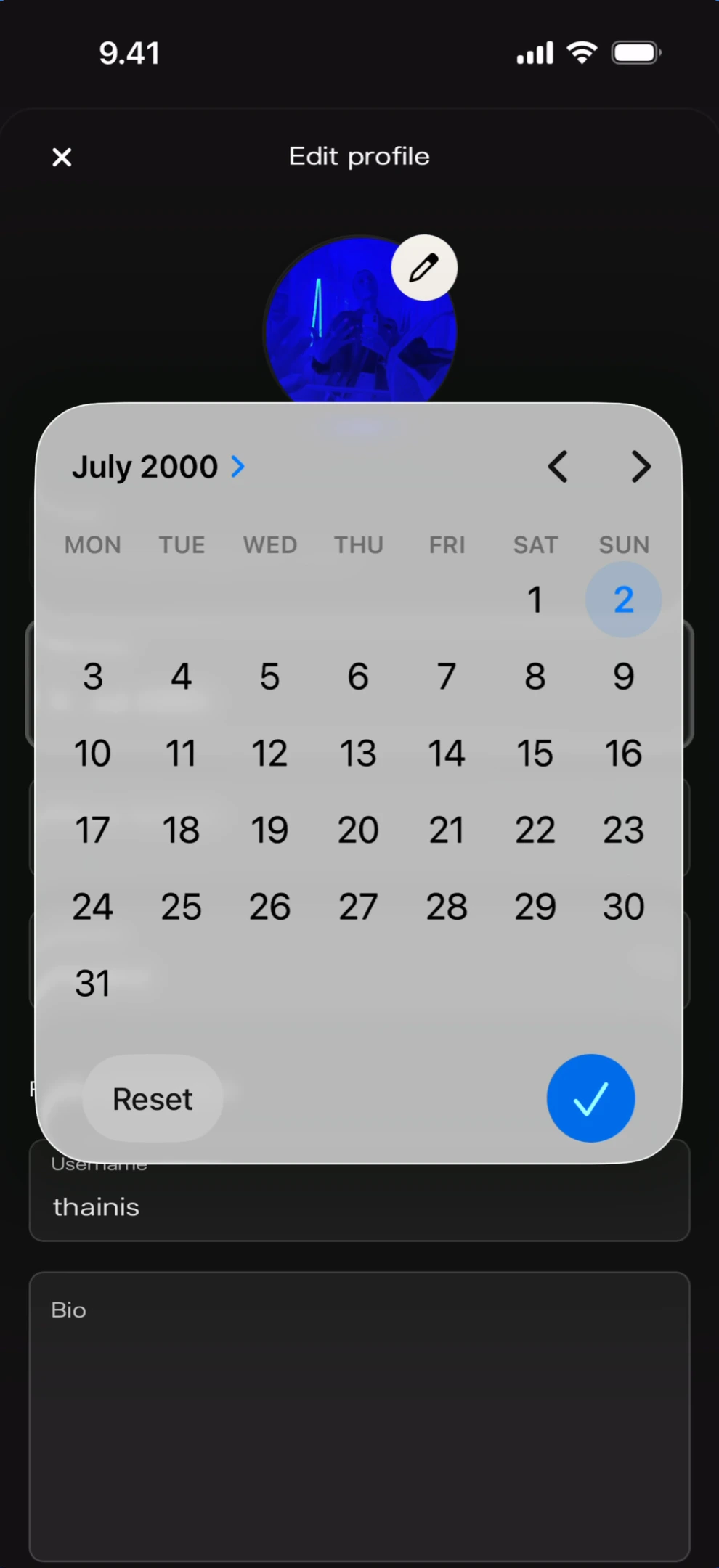
Tap the Birthday field to open a calendar date picker. Birthday calendar picker What you’ll see: The Edit profile page with a calendar overlay. Header: “July 2000 >” with left/right navigation arrows. A full month grid (MON–SUN) with the 2nd highlighted in blue (selected date). Bottom of the calendar: “Reset” button (left) and a blue checkmark confirm button (right). Below the calendar: Username (“thainis”) and Bio fields are partially visible.
Country

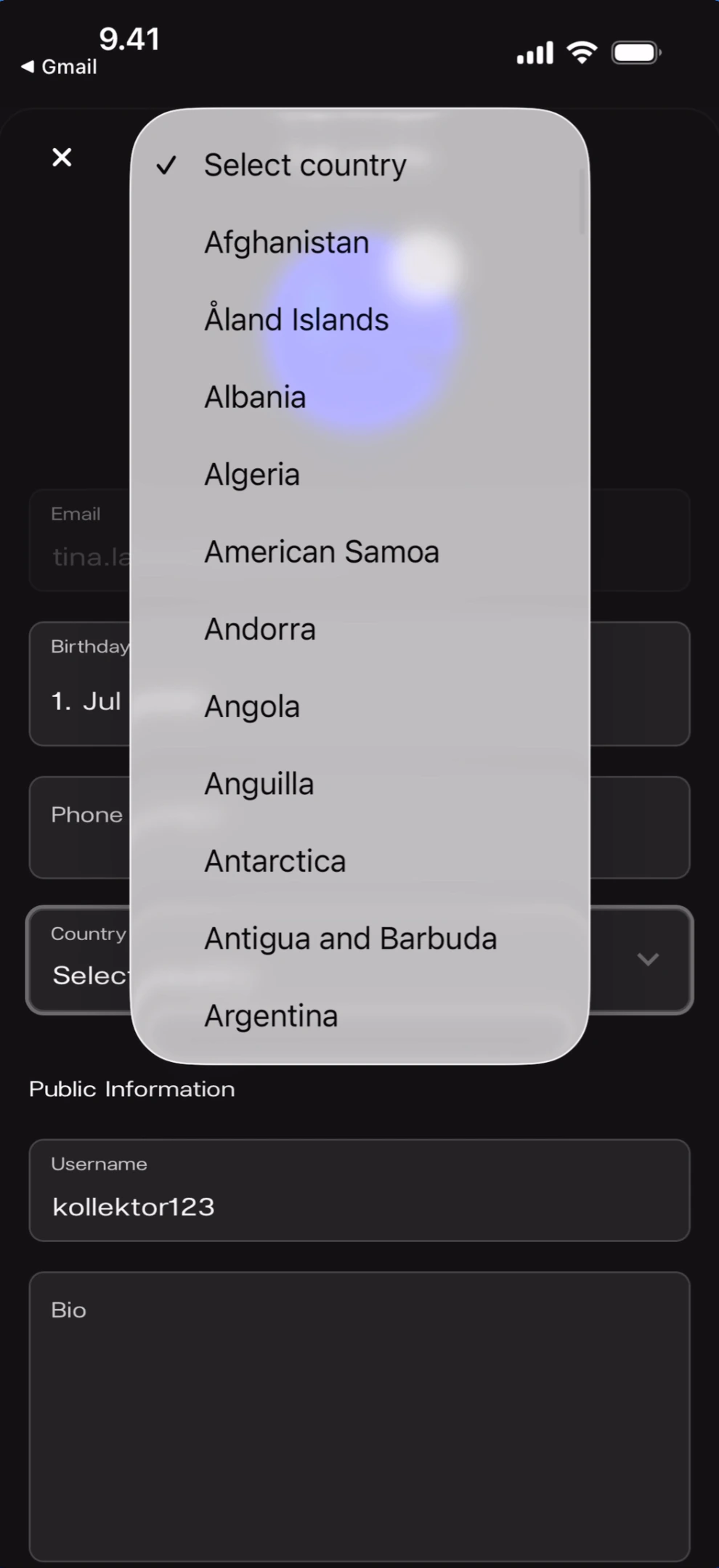
Tap the Country field to open a dropdown list of countries. Country picker dropdown What you’ll see: The Edit profile page with a white dropdown overlay showing a scrollable list of countries. Top: ”✓ Select country” (default/no selection). Countries listed alphabetically: Afghanistan, Åland Islands, Albania, Algeria, American Samoa, Andorra, Angola, Anguilla, Antarctica, Antigua and Barbuda, Argentina. The profile fields are partially visible behind the dropdown.
Saving Changes

Completed Profile

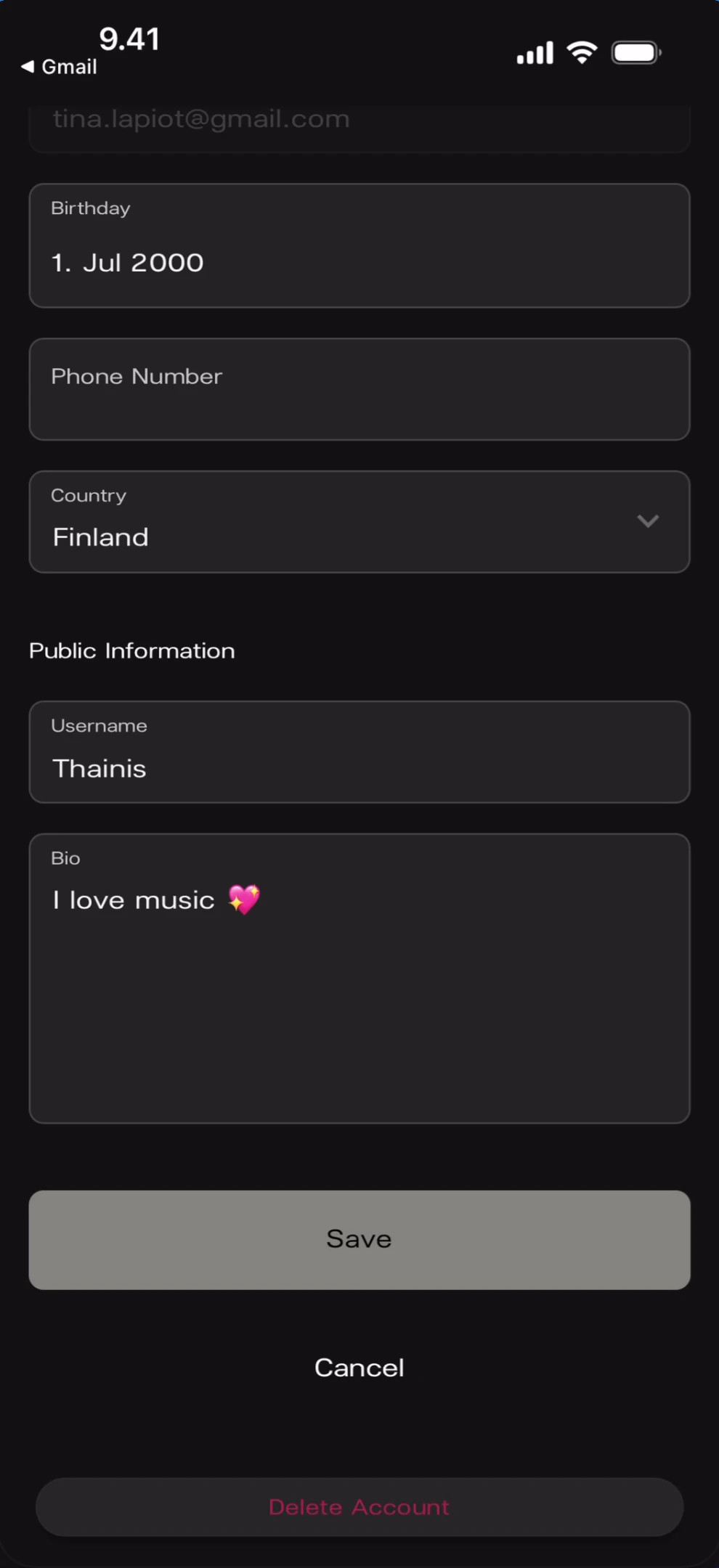
After filling in all fields, the bottom of the Edit profile page shows action buttons. Completed profile form What you’ll see: The profile page scrolled to the bottom. Fields visible: Email (greyed out), Birthday (“1. Jul 2000”), Phone Number (empty), Country (“Finland” with dropdown). Public Information: Username (“Thainis”), Bio (“I love music 💖”). Three buttons at the bottom: “Save” (cream/light button), “Cancel” (text link), and “Delete Account” (red text link at the very bottom).
Save Confirmation

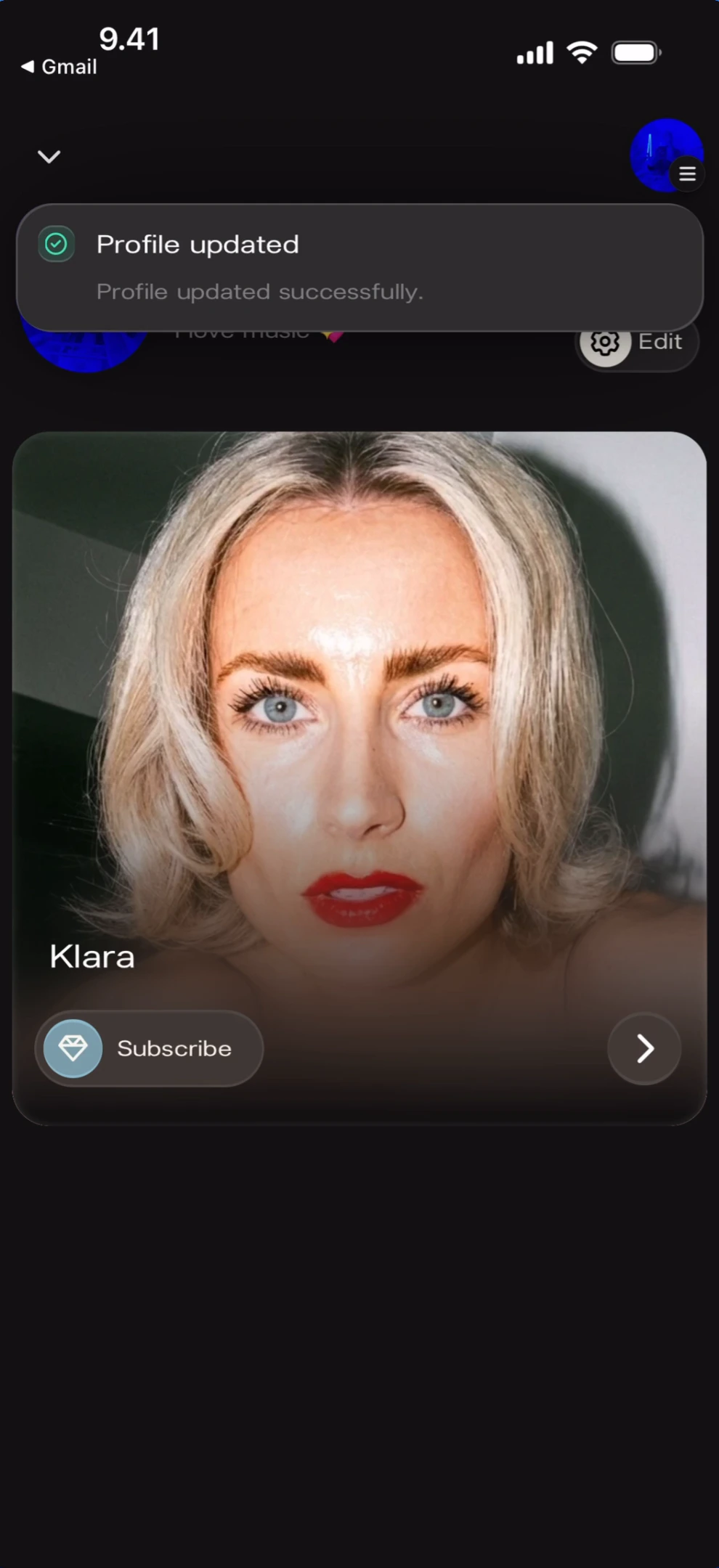
After tapping Save, a success toast appears on the home screen. Profile updated toast What you’ll see: The fan home screen with a green success banner at the top: “Profile updated” with subtitle “Profile updated successfully.” Your profile section is visible below (partially obscured) with the gear/Edit button. The Klara artist card with Subscribe button and right arrow is shown below.
Deleting Your Account

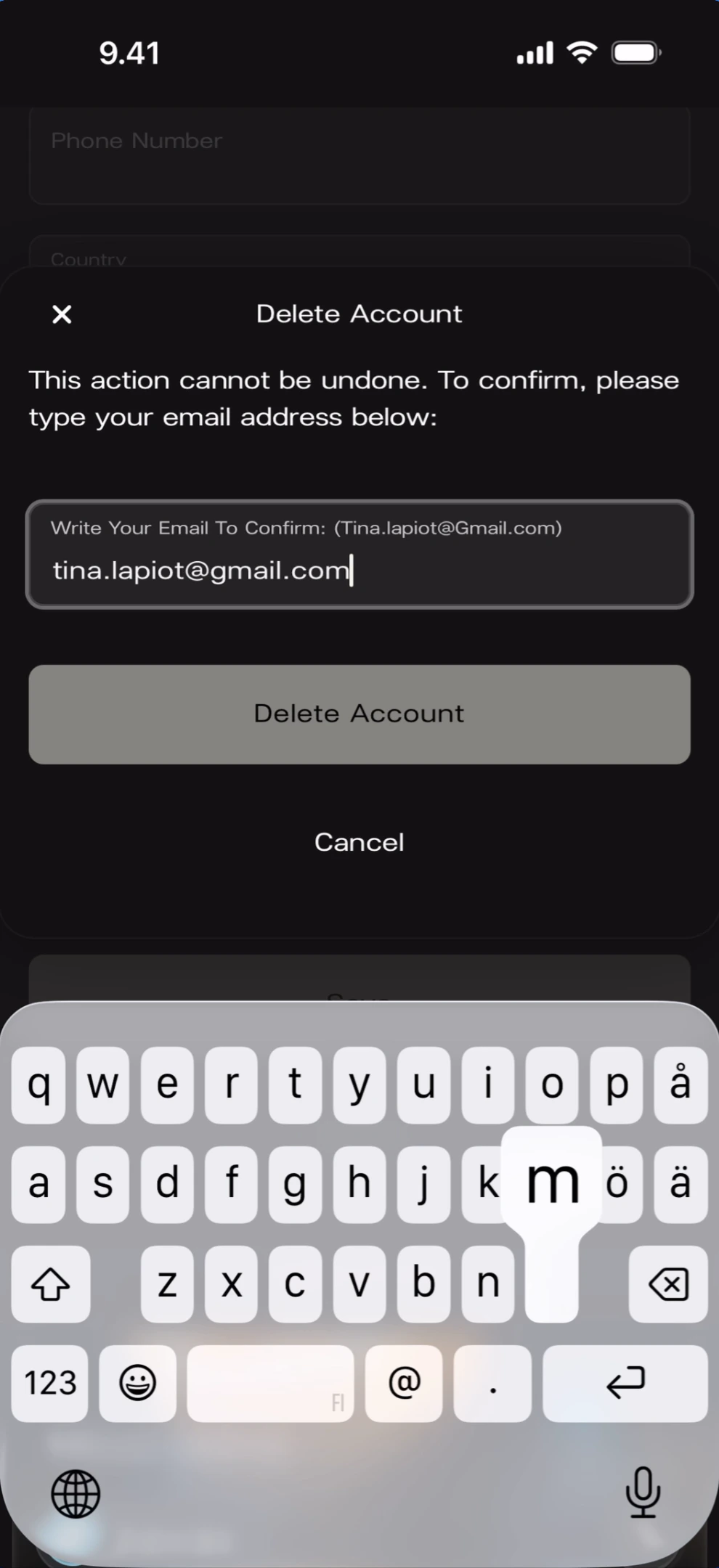
Tap Delete Account (red text) at the bottom of the Edit profile page. A confirmation dialog appears requiring you to type your email address to confirm.

Confirmation Dialog

Delete account confirmation What you’ll see: A white modal over the Edit profile page. X close button (left) and title “Delete Account”. Warning text: “This action cannot be undone. To confirm, please type your email address below:” An input field with placeholder: “Write Your Email To Confirm: (Tina.lapiot@Gmail.com)” showing tina.lapiot@gmail.com typed. A cream “Delete Account” button and “Cancel” text link below. The keyboard is open.

Deleting State

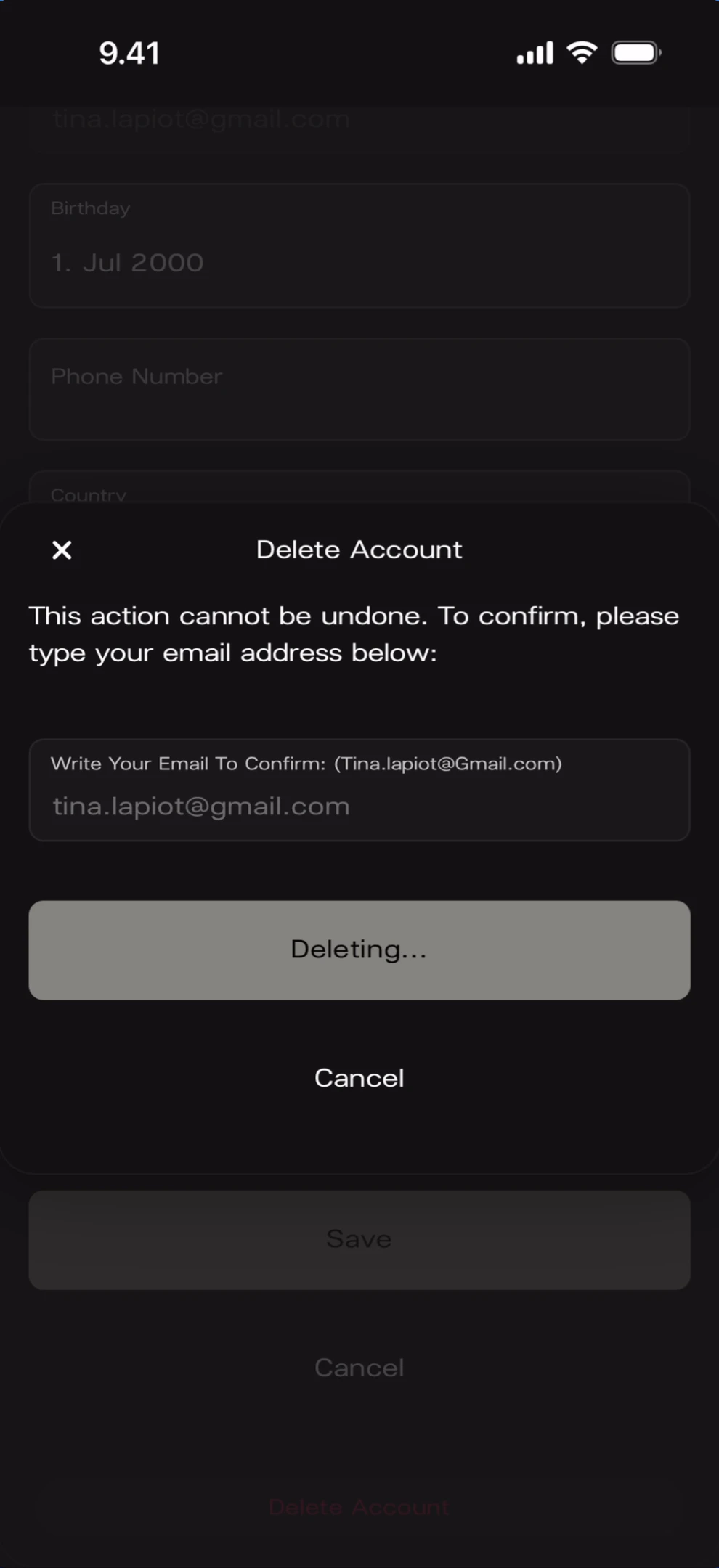
After tapping Delete Account with the correct email entered, the deletion process begins. Account deletion in progress What you’ll see: The same Delete Account modal. The email field shows “tina.lapiot@gmail.com”. The button now reads “Deleting…” (loading state). “Cancel” text link below. Behind the modal: the Edit profile page with Save and Cancel buttons partially visible.
Known Limitations

  • The Email field is read-only — there is no way to change your email address from the Edit profile page.
  • The phone number field does not show a country code selector — it accepts raw number input.
  • Profile photo changes appear to take effect immediately on the Edit profile page, but it’s unclear whether they require tapping Save to persist.
  • What happens after account deletion completes (redirect to welcome screen, logout, etc.) is not shown in the screenshots.
  • The Bio field does not show a character limit in the UI.