
Live group chat inside every artist’s Kollekt page. Read messages, react, reply, and talk with other fans and the artist. Available to all followers — subscribers unlock extra perks like sending images and accessing sub-only chat rooms.

Before Joining

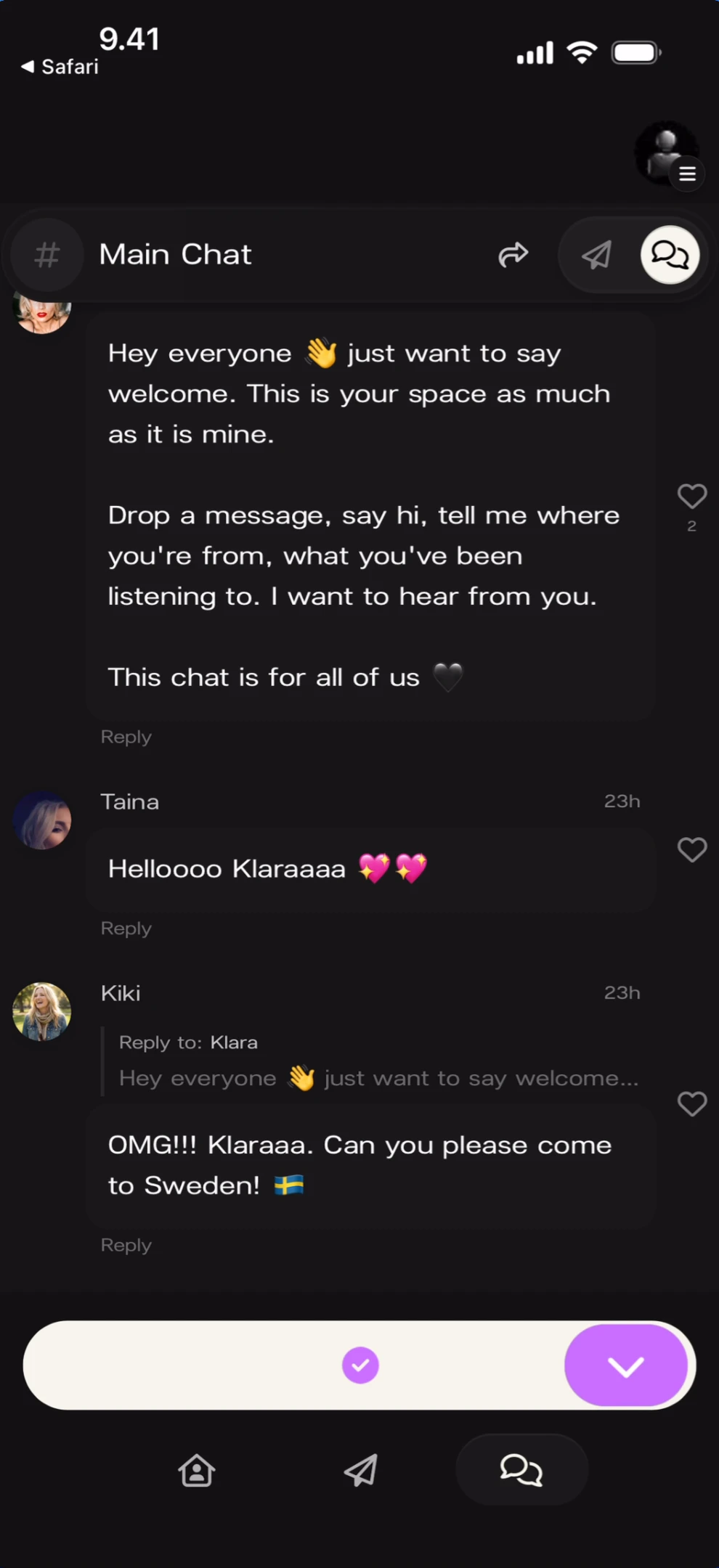
When you first land on the Chat tab, you can see messages from the artist and other fans but you haven’t joined the conversation yet. A join button appears at the bottom instead of the message composer. Chat feed before joining What you’ll see: Top-left: ”< Safari” back link. Header: ”# Main Chat” with share, send, and members icons. The artist’s welcome message from “Klara” is visible: “Hey everyone 👋 just want to say welcome. This is your space as much as it is mine…” Messages from “Taina” (“Helloooo Klaraaaa 💖💛”) and “Kiki” (threaded reply: “OMG!!! Klaraaa. Can you please come to Sweden! 🇸🇪”). Bottom: a purple checkmark join button and a blue arrow button instead of the message composer.
Community Activity Before Joining

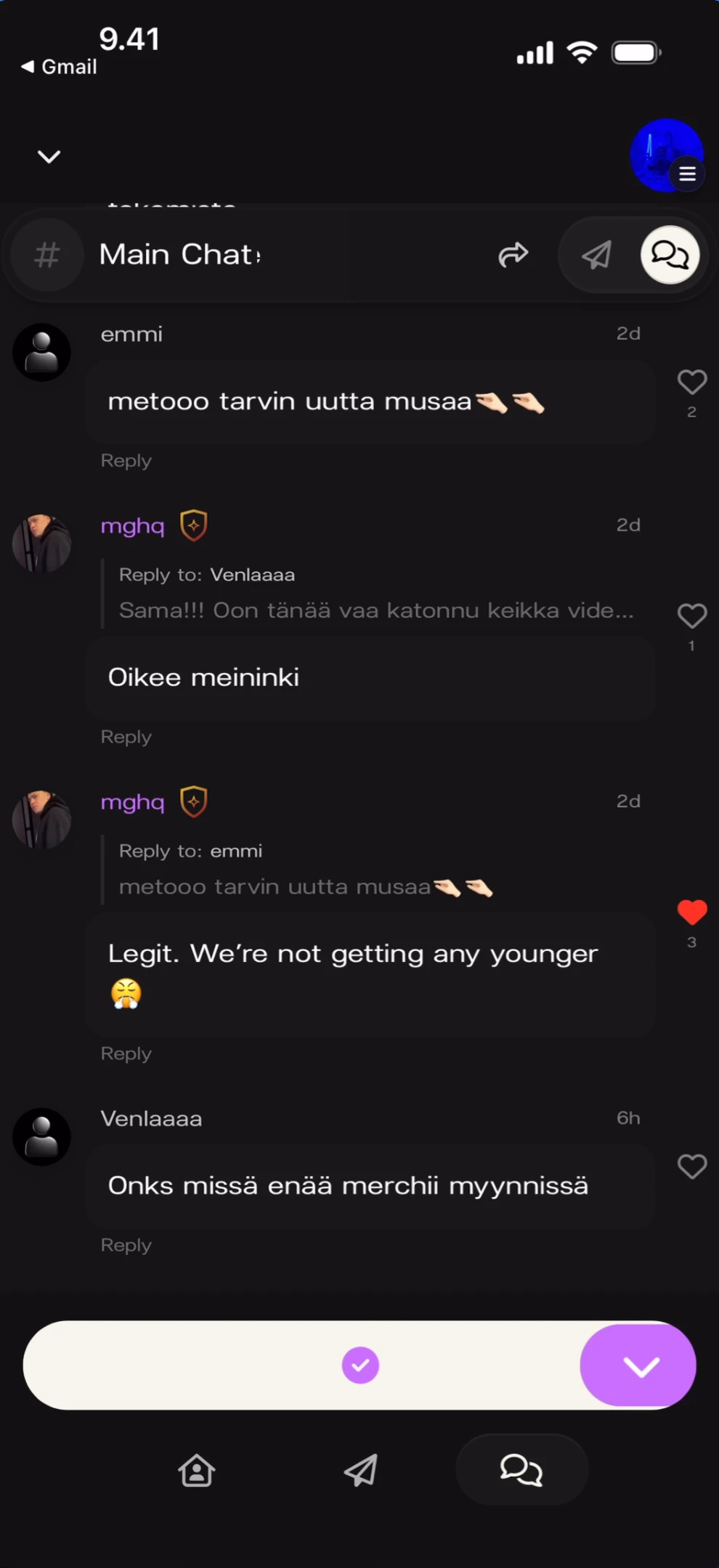
Scrolling through the chat before joining shows the existing community conversation — threaded replies, reactions, and fan-to-fan messages are all visible. Community comments visible before joining What you’ll see: Top-left: ”< Gmail” back link. Header: ”# Main Chat ∨” with dropdown arrow. Multiple fan messages: “emmi” (“metooo tarvin uutta musaa 🤝🤝”), “mghq” (gold shield badge, threaded reply to Venlaaaa: “Oikee meininki”), another “mghq” reply to emmi: “Legit. We’re not getting any younger 🤦” with a red filled heart. “Venlaaaa” asking “Onks missä enää merchii myynnissä”. Bottom: purple checkmark and blue arrow buttons (not yet joined).
After Joining

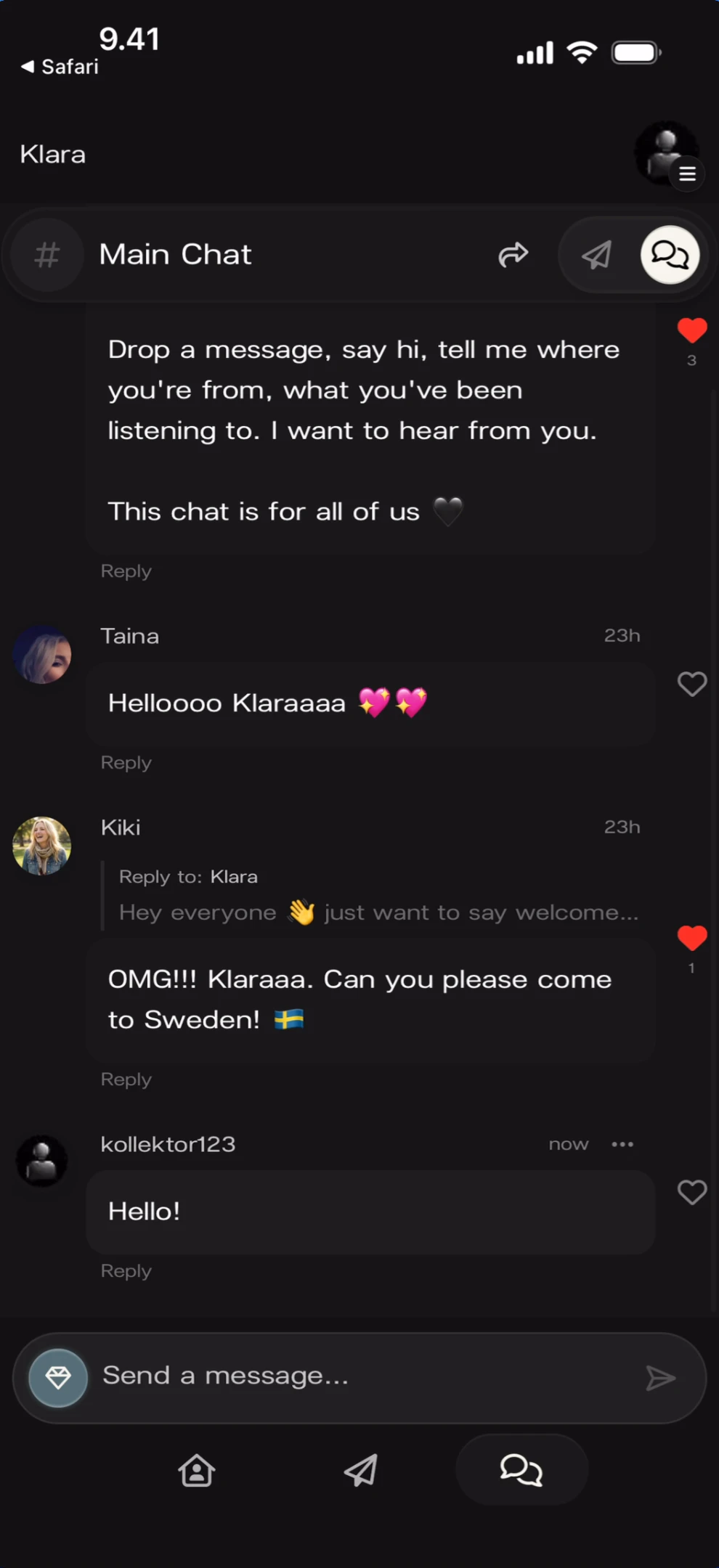
Once you join, the message composer appears at the bottom and you can participate fully. Chat feed after joining What you’ll see: Top-left: “Klara” artist name. Header: ”# Main Chat” with share, send, and members icons. The feed shows the artist’s welcome message, “Taina” and “Kiki” messages, and a new message from “kollektor123” (now) saying “Hello!” with a ”···” menu and heart icon. Bottom: message input with emoji icon, “Send a message…” placeholder, and send arrow.
Sending Messages

Typing a Message

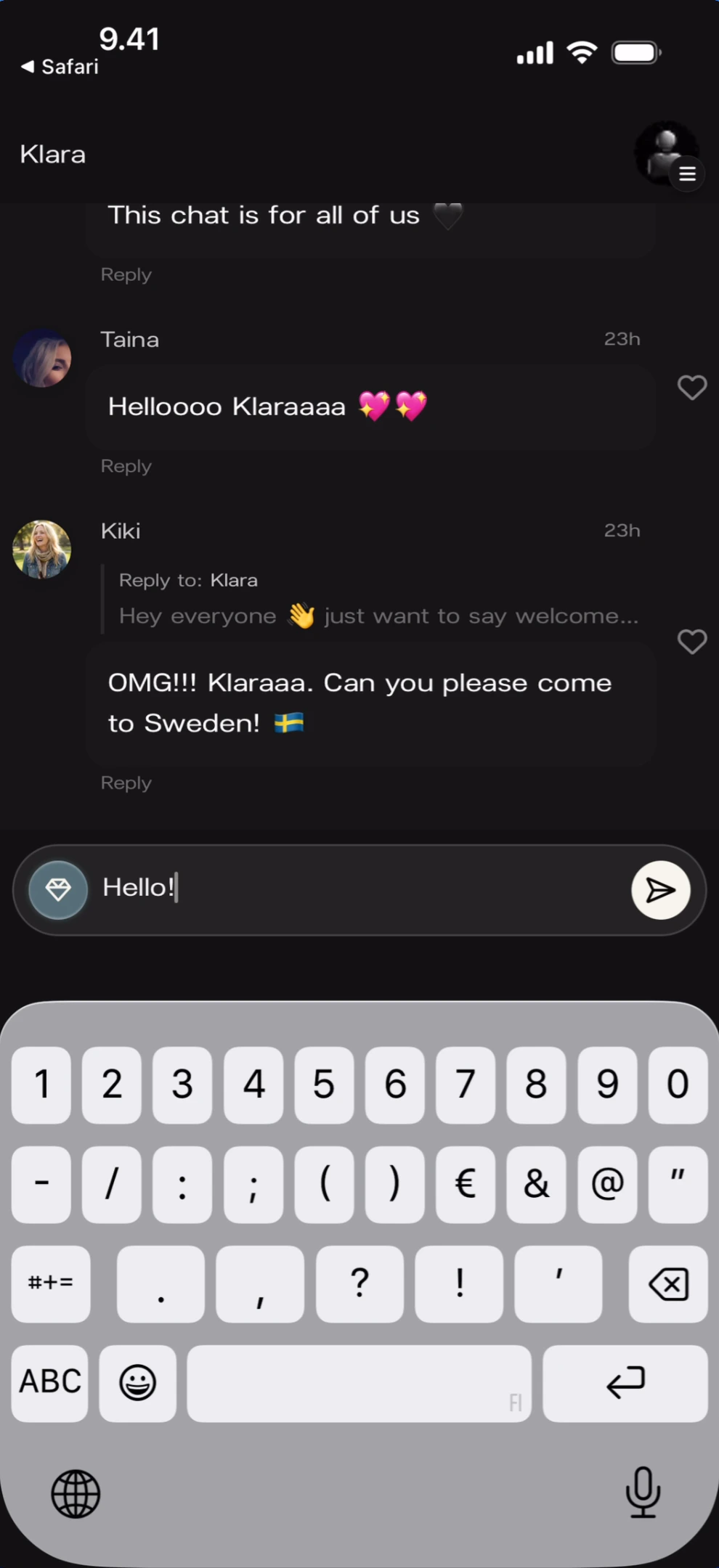
Tap the Send a message… input bar. The keyboard opens and you can type your message. Tap the send arrow to post it. Composer with keyboard open What you’ll see: The chat feed is pushed up by the keyboard. The input field shows “Hello!” being typed with a purple send arrow button on the right. The keyboard is open (number/symbol layout visible). Messages from Taina, Kiki (threaded reply), and the artist’s welcome message are visible above.
Attachment Button

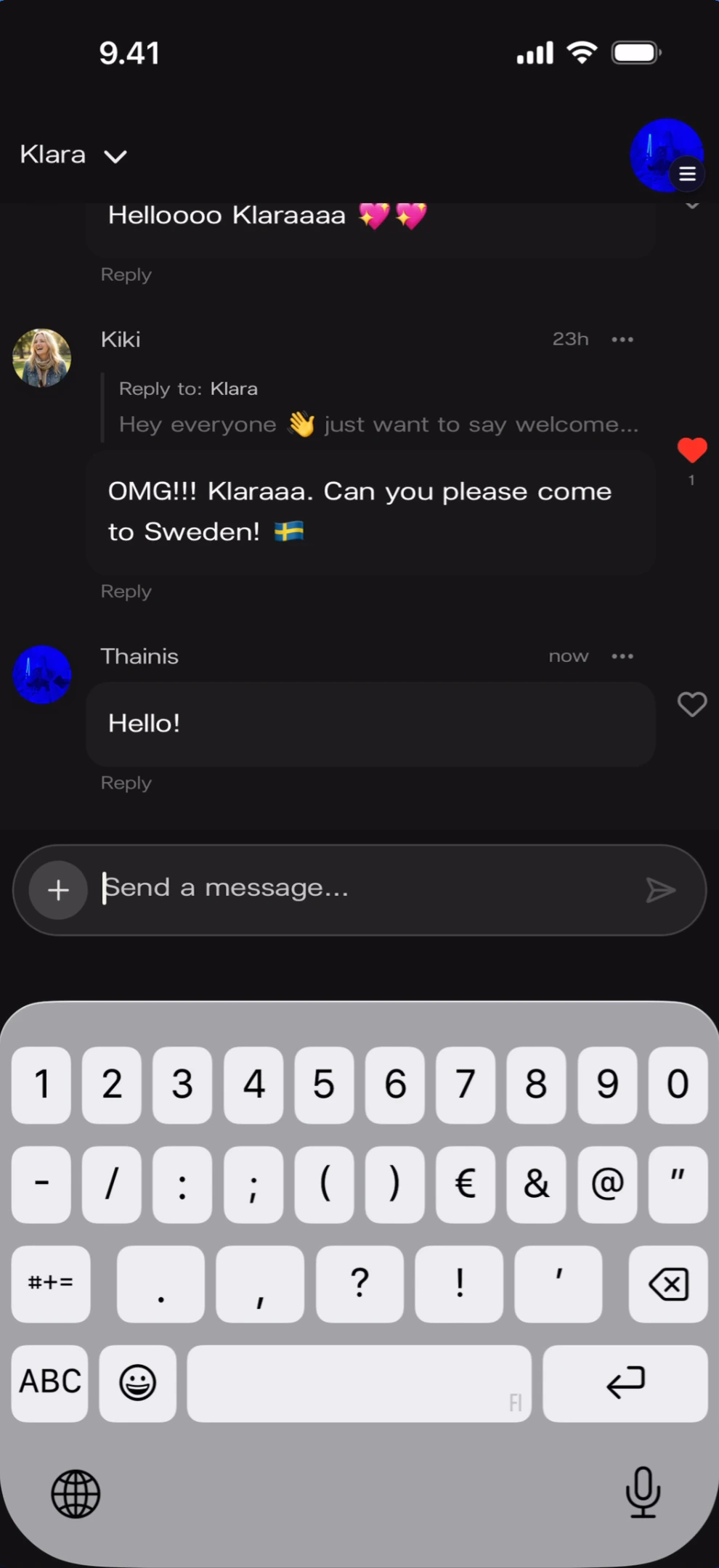
Tap the + button to the left of the message input to access attachment options. Composer with attachment button What you’ll see: Top-left: “Klara ∨” with dropdown. Messages from Kiki (threaded reply with red heart) and “Thainis” (now, “Hello!”) visible. Bottom: + button on the left, “Send a message…” input, and send arrow. The keyboard is open (number/symbol layout).
Message Interactions

Heart Reactions

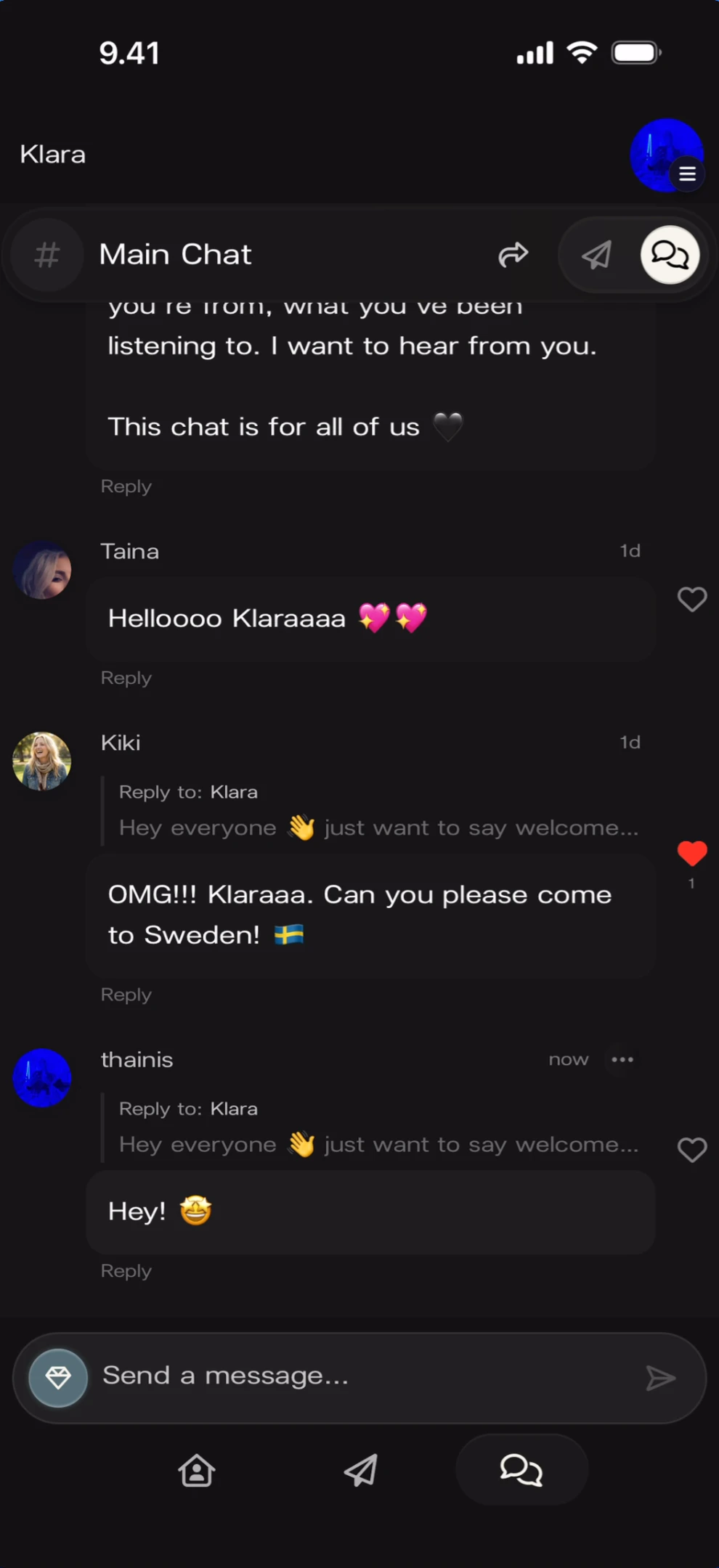
Tap the heart icon next to any message to react. A filled red heart replaces the outline heart. Heart reaction on a message What you’ll see: The chat feed showing the artist’s welcome message, “Taina” (“Helloooo Klaraaaa 💖💛”), and “Kiki” (threaded reply with a filled red heart). A message from “thainis” (now) with ”···” menu shows a threaded reply to Klara: “Hey! 😁” with an empty heart icon. Bottom: emoji icon, “Send a message…” input, and send arrow.
Threaded Replies

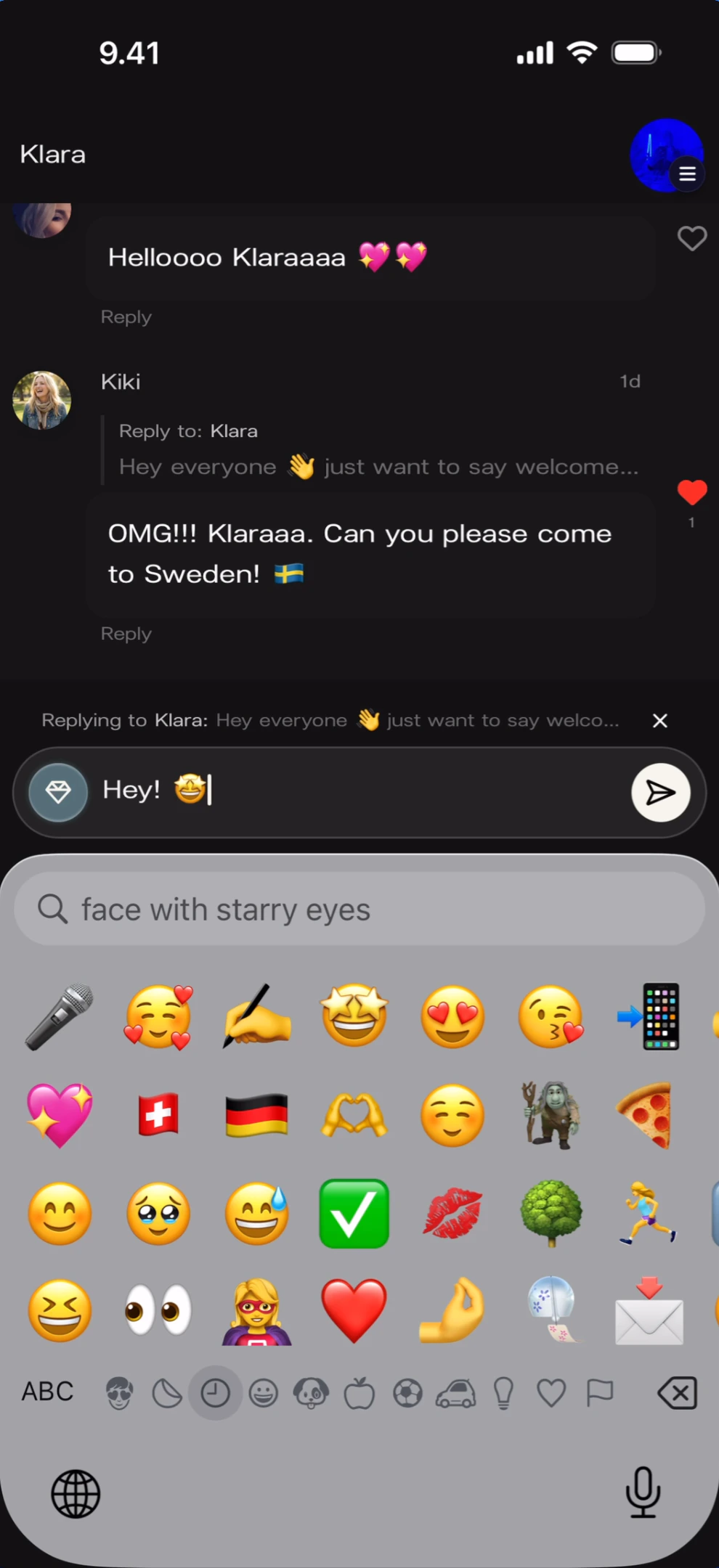
Tap Reply under any message to respond directly. Your reply appears in a thread below the original message. Reply composer with emoji picker What you’ll see: The reply bar above the input shows: “Replying to Klara: Hey everyone 👋 just want to say welco…” with an X close button. The input field shows “Hey! 🤩” being typed with an emoji sticker icon and purple send arrow. The emoji keyboard is open showing a search field (“Q face with starry eyes”) and a grid of emoji. Messages from Taina and Kiki are visible above.
Managing Messages

Deleting Your Own Messages

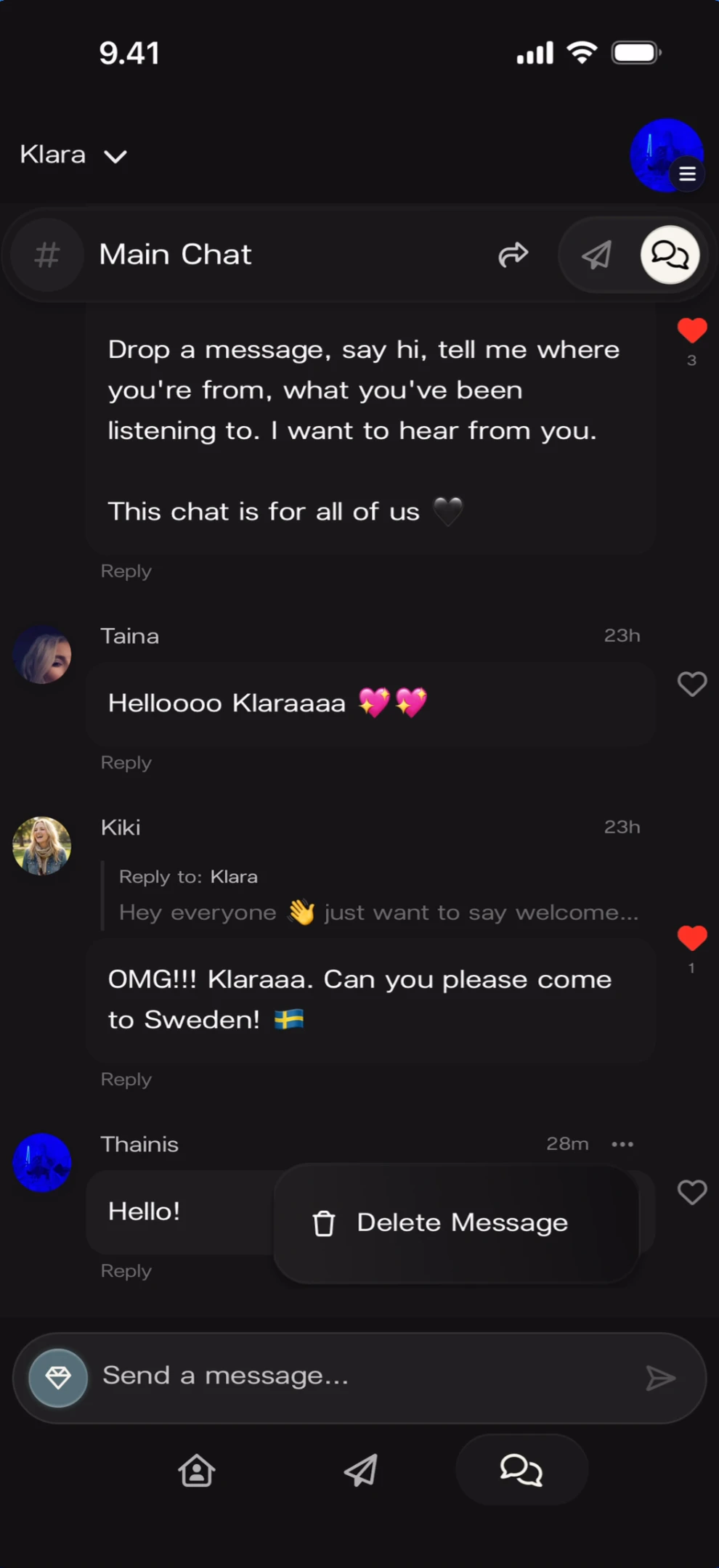
Tap the ··· (three-dot menu) on your own message to reveal the Delete Message option. Delete own message popup What you’ll see: The chat feed with the artist’s welcome message, “Taina”, “Kiki” (threaded reply), and “Thainis” (28m ago, “Hello!”). A popup appears next to the Thainis message showing a “Delete Message” button with a trash icon. Bottom: emoji icon, “Send a message…” input, and send arrow.
Moderator Message Deletion

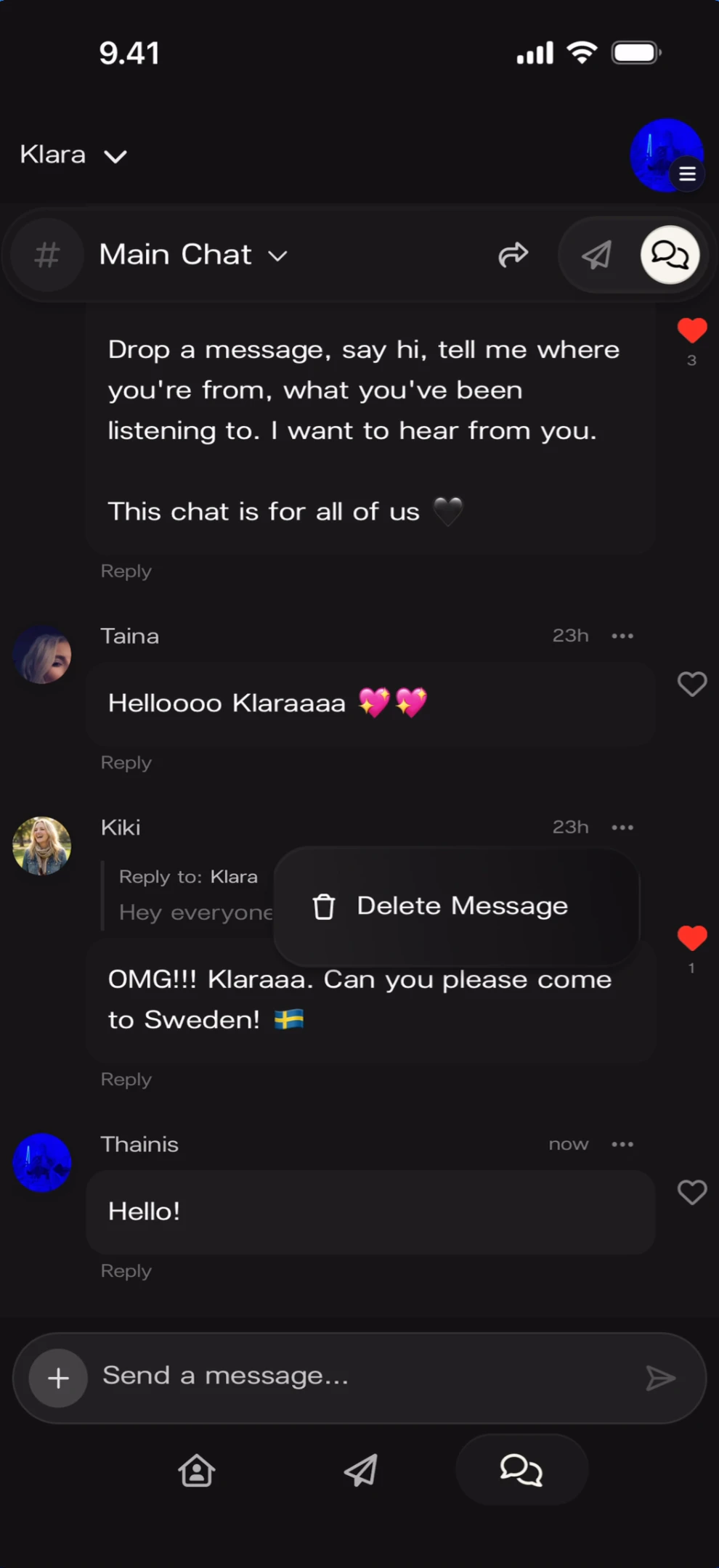
Moderators (users with a gold shield badge) can delete other fans’ messages. When a moderator taps the ··· menu on another user’s message, they see the same Delete Message option. Moderator deleting another user's message What you’ll see: The chat feed with the artist’s welcome message, “Taina”, and “Kiki” (threaded reply with red heart). A popup appears next to Kiki’s message showing “Delete Message” with a trash icon. “Thainis” (now, “Hello!”) is visible below with a heart icon. Bottom: + button, “Send a message…” input, and send arrow.
Member Profiles

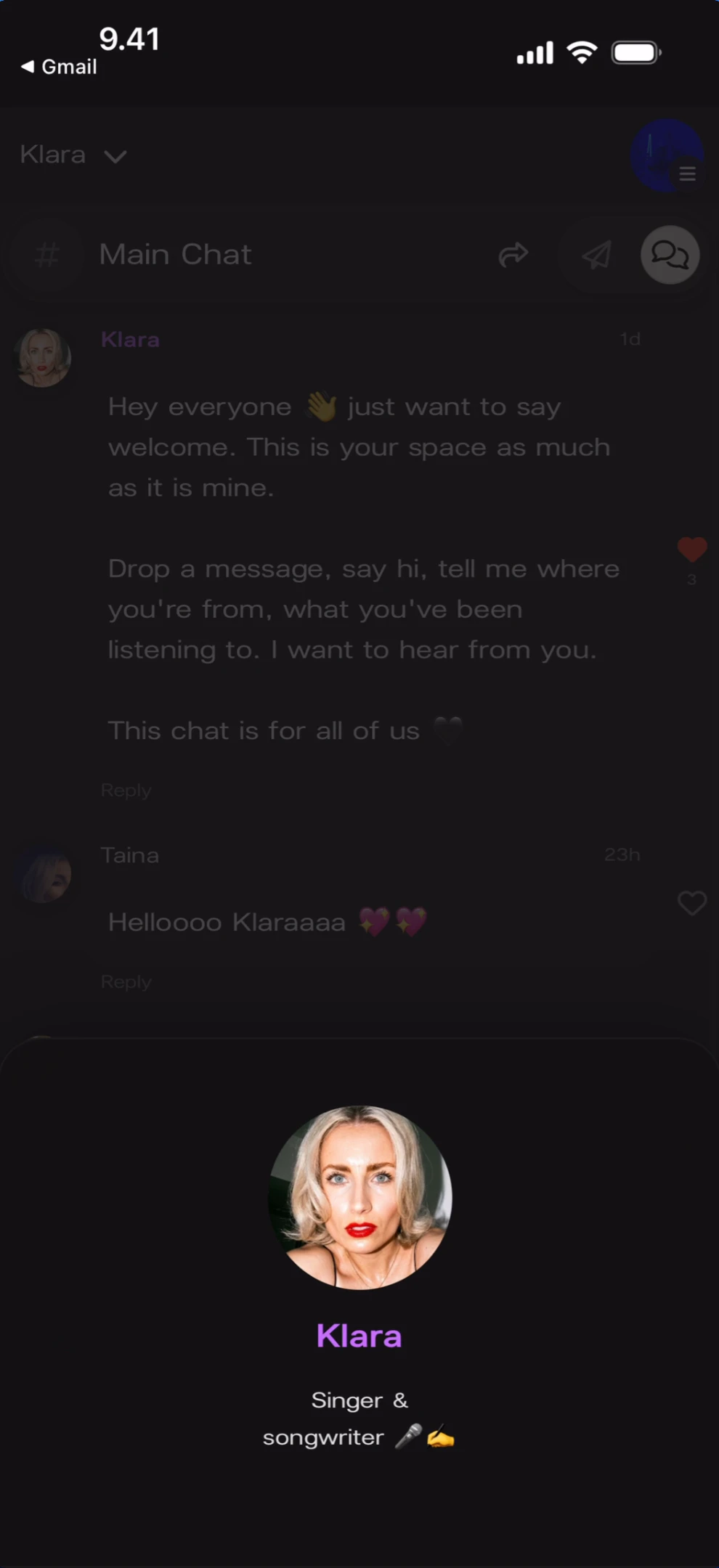
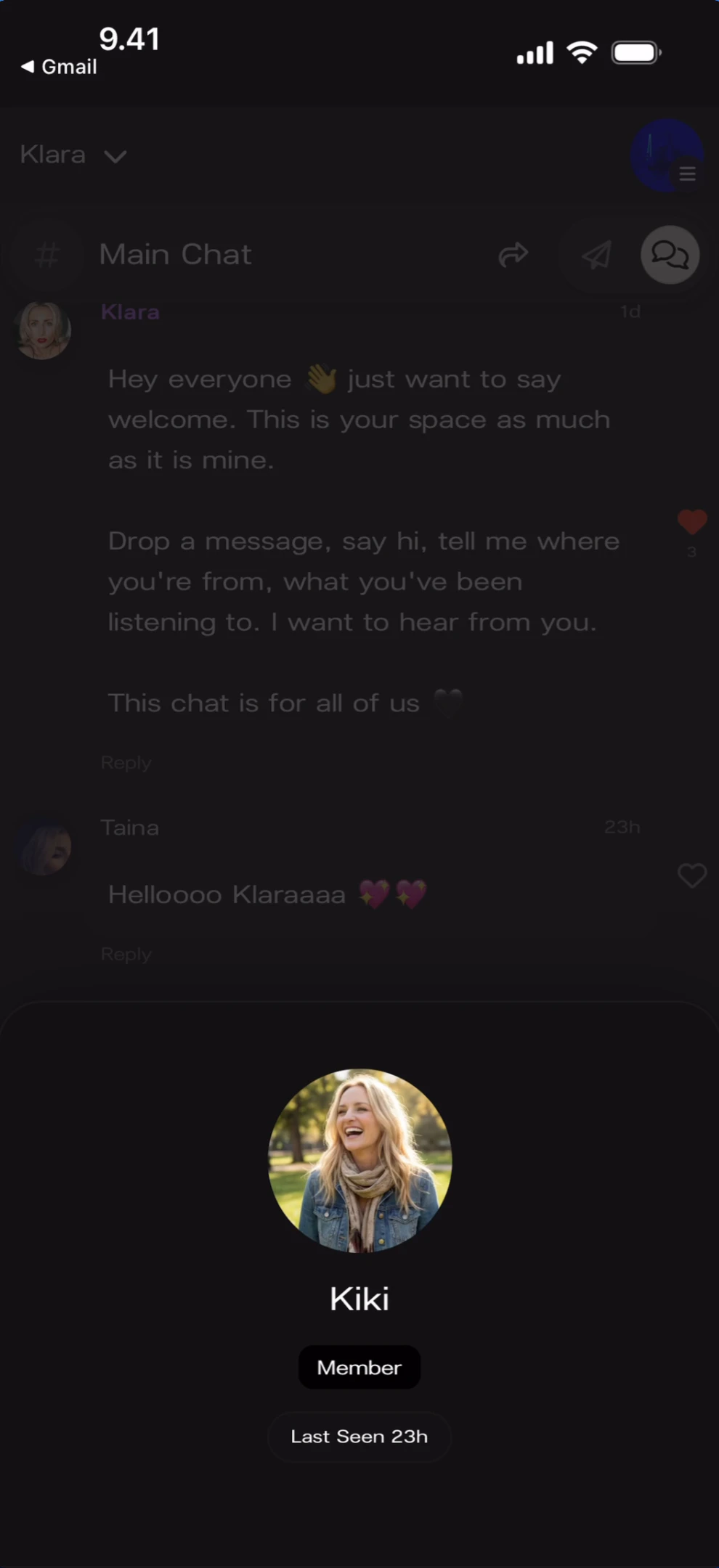
Tap any user’s name or avatar in the chat to view their profile card. The card appears as a bottom overlay showing the member’s details.

Artist Profile

Artist profile card What you’ll see: The chat feed is dimmed behind a bottom overlay. The profile card shows: large circular avatar of “Klara”, the name “Klara”, and subtitle “Singer & songwriter 🎤 ☁️”. No role badge is shown — the artist is identified by their name and bio. The chat messages are partially visible behind the overlay.

Member Profile

Member profile card What you’ll see: The chat feed dimmed behind a bottom overlay. The profile card shows: large circular avatar, name “Kiki”, a dark “Member” badge pill below the name, and “Last Seen 23h” timestamp.

Member with Bio

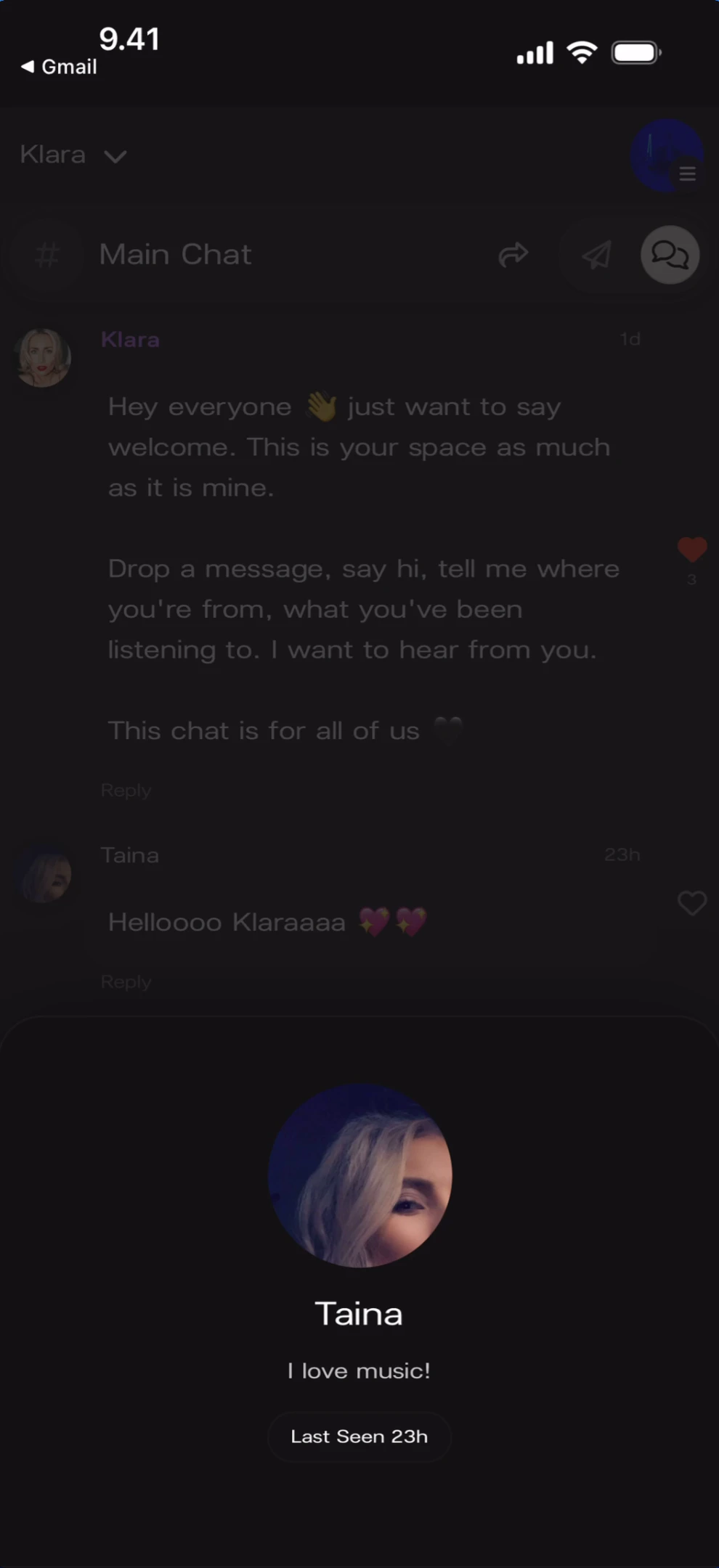
Members who have set a bio in their profile show it on their profile card. Member profile card with bio What you’ll see: The chat feed dimmed behind a bottom overlay. The profile card shows: large circular avatar, name “Taina”, bio text “I love music!”, and “Last Seen 23h” timestamp. No role badge is displayed.
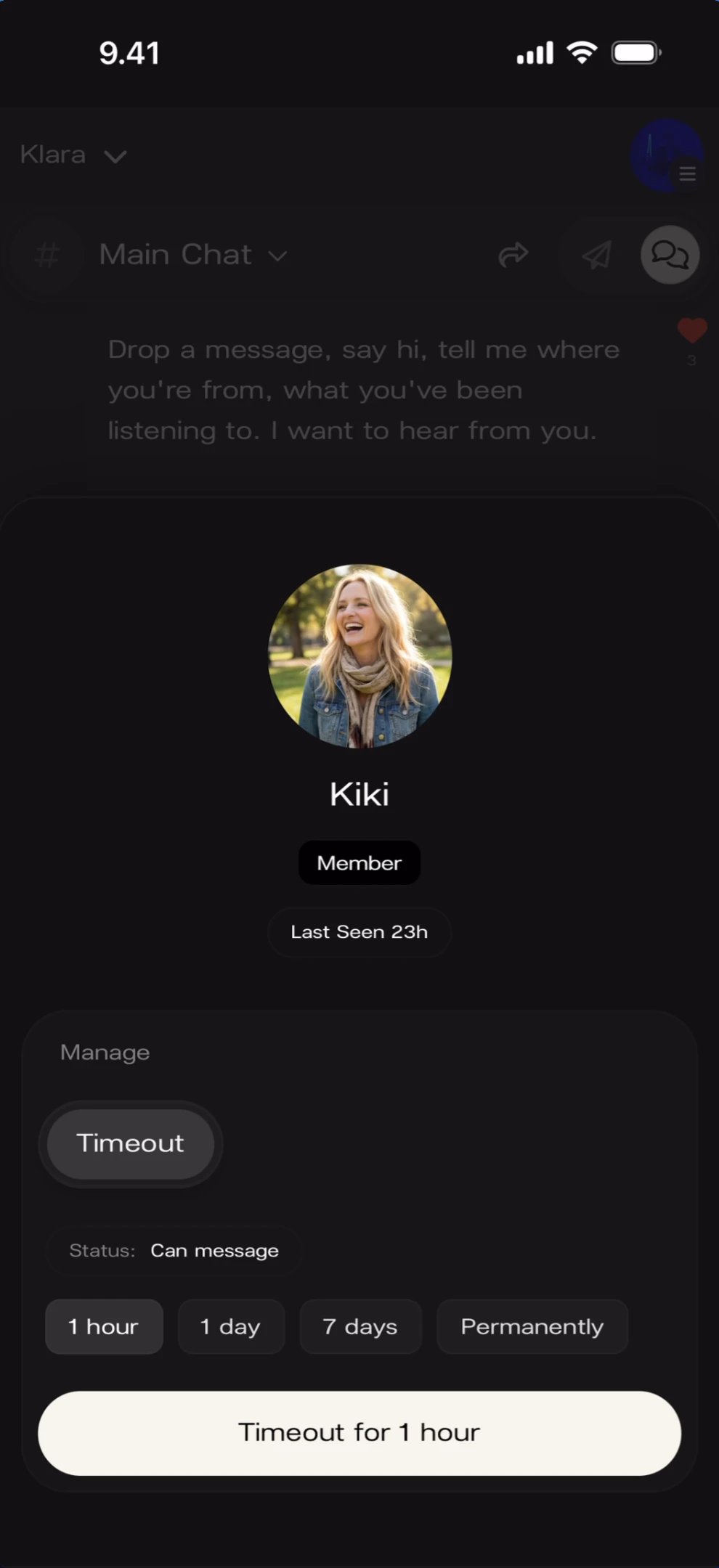
Moderator Timeout (Moderator View)

Moderators see additional management options when viewing a member’s profile card. A Manage section appears below the profile info with a Timeout button and duration options. Moderator timeout options on member profile What you’ll see: Profile card for “Kiki” showing: avatar, name, “Member” badge, “Last Seen 23h”. Below: “Manage” section header. A “Timeout” button (outlined). “Status: Can message”. Four duration pills: “1 hour”, “1 day”, “7 days”, “Permanently”. Bottom: a cream-colored button reading “Timeout for 1 hour”.
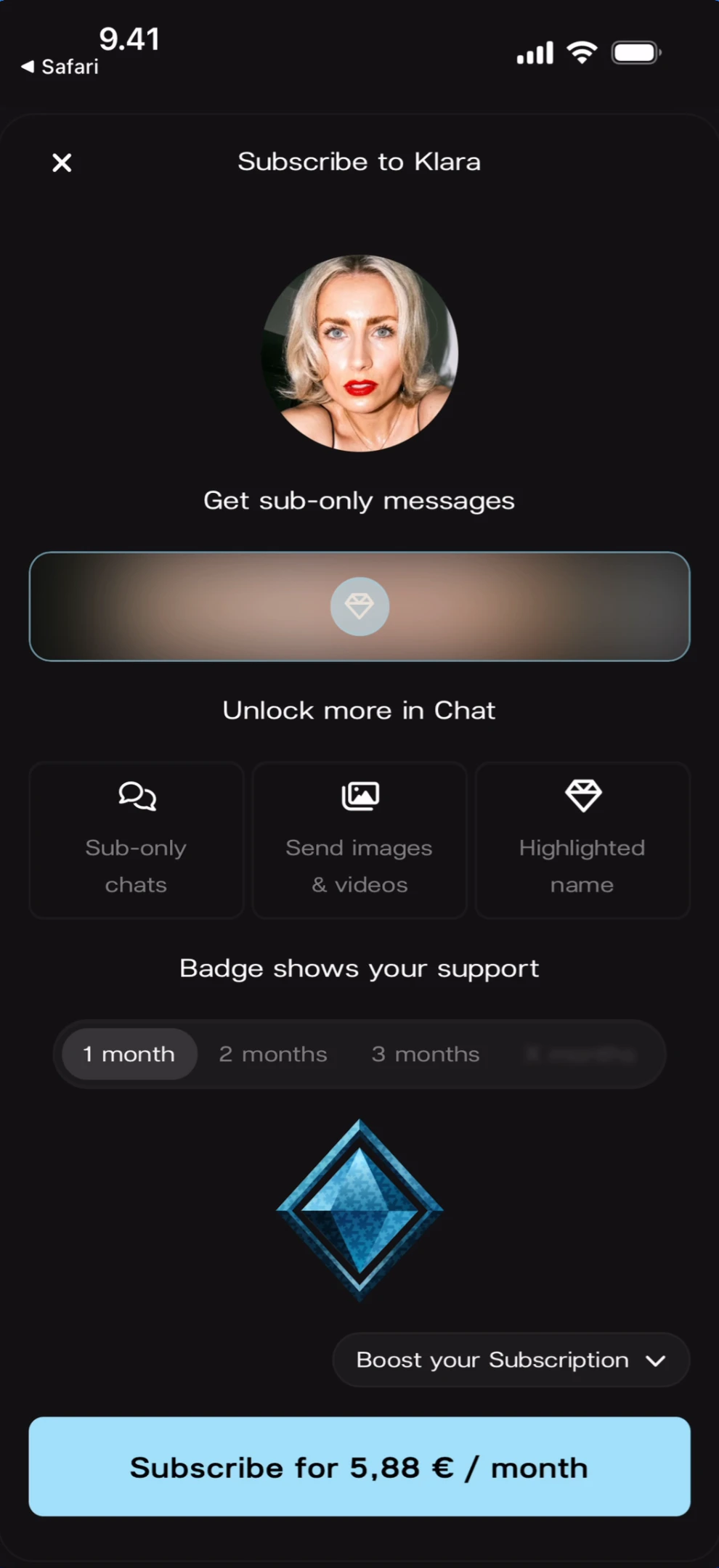
Subscribe Modal

Certain features in Chat are subscriber-only. When tapping on a locked feature, the subscribe modal appears. Subscribe to artist modal What you’ll see: A full-screen modal with X close button (top-left) and title “Subscribe to Klara”. The artist’s circular avatar is shown below. Text: “Get sub-only messages”. A blurred/locked preview area with text “Unlock more in Chat”. Three feature icons: “Sub-only chats” (chat icon), “Send images & videos” (media icon), “Highlighted name” (diamond icon). Text: “Badge shows your support”. Duration tabs: “1 month” (selected), “2 months”, “3 months”, and a greyed-out fourth option. A blue diamond icon with “Boost your Subscription ∨” dropdown. Bottom: a light blue button reading “Subscribe for 5,88 € / month”.
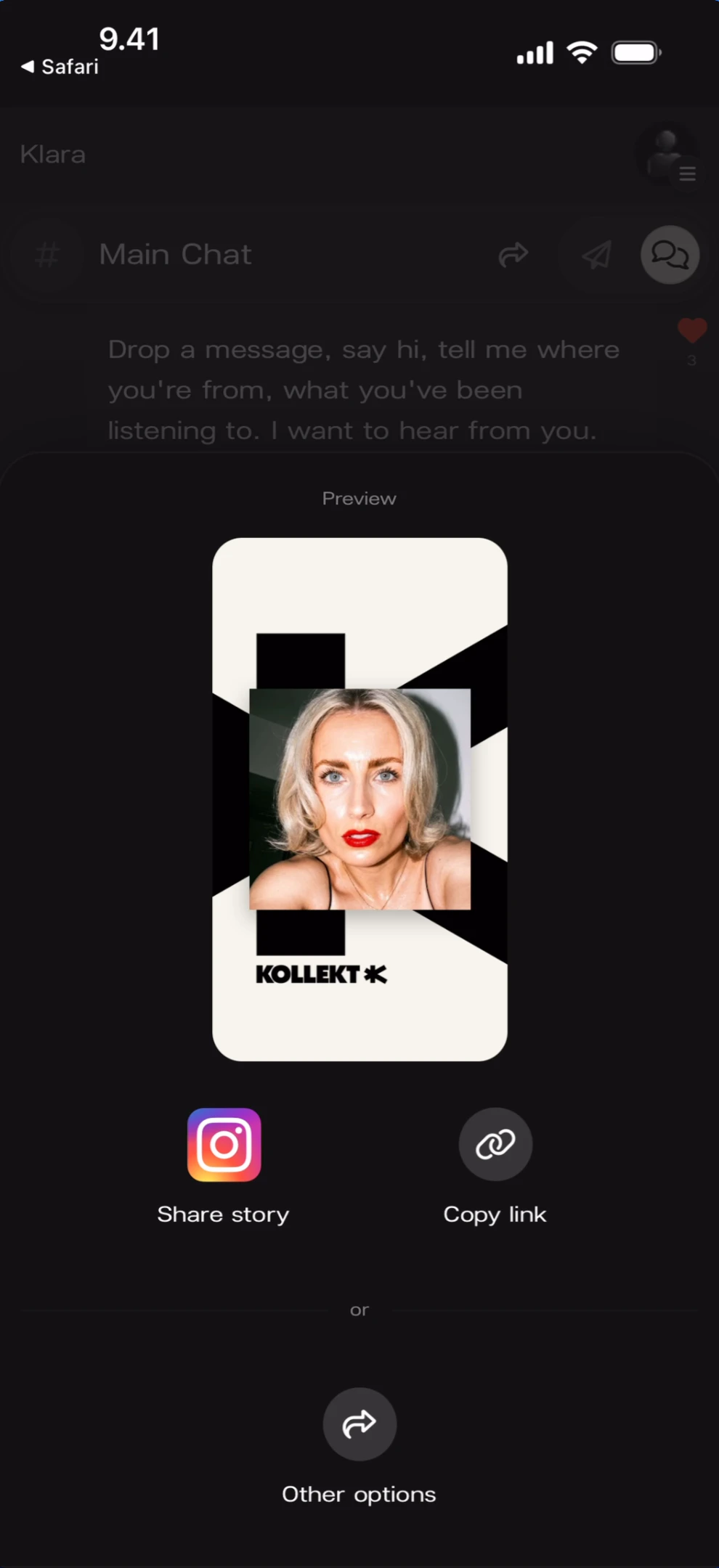
Share Sheet

Tapping the share icon in the chat header opens the Share Sheet — the same sharing modal available across all screens. Share sheet from chat What you’ll see: The chat feed dimmed behind a bottom sheet overlay. “Preview” label at top. A branded Kollekt Card showing the artist’s photo on a black-and-white geometric background with the “KOLLEKT K” logo. Two action buttons: “Share story” (Instagram icon) and “Copy link” (link icon). Below: “or” divider and “Other options” button (share arrow icon).
Known Limitations

  • The exact subscriber-only features visible in chat (highlighted name, sub-only chat rooms, image sending) are shown in the subscribe modal but not fully demonstrated in the screenshots.
  • The difference between what a regular member and a moderator can do is only partially visible — moderators can delete other users’ messages and timeout members, but the full scope of moderator permissions is not documented.
  • Media attachments (images, videos) sent in chat are not shown in the current screenshots.
  • The room switcher dropdown (Main Chat vs. Subscribers Chat) is visible in some screenshots but the Subscribers Chat room itself is not shown from the fan perspective.