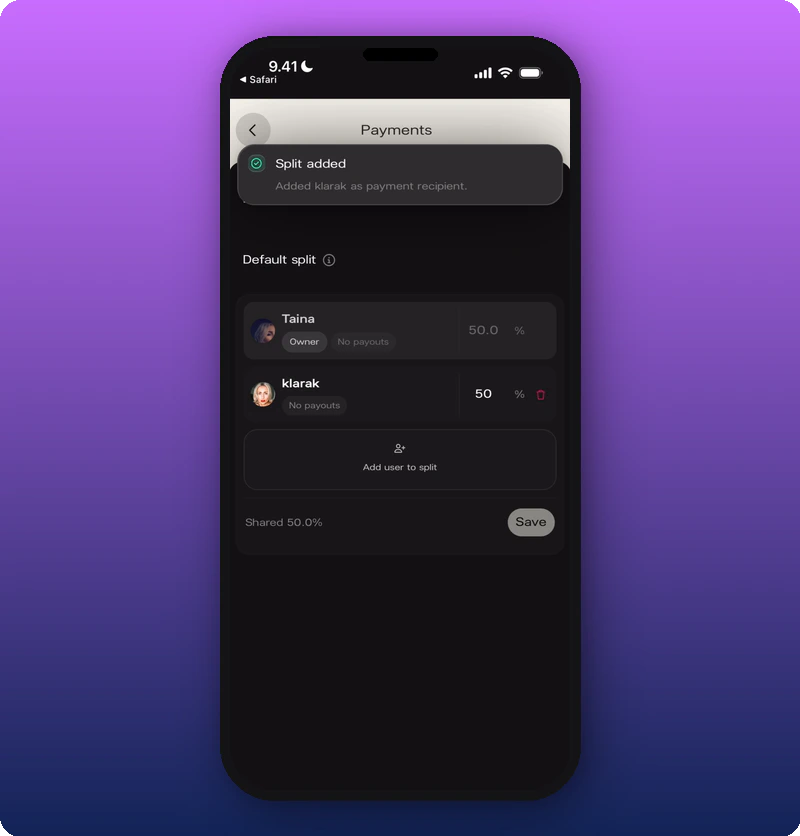

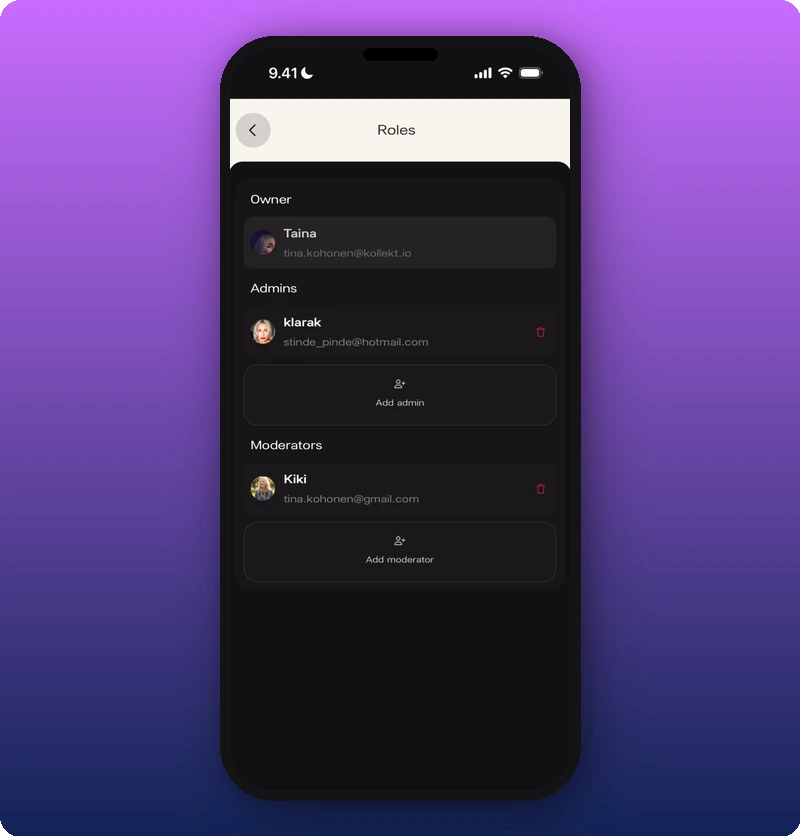
The Payments screen manages how revenue is split between team members. Only the page owner can access and edit payment splits. Access it from your Artist page: ⋮ → Payments.

Non-owner view

If you’re not the page owner, you’ll see a locked screen with a warning message. Payments locked for non-owner What you’ll see: A card with a yellow warning triangle and the text “Payments are managed by the page owner.”
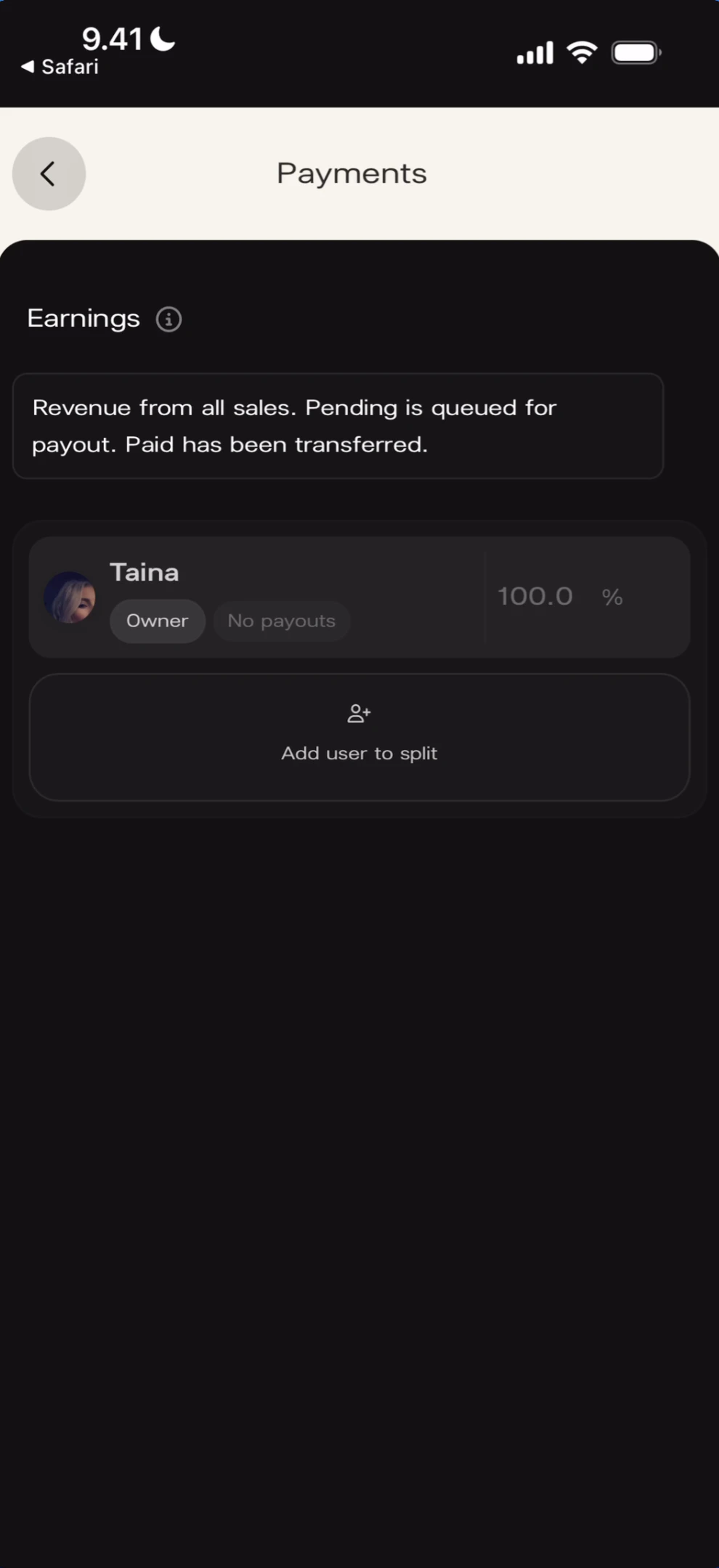
Earnings and default split (owner view)

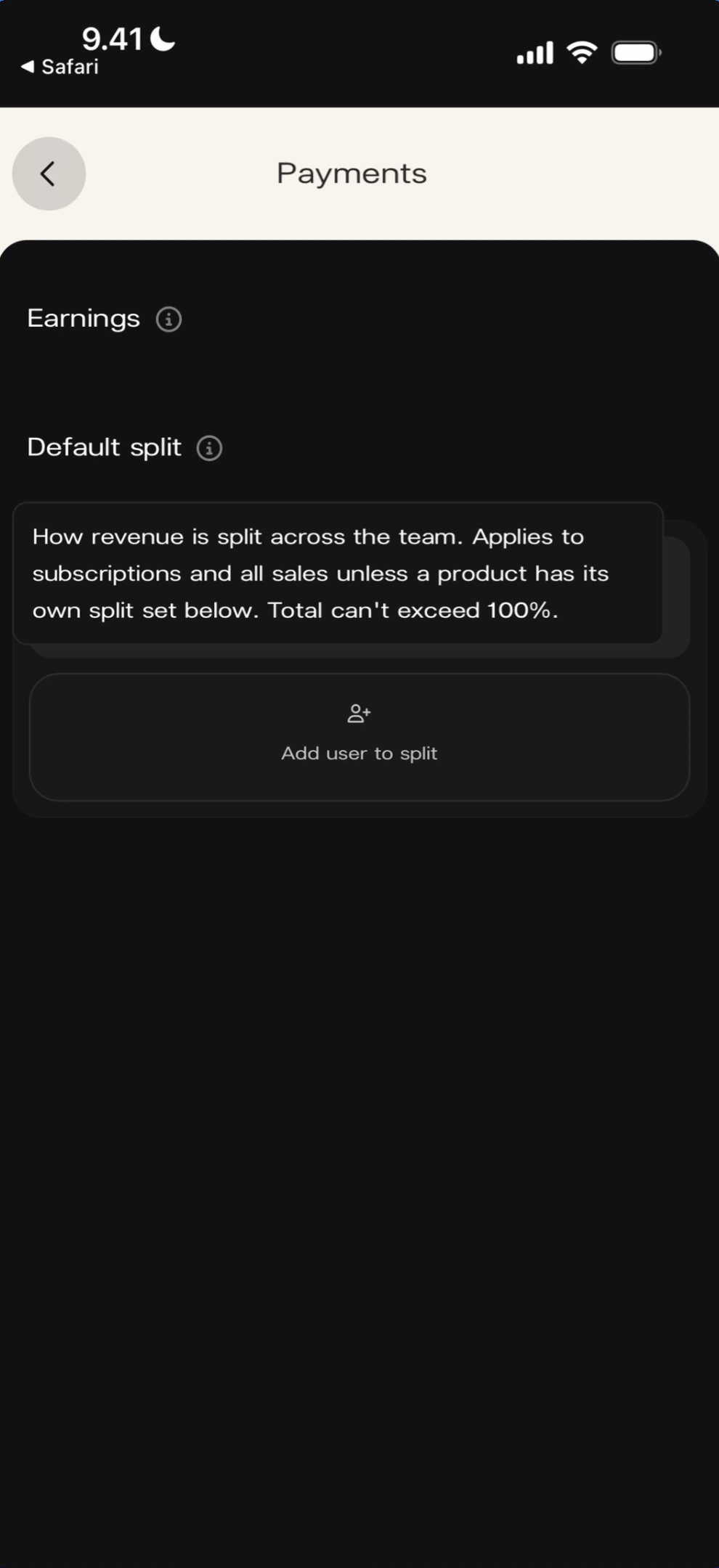
The owner sees two sections: Earnings (revenue from all sales, split into pending and paid) and Default split (how revenue divides across the team). Earnings info tooltip Earnings tooltip: “Revenue from all sales. Pending is queued for payout. Paid has been transferred.” Default split info tooltip Default split tooltip: “How revenue is split across the team. Applies to subscriptions and all sales unless a product has its own split set below. Total can’t exceed 100%.”
Add someone to the split

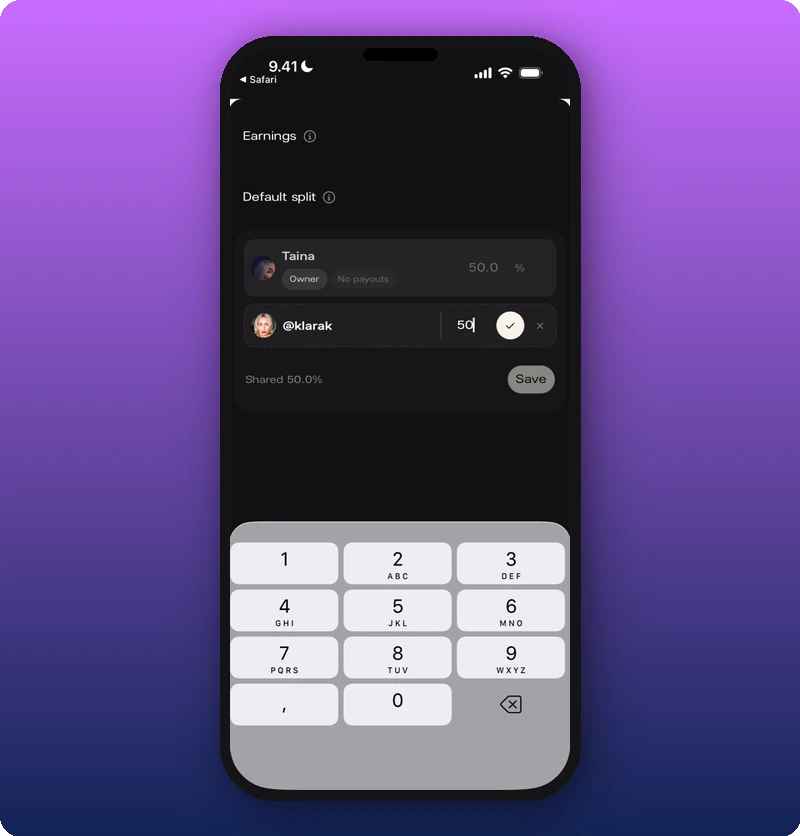
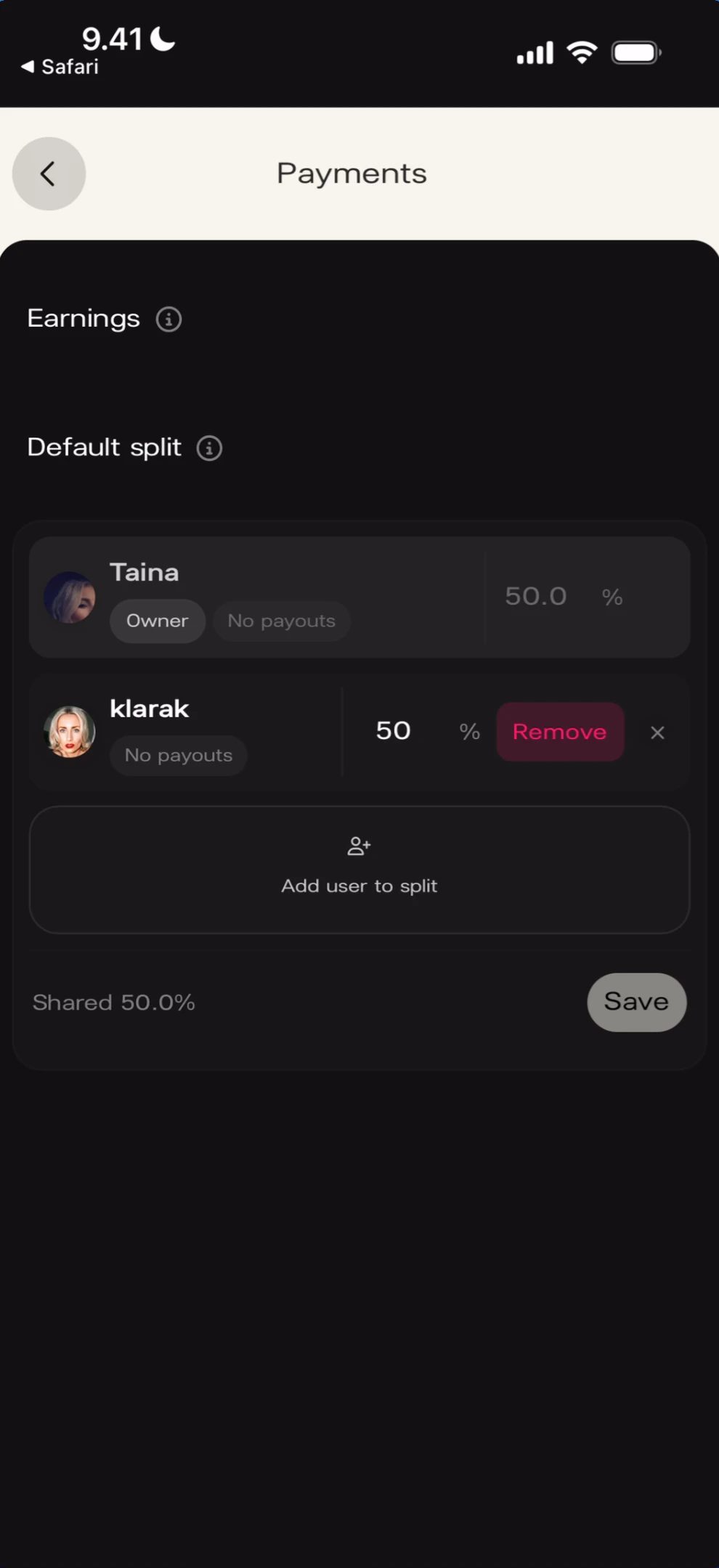
Tap Add user to split to add a team member and set their percentage. Entering split percentage What you’ll see: The user row shows a text field for the percentage, a checkmark to confirm, and an × to cancel. Below: Shared [percentage]% summary and a Save button. Split editing with Remove option Split added confirmation What you’ll see: A green Split added banner with “Added [username] as payment recipient.”
Remove someone from the split

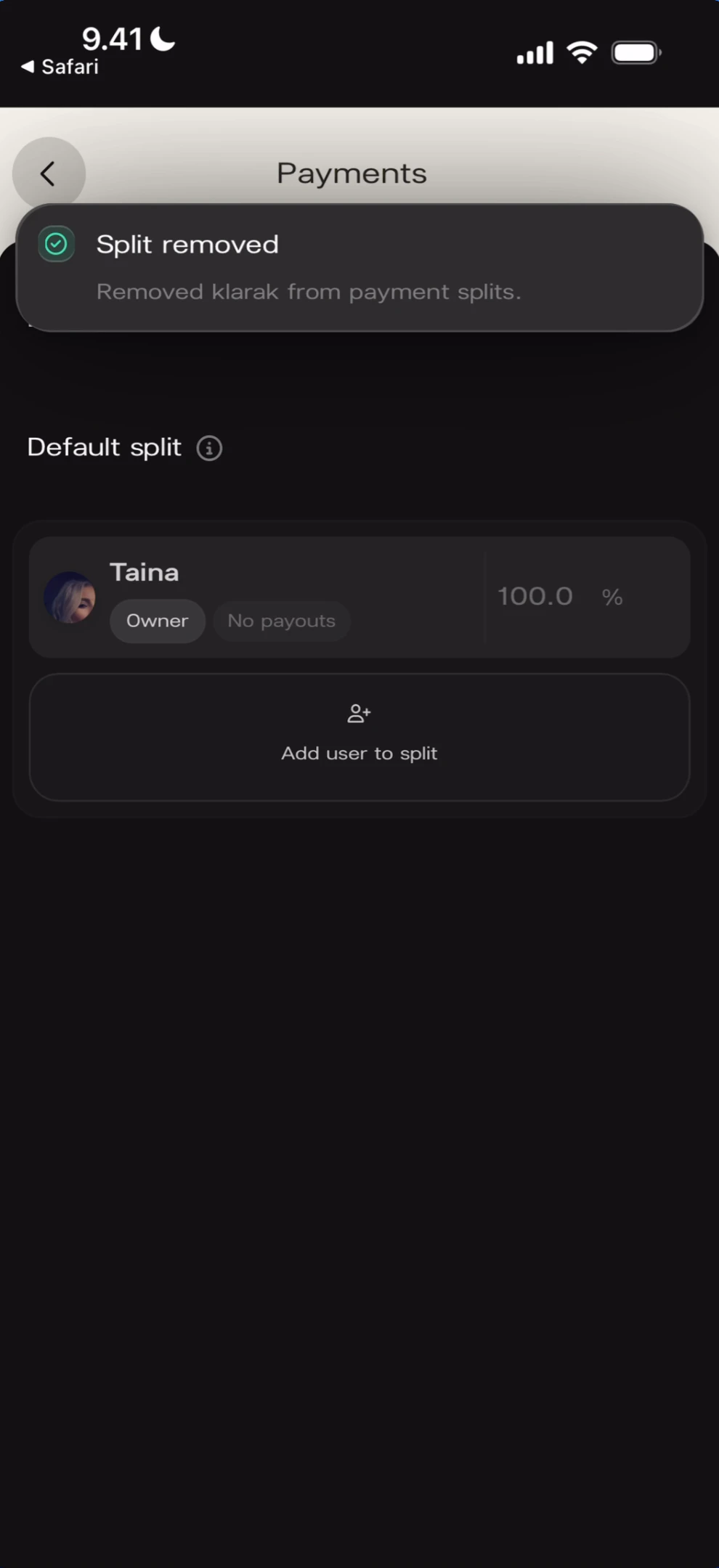
Swipe left on a team member’s row (or tap the delete icon) to reveal Remove. Split removed confirmation What you’ll see: A green Split removed banner. The percentage returns to 100% for the remaining owner.
Known limitations

  • Only the page owner sees Payments — admins and moderators see the locked message.
  • Per-product splits are referenced in the tooltip but not demonstrated here.