

When you haven’t joined anyone yet
If you’ve just downloaded Kollekt and haven’t joined an artist, your home is empty. There’s a card in the middle prompting you to find your first artist.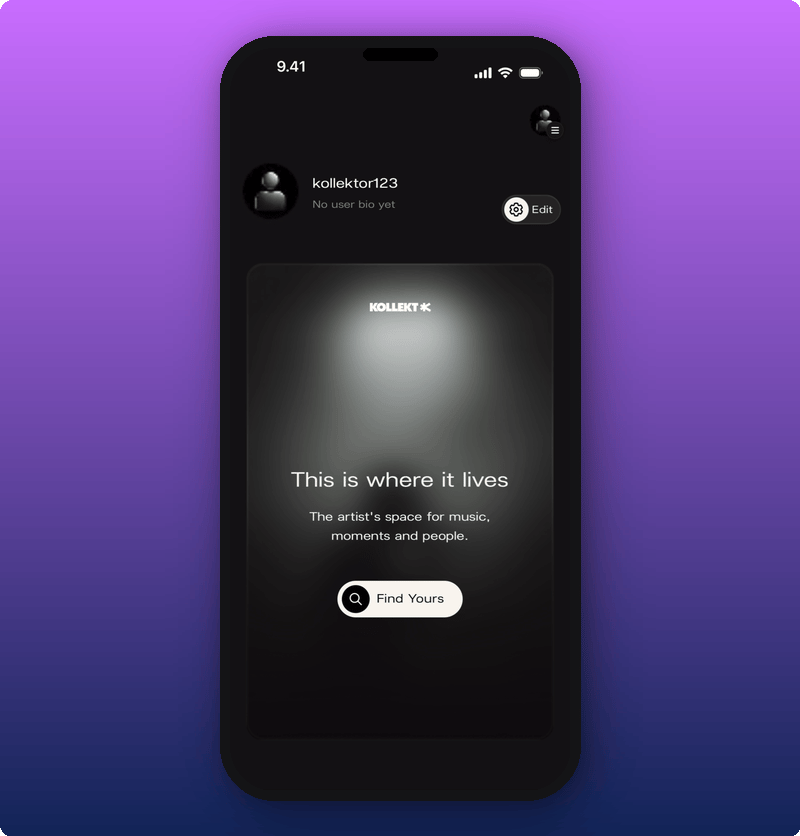
Once you’ve joined someone
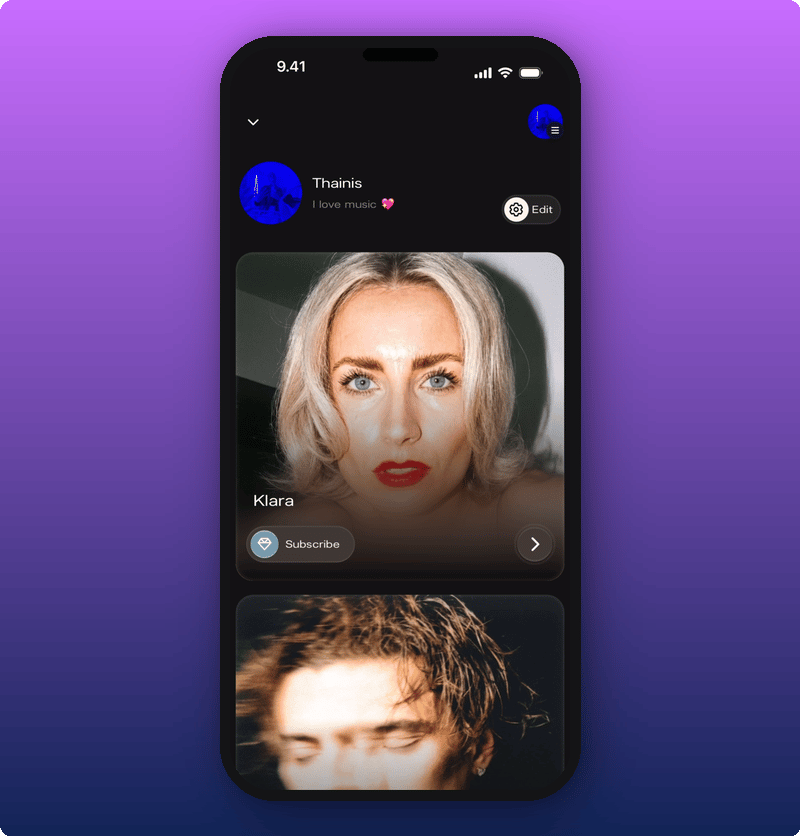
After you’ve joined an artist, your home shows their card. If you’ve joined more than one, you can scroll between cards.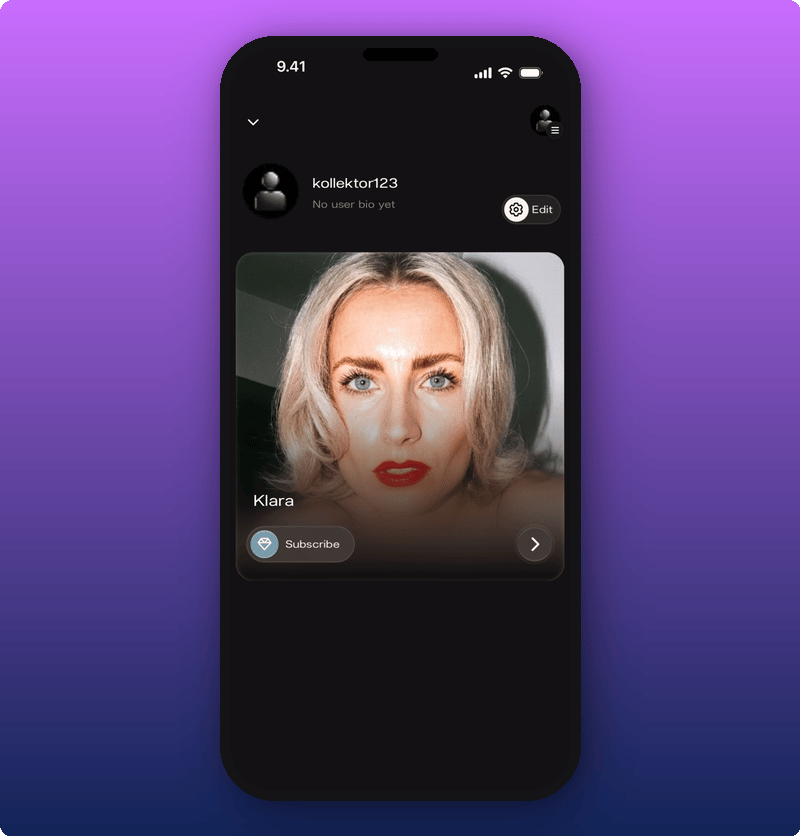
Inside the artist’s page
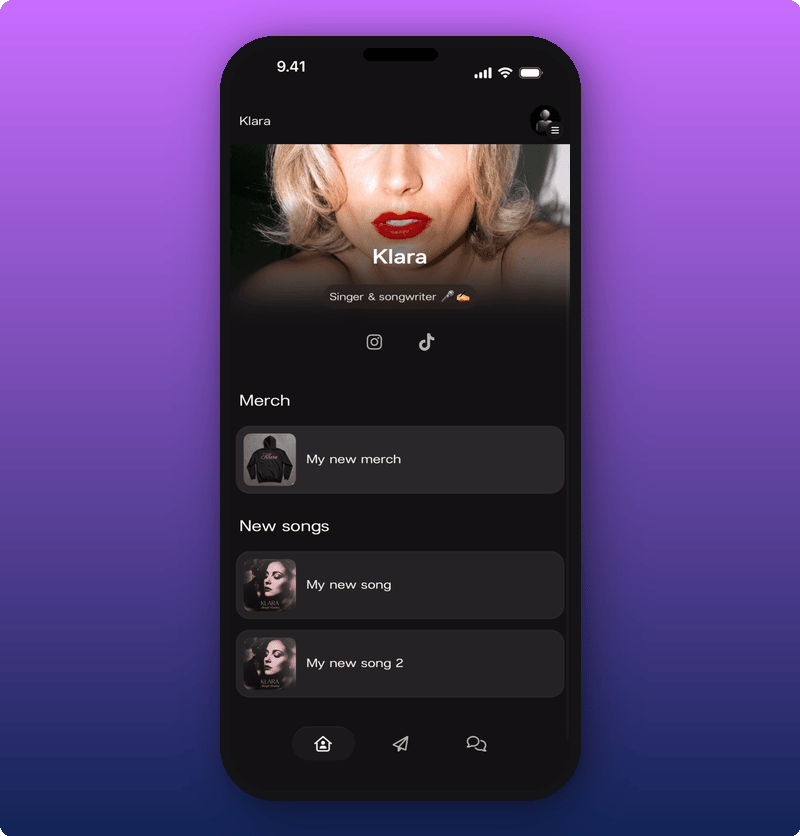
Tap the artist card to open the artist page.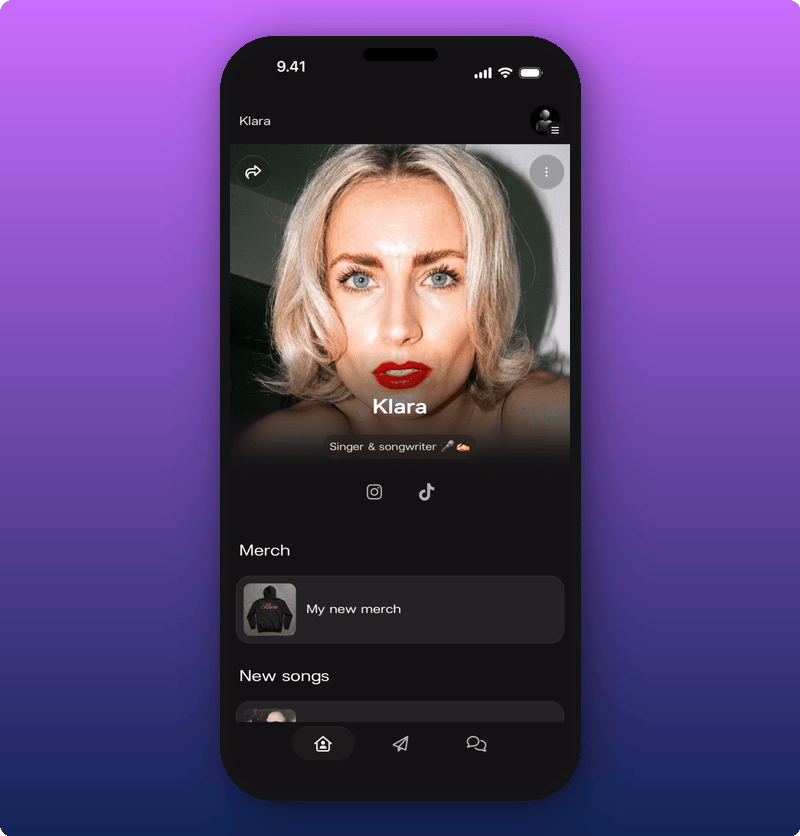
- The artist’s cover photo and name.
- Social icons. Tap one to open the artist’s Instagram, TikTok, or wherever else they’ve added.
- Artist’s custom links.
Unfollowing an artist
If you want to leave an artist’s space, tap the three-dot menu in the top right of their page. The Unfollow option appears.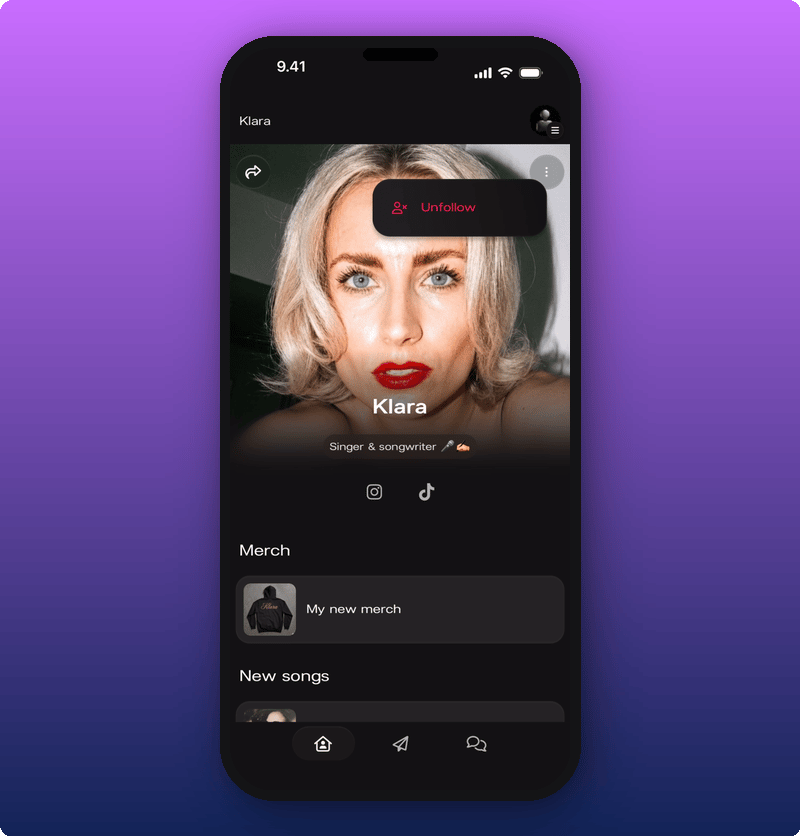
The side menu
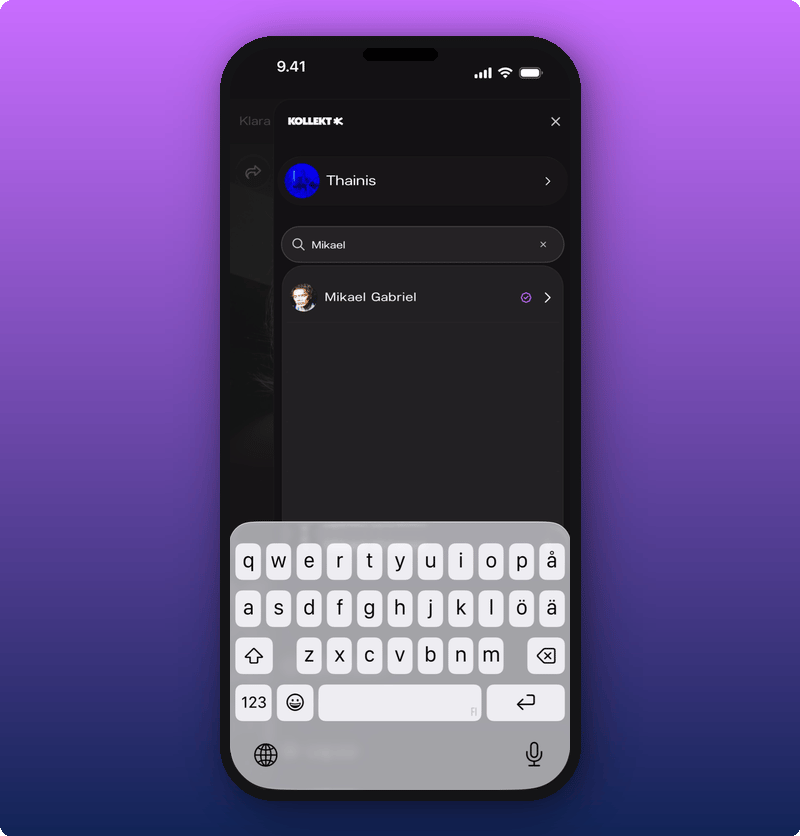
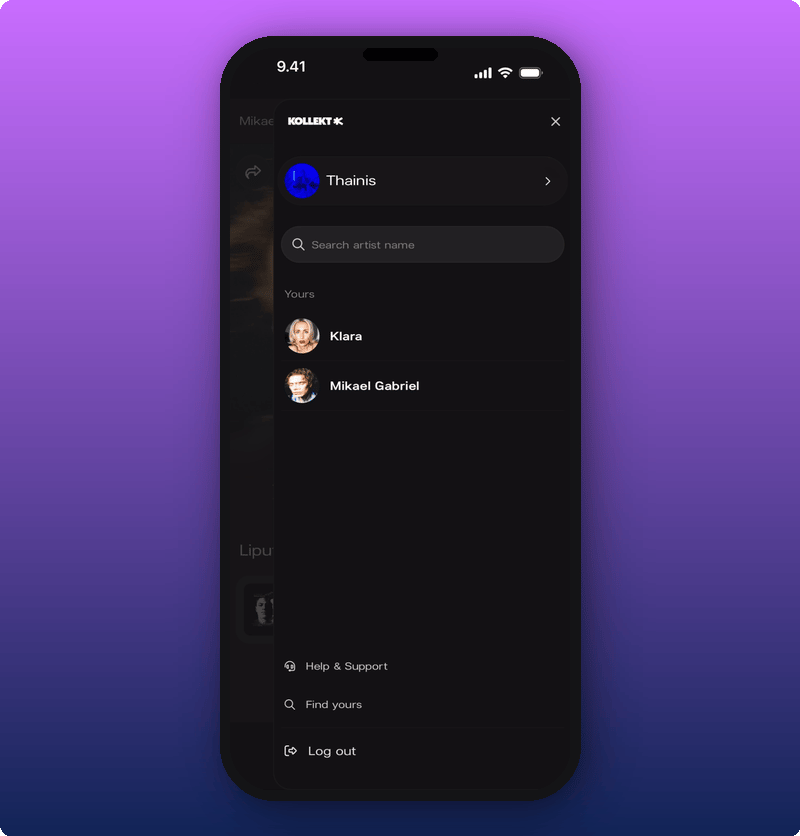
Tap the icon with the hamburger menu to open the side menu. This is where you switch between artists, search for new ones, get help, or log out.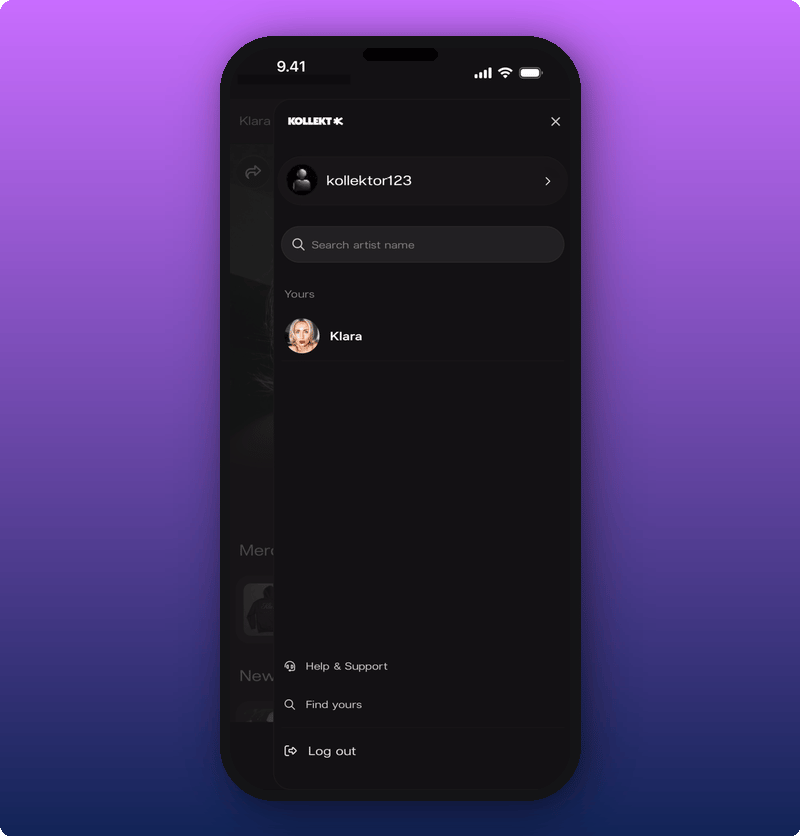
- Your user profile at the top.
- A Search field for finding new artists.
- Yours, the list of every artist you’ve joined. Tap any name to jump to their page.
- Help & Support, Find yours, and Log out at the bottom.
Look around the artist pages
Type a name in the search field. Matches show up under it. A purple check shows the artist has already claimed their page.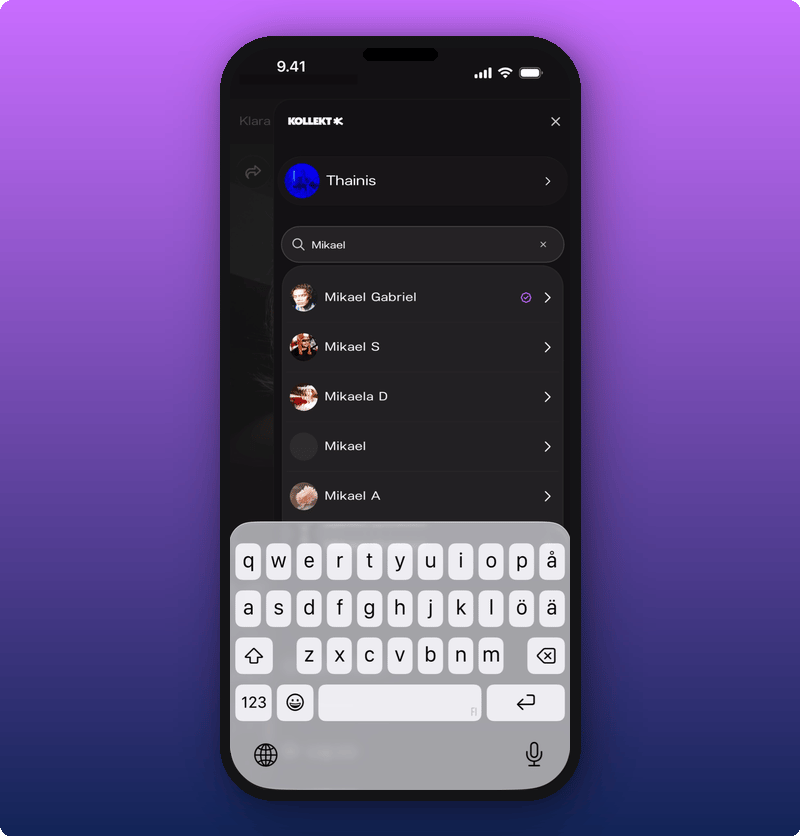
Help & Support
Tap Help & Support to open the Kollekt help center in your browser.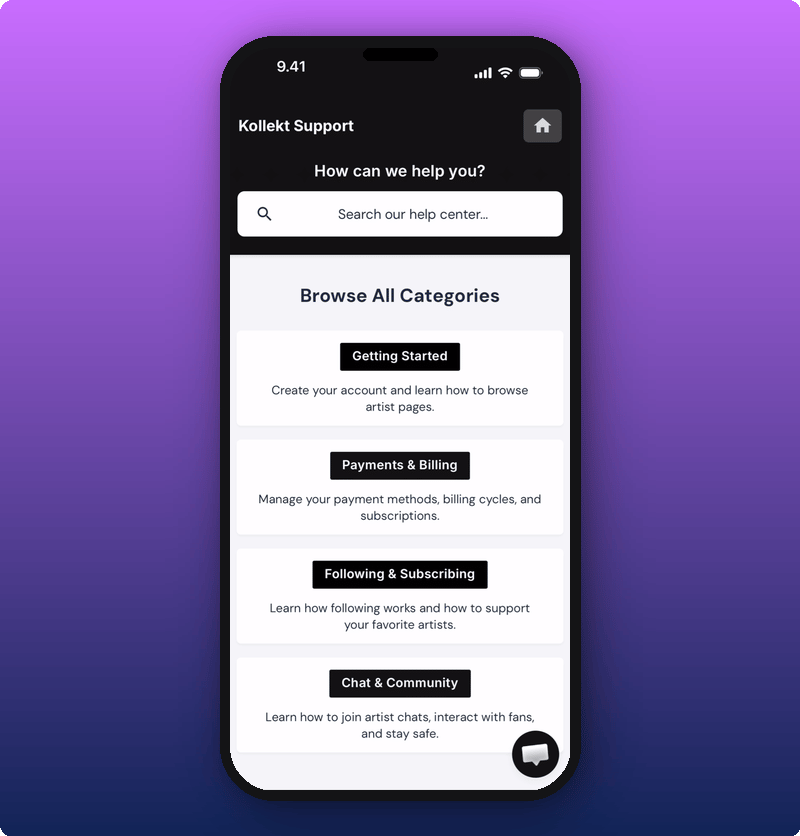
Sharing an artist with a friend
Tap the share icon (the curved arrow) on any artist’s page to bring up the share sheet.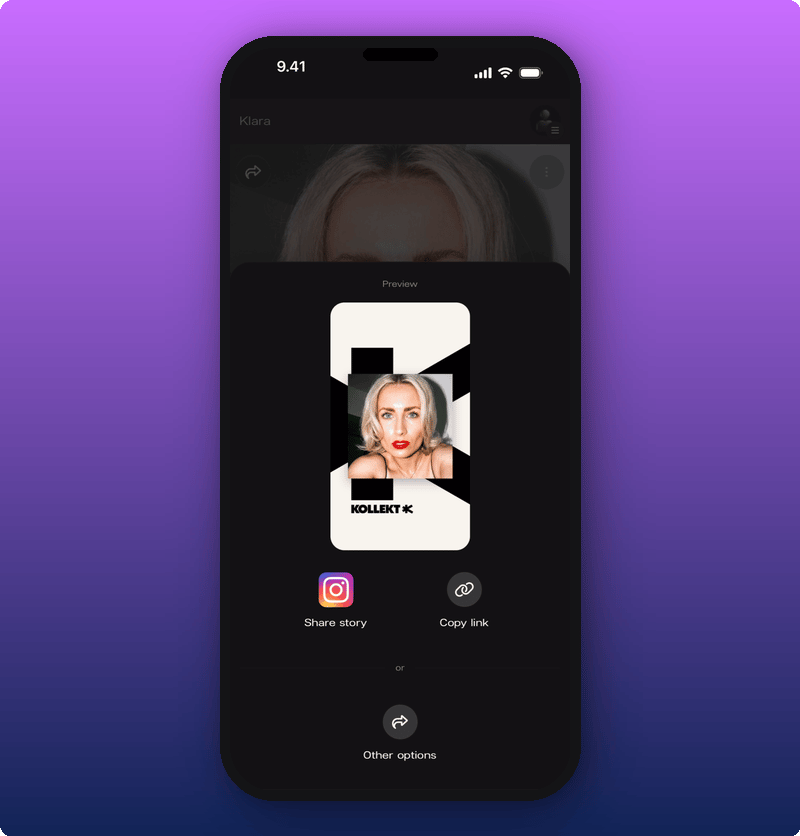
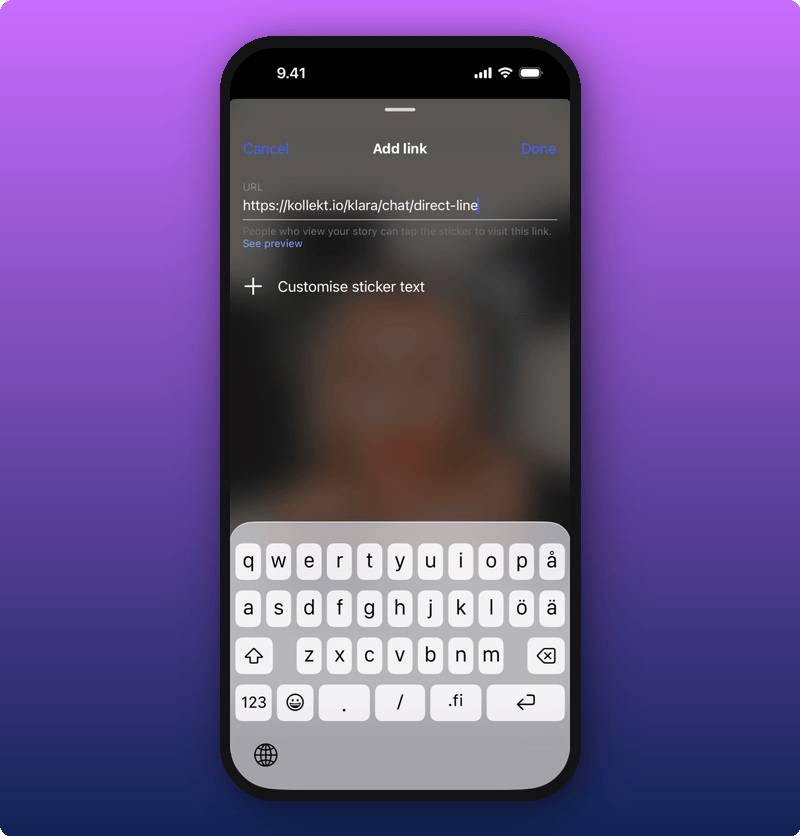
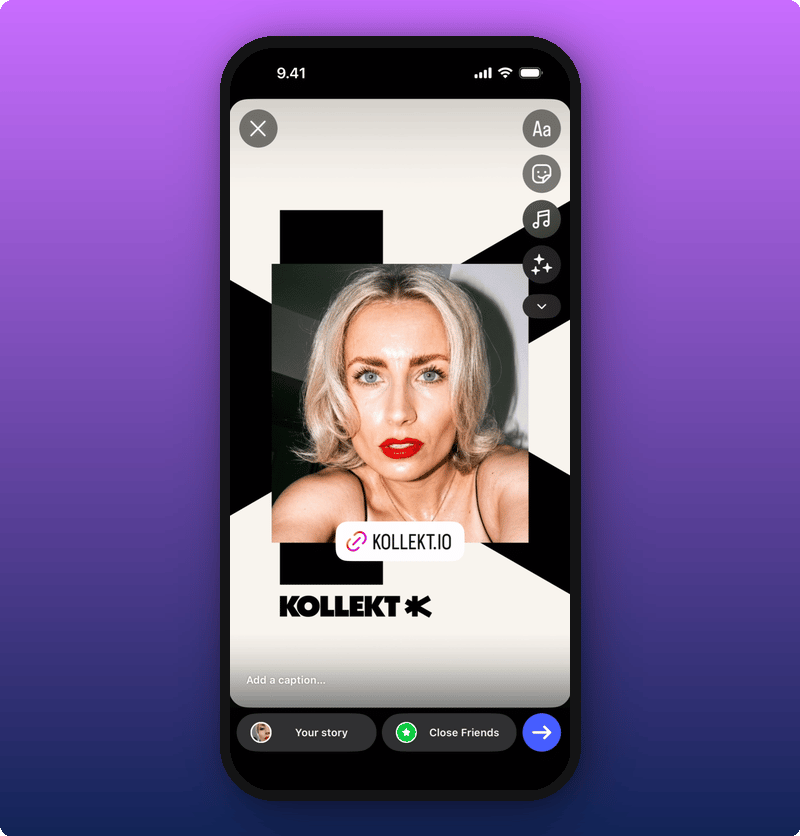
- Share story. Sends a Kollekt-branded image to Instagram Stories. You’ll add the link sticker yourself in Instagram (more on that below).
- Copy link. Copies the artist’s Kollekt link to your clipboard.
- Other options. Opens your phone’s normal share menu, where you can pick WhatsApp, Messages, AirDrop, anywhere.
Sharing to Instagram Stories
Tap Share story. Instagram opens with the Kollekt card already in place.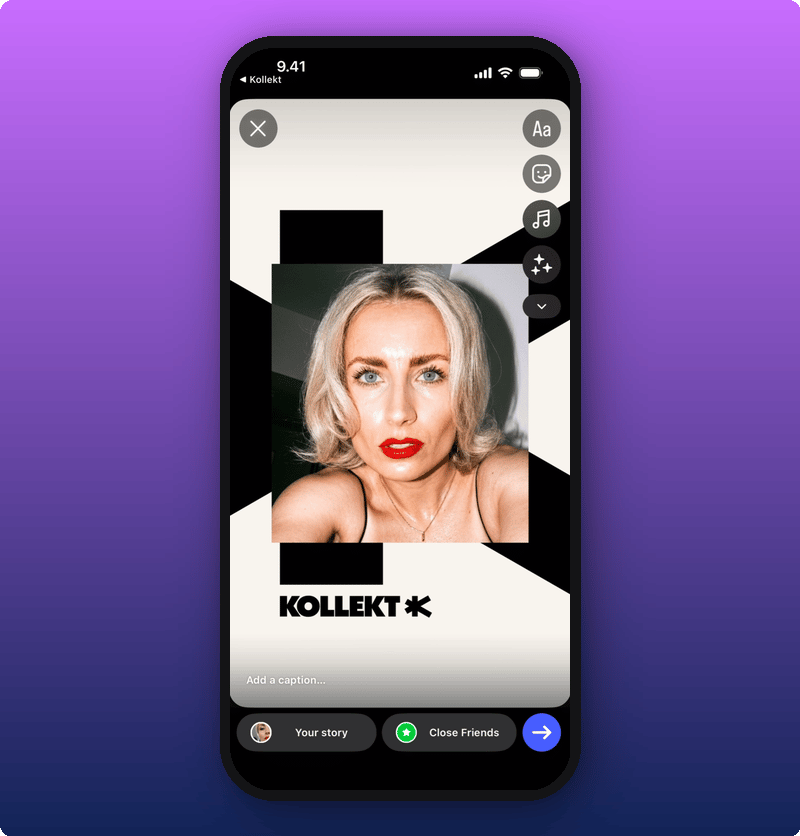
Related
- Your artist’s Direct Line. Read what the artist just sent.
- Joining the chat. Talk with other fans.
- Your user profile. Set your name, photo, and bio.
- Subscribing to an artist. Unlock the locked posts and the Subscribers Chat.