

Are you an artist? Click here.
After you’ve joined
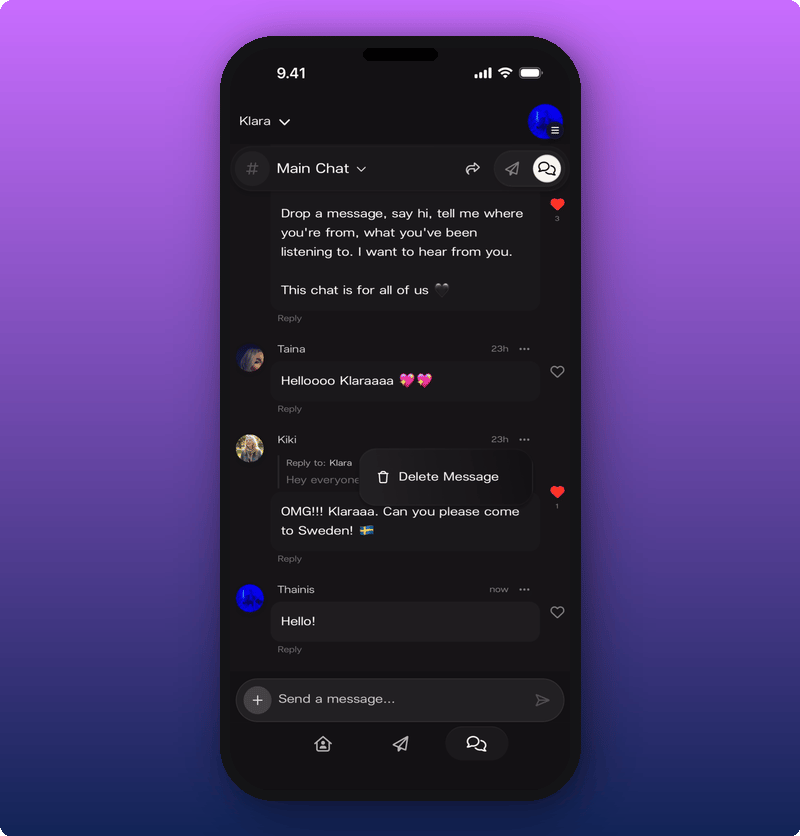
Once you’re in, the message box appears at the bottom and you can post.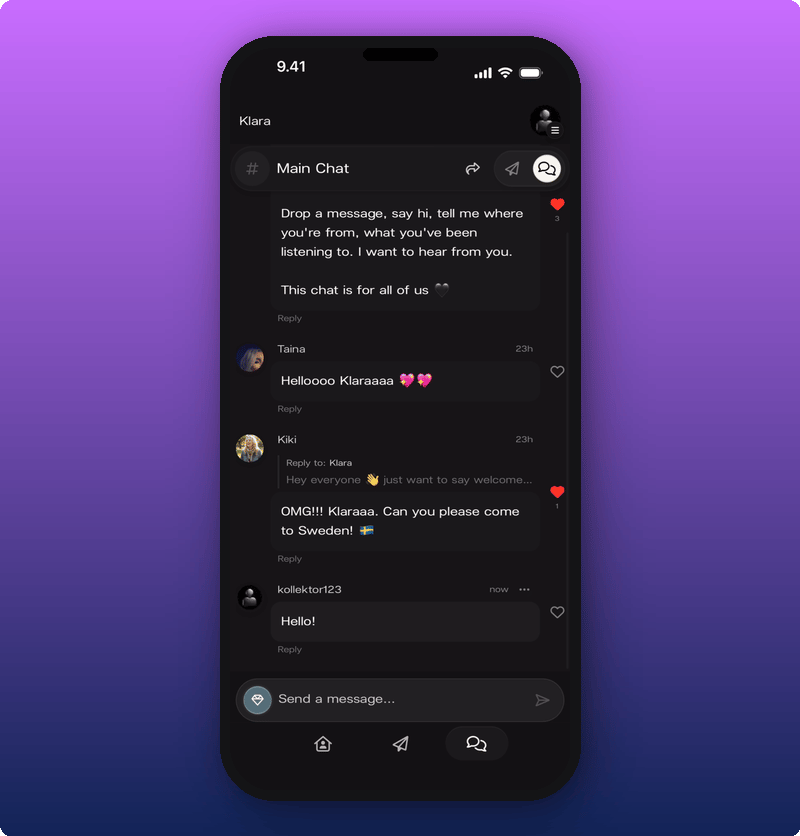
Sending a message
Tap the message box. Your keyboard opens. Type and tap the send arrow.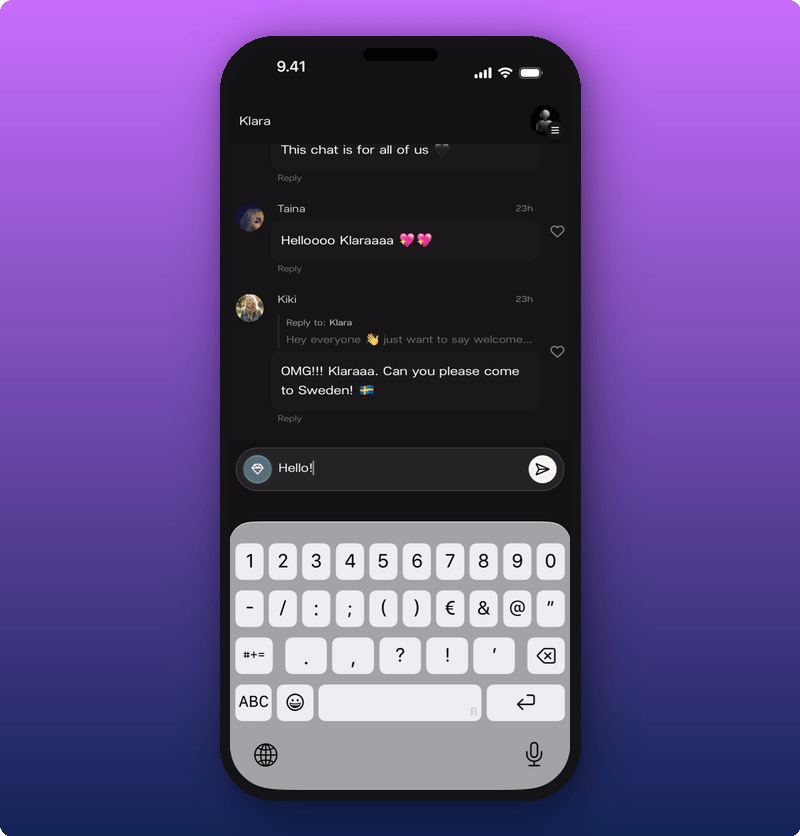
Sending photos and videos (subscribers)
Sending photos and videos in chat is a subscriber perk. If you’re a subscriber, tap the + to the left of the message box to attach something.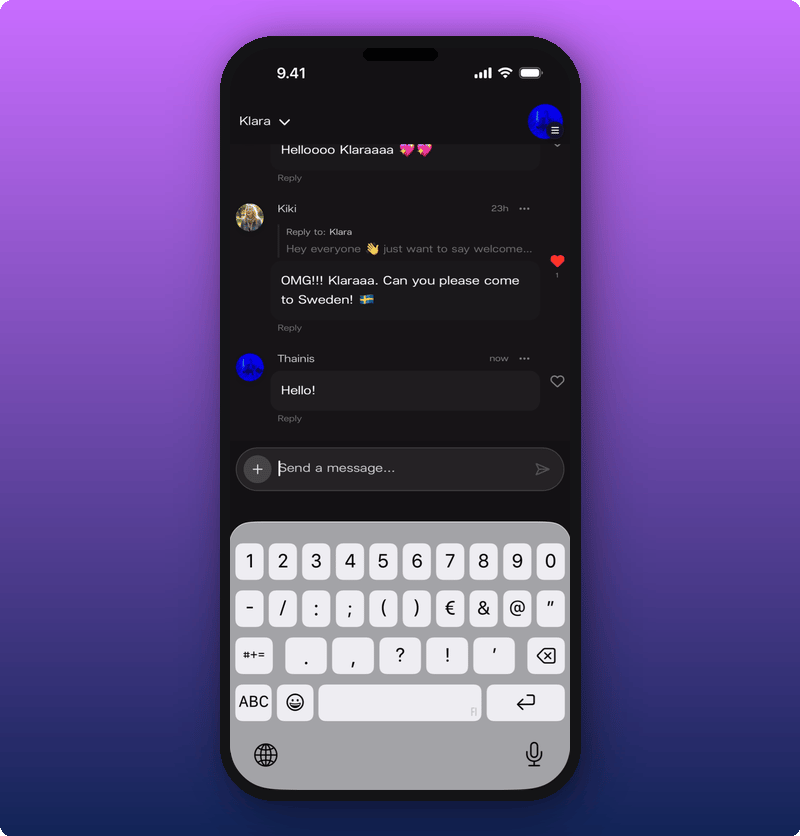
Reacting with a heart
Tap the heart next to any message. The heart fills in red and the count goes up.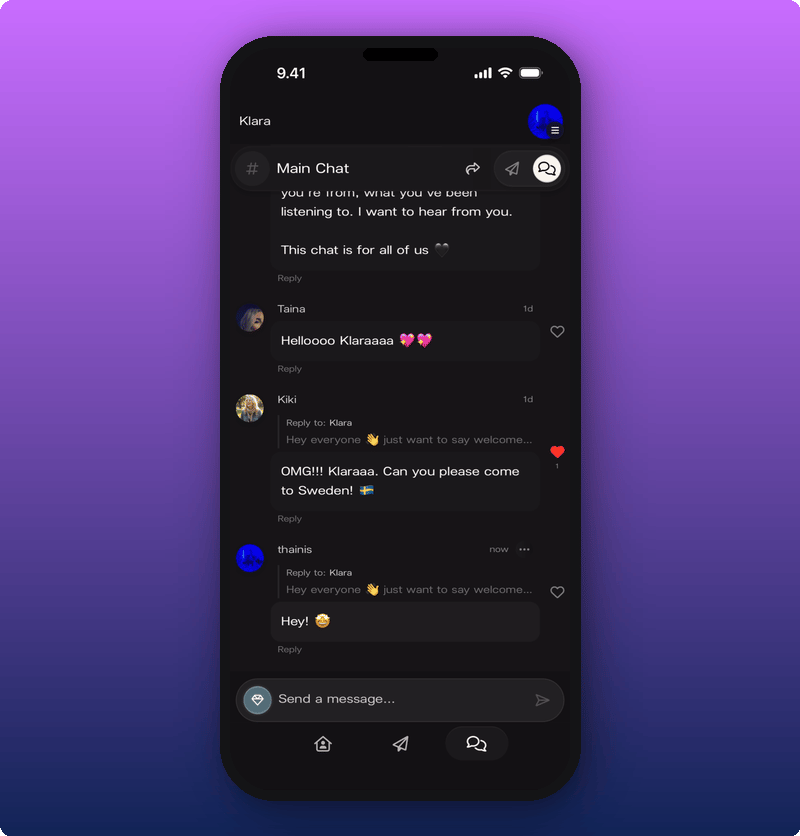
Replying in a thread
If you want to answer a specific message, tap Reply under it. A bar shows up above the message box reminding you who you’re replying to.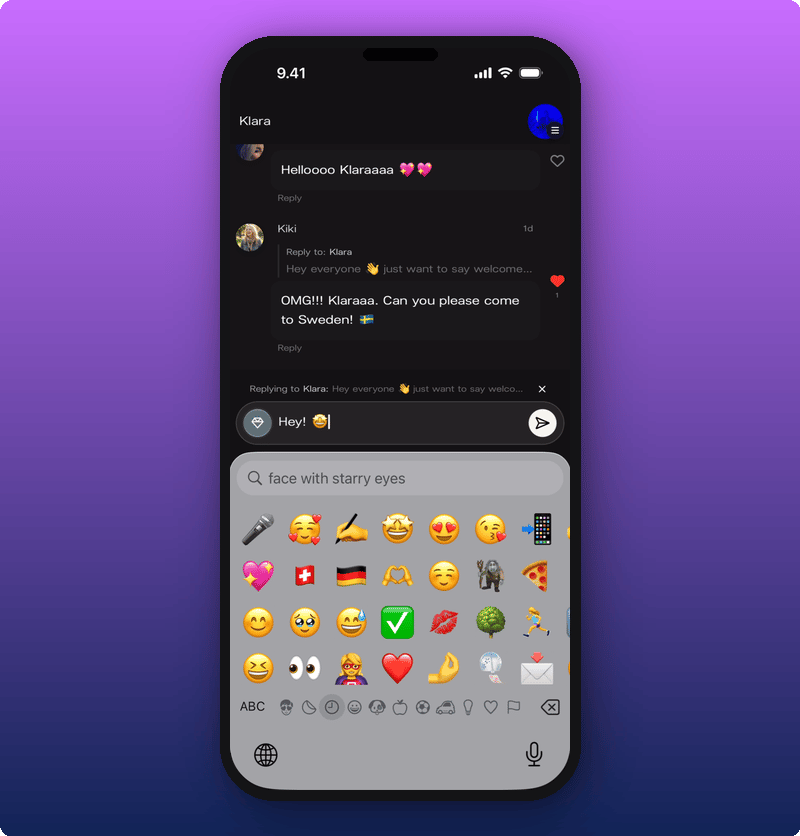
Deleting your own message
Tap the three-dot menu on your own message. Delete Message appears.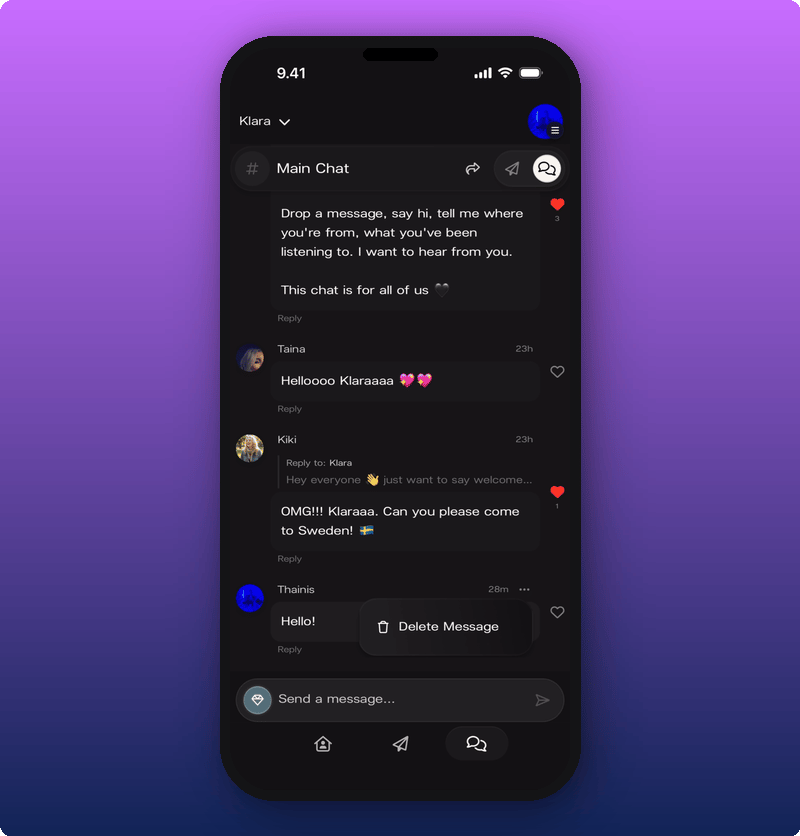
Tapping someone’s name
Tap any name or photo in chat to see their profile card. It pops up from the bottom and shows their name, their bio (if they’ve added one), their Member badge, and when they were last seen.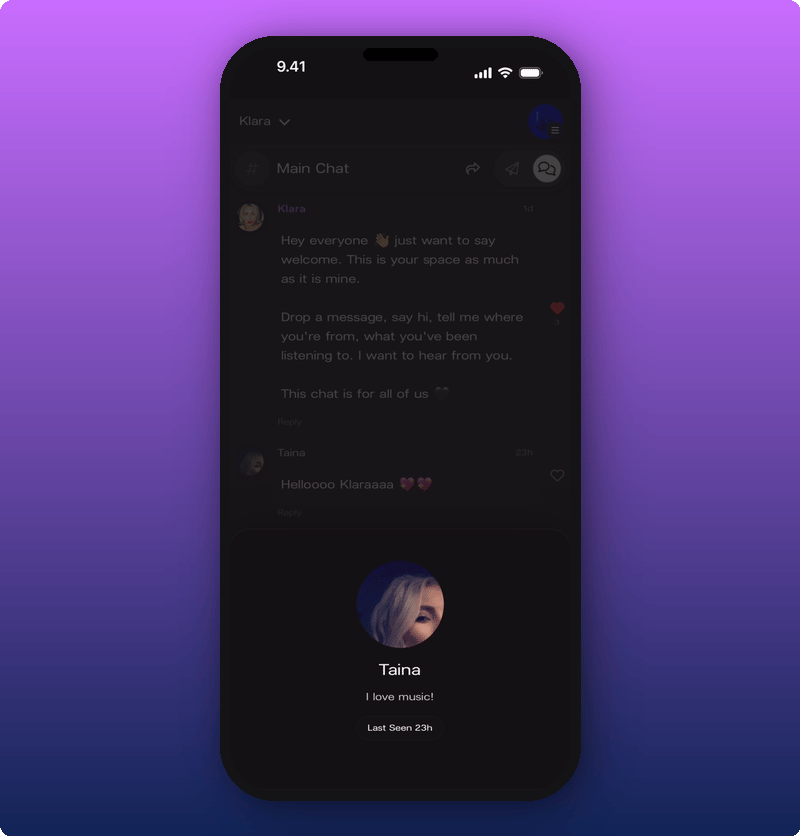
If you’re a moderator
Some artists promote their most active members to moderator. Moderators have a small shield badge next to their name and can help keep chat tidy. When a moderator opens another member’s profile card, they see a Manage section underneath. From there they can put a member in timeout for an hour, a day, 7 days, or permanently.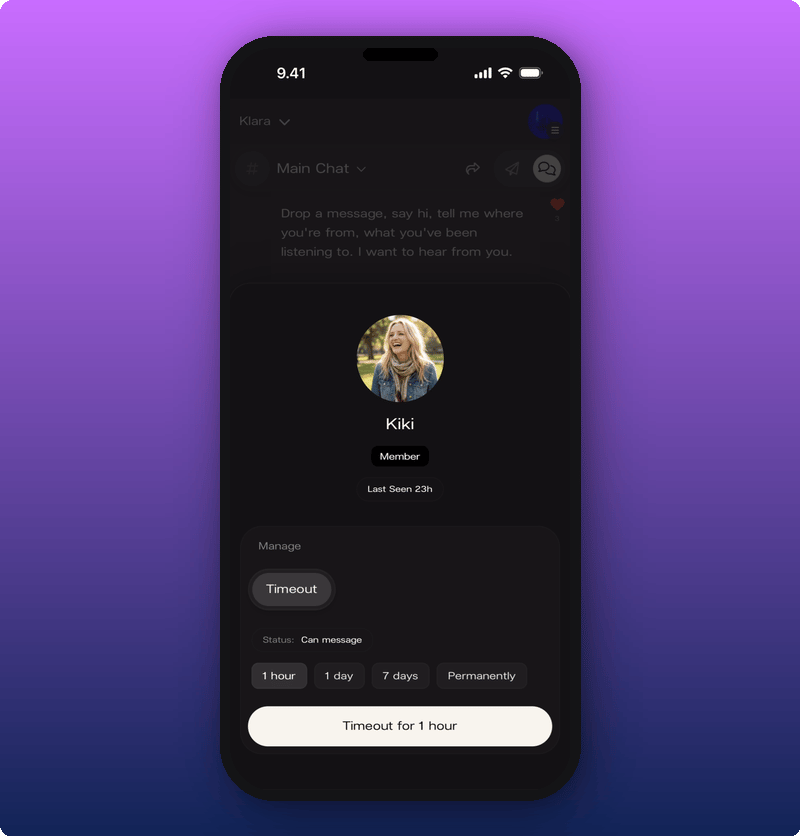
Subscribers Chat
Every artist’s space has a second chat room: Subscribers Chat. It’s only for paying subscribers and it’s quieter, closer, and more personal. Tap the chat name at the top of the screen to switch between Main Chat and Subscribers Chat. If you’re not a subscriber yet, tapping into Subscribers Chat opens the subscribe screen instead.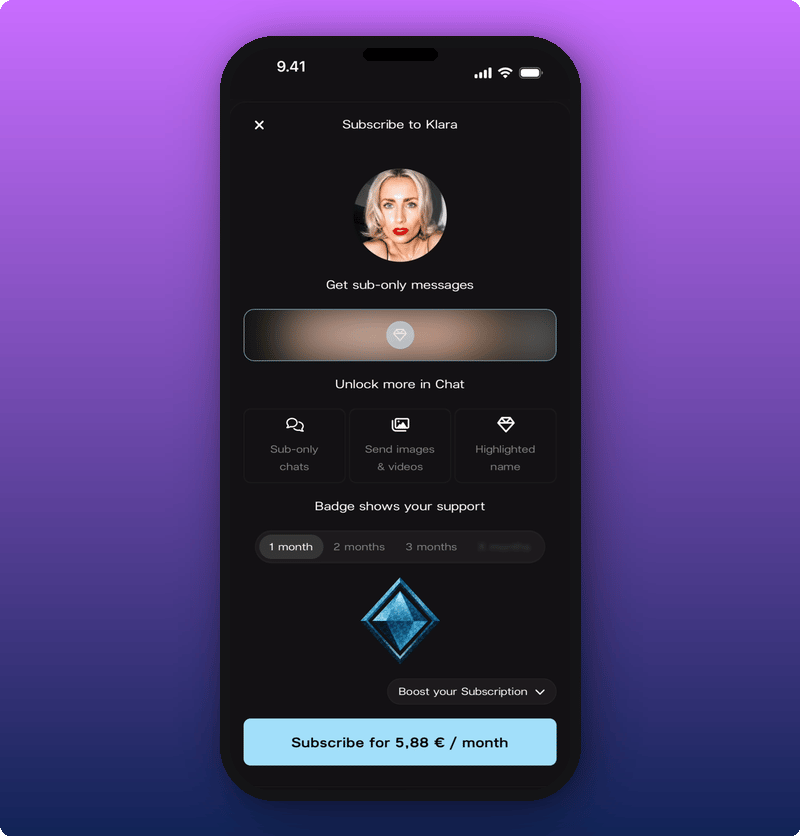
Sharing the chat
Tap the share icon at the top of chat to send the link to a friend.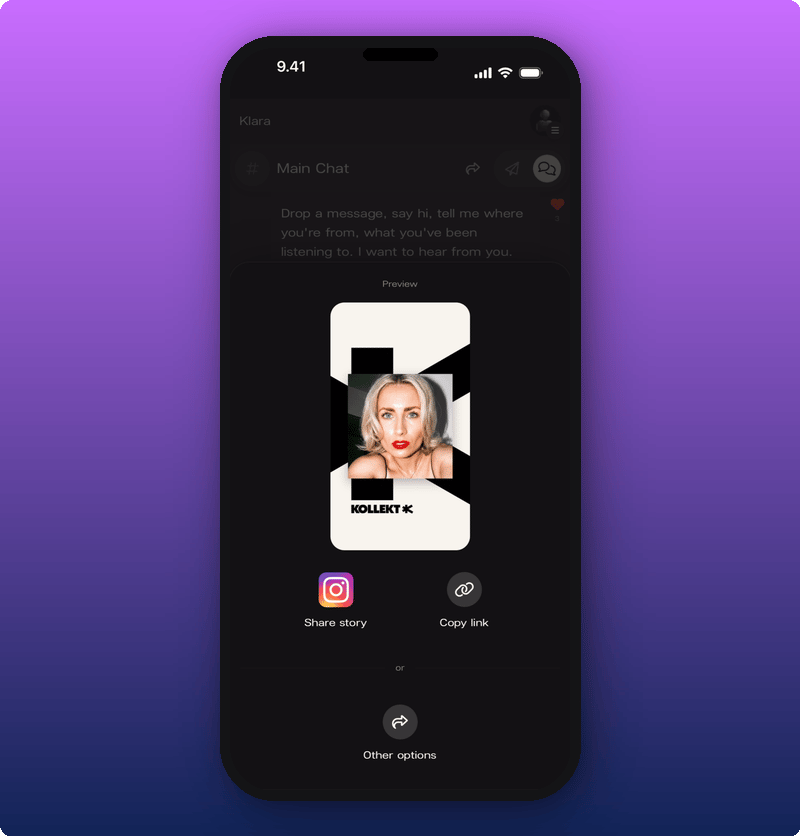
Related
- Your artist’s Direct Line. Read the artist’s posts.
- Get to know Kollekt. Find your way around the rest of the artist’s space.
- Your user profile. Set the name, photo, and bio that show in chat.
- Subscribing to an artist. Get into the Subscribers Chat and unlock images.