

Edit overview
The edit screen has a header bar with a back arrow (‹), the title “Edit page”, and a Save button (blue). Below: the cover photo, artist name, social icons, and a + New link group button at the bottom.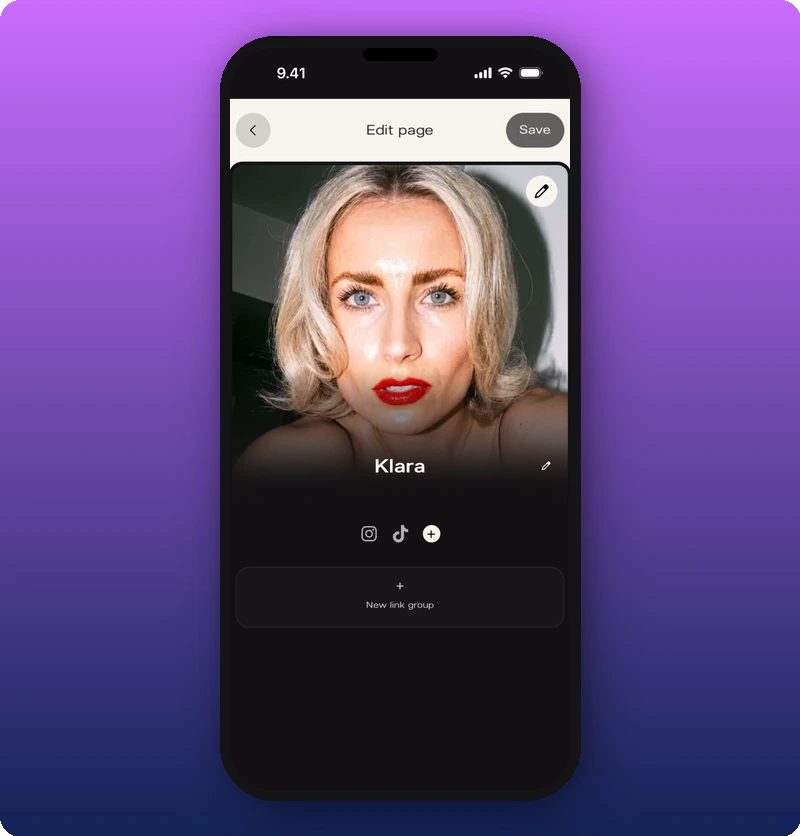
Change your cover photo
Tap the pencil icon on the cover photo to open a menu with three options.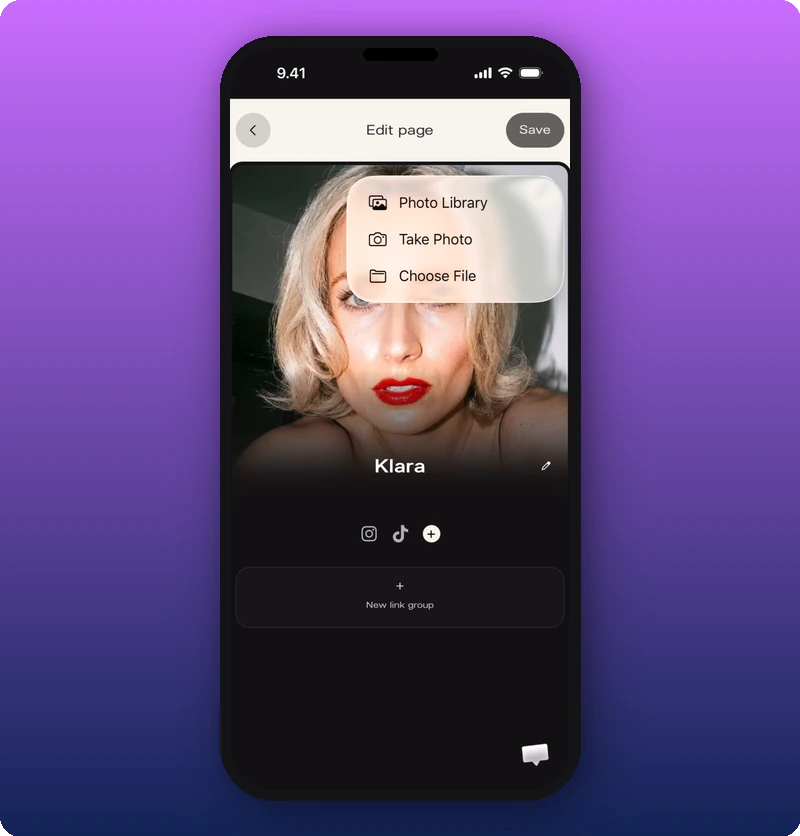
Edit your artist name
Tap the pencil icon next to the artist name to make the name field editable. The keyboard opens and you can type a new name.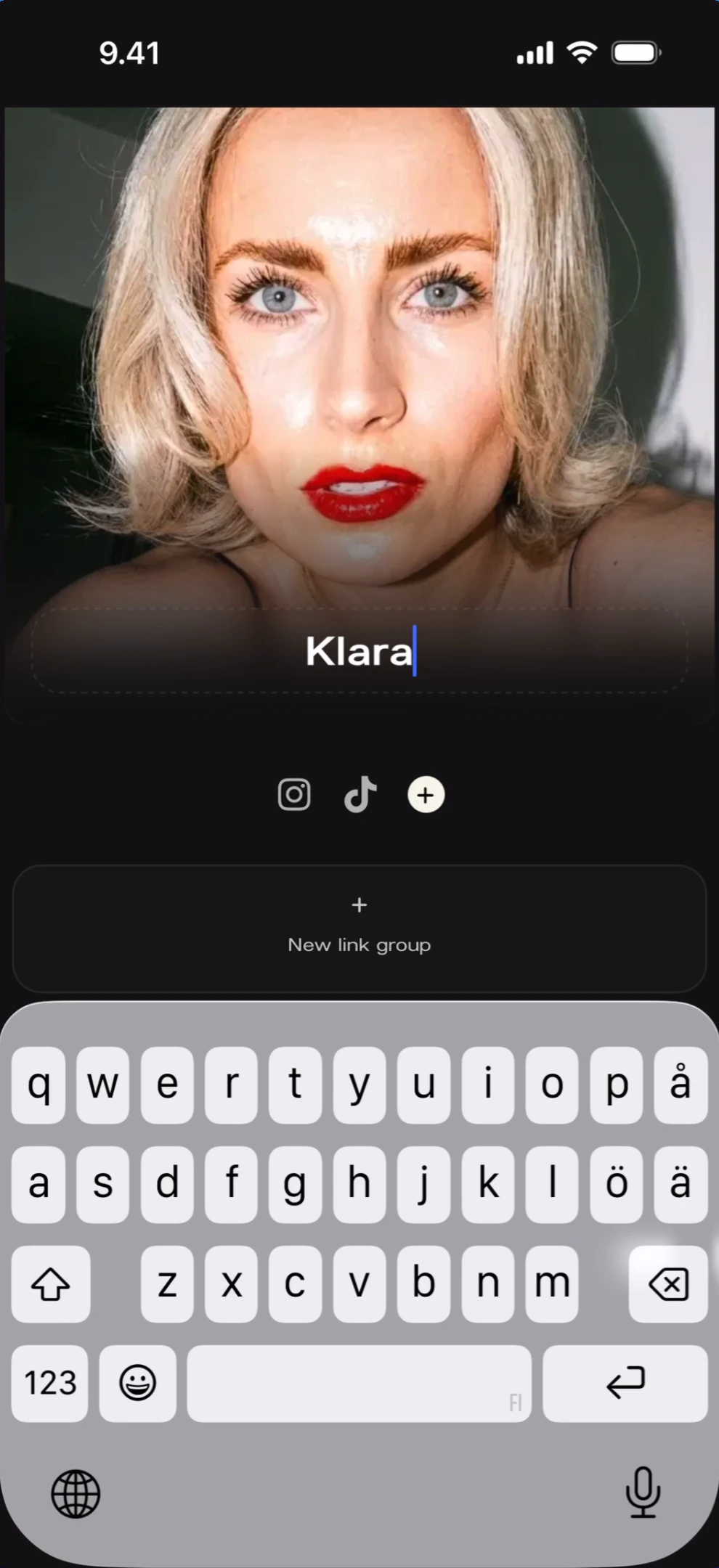
Add your socials
Tap the + circle button next to the existing social icons to open the social picker. It lists all supported platforms.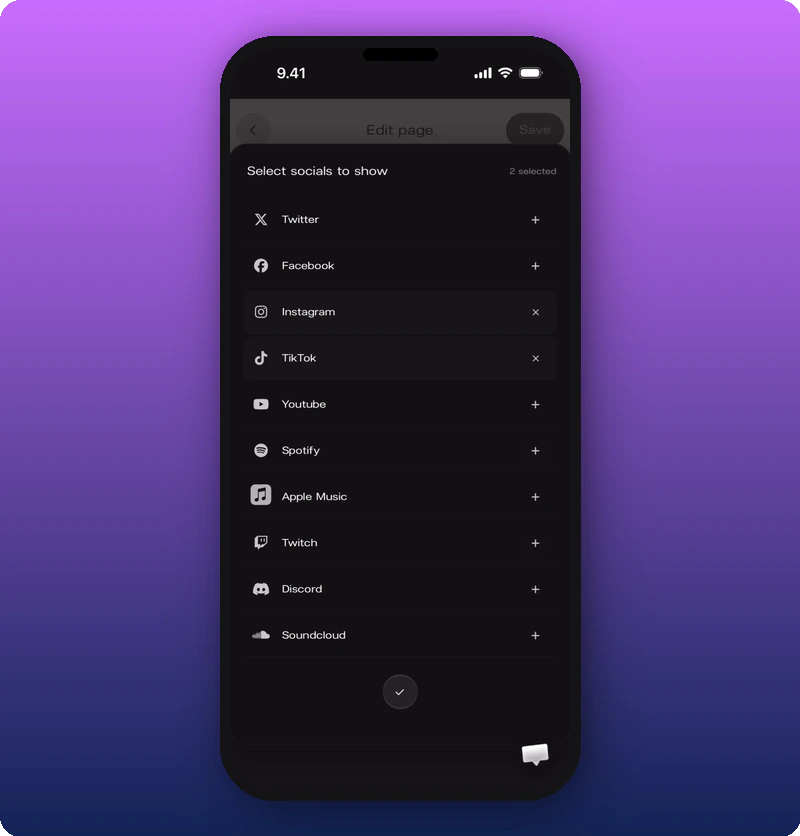
URL validation
After selecting a social platform, enter the profile URL. The app validates the format and shows an error if it’s invalid.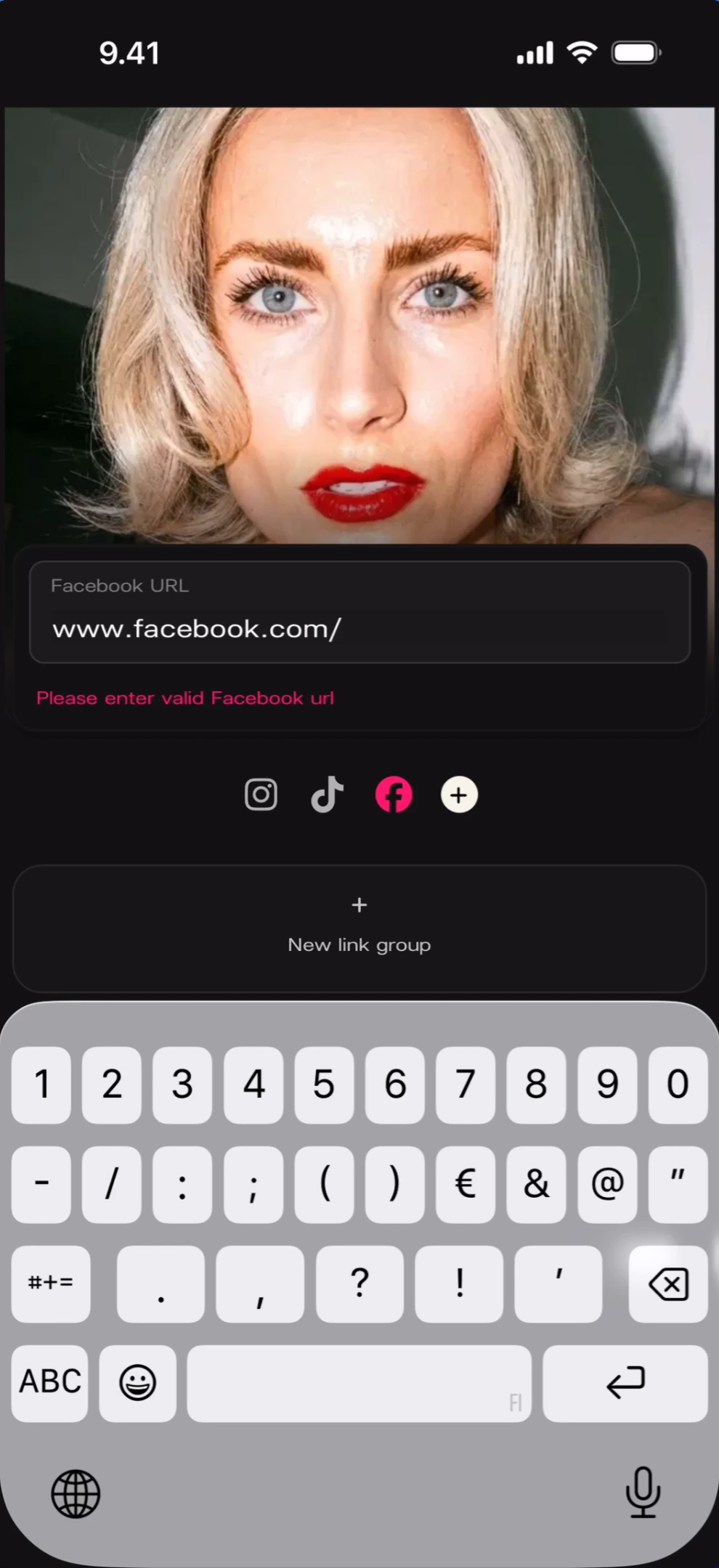
Save changes
Tap Save in the top-right to save all changes. A success toast appears at the top.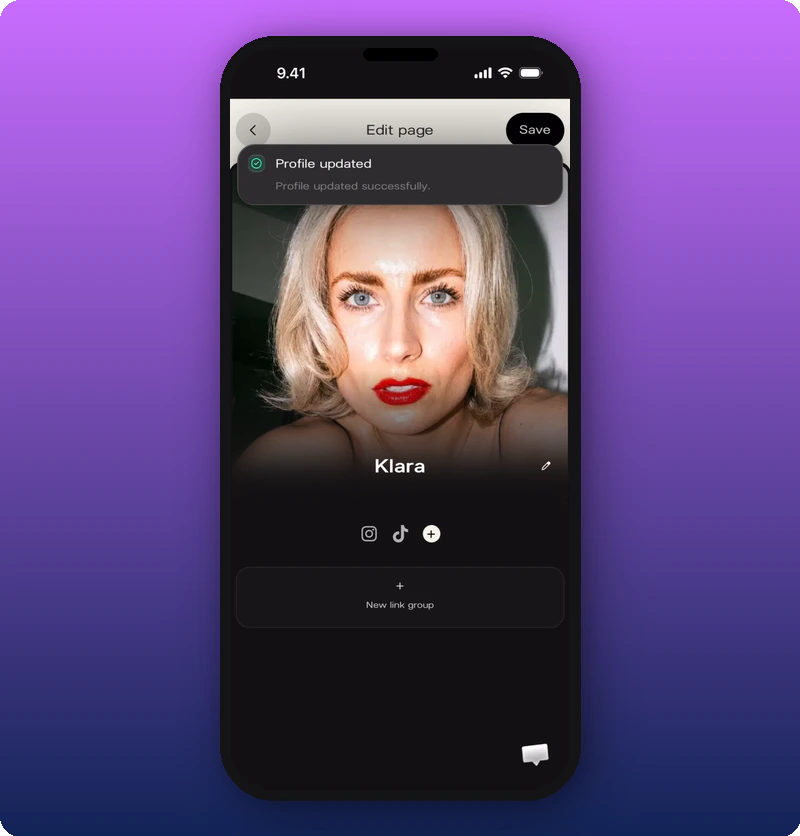
Add link groups
Link groups are sections on your Artist page that hold one or more links. For a dedicated walk-through, see Add and organize link groups.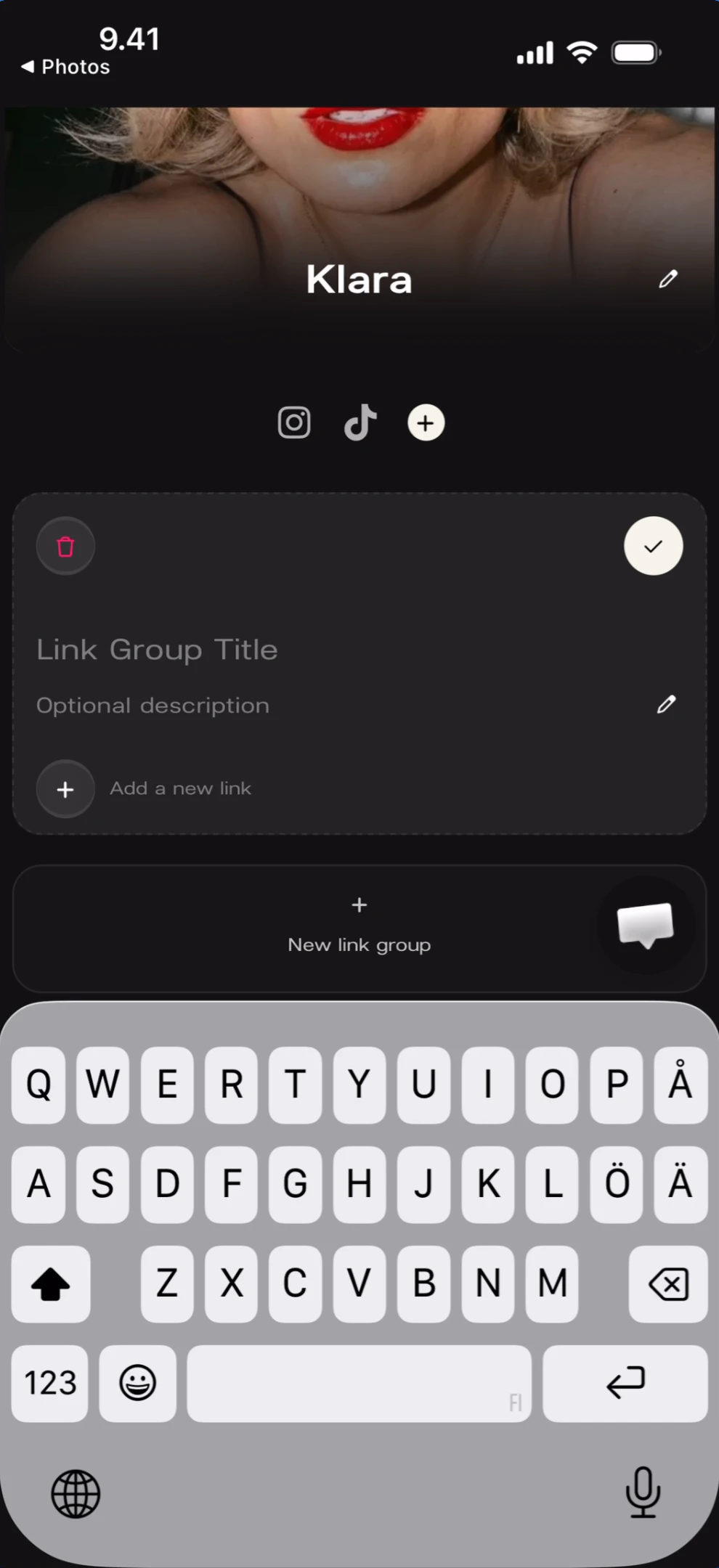
Known limitations
- Whether link groups can be reordered after creation is not fully shown.
- Maximum number of link groups or links per group is not documented.
- Image size/format requirements for link thumbnails and cover photos are not documented.