
Send a text message
Open Direct Line from the bottom nav. The paper-plane tab.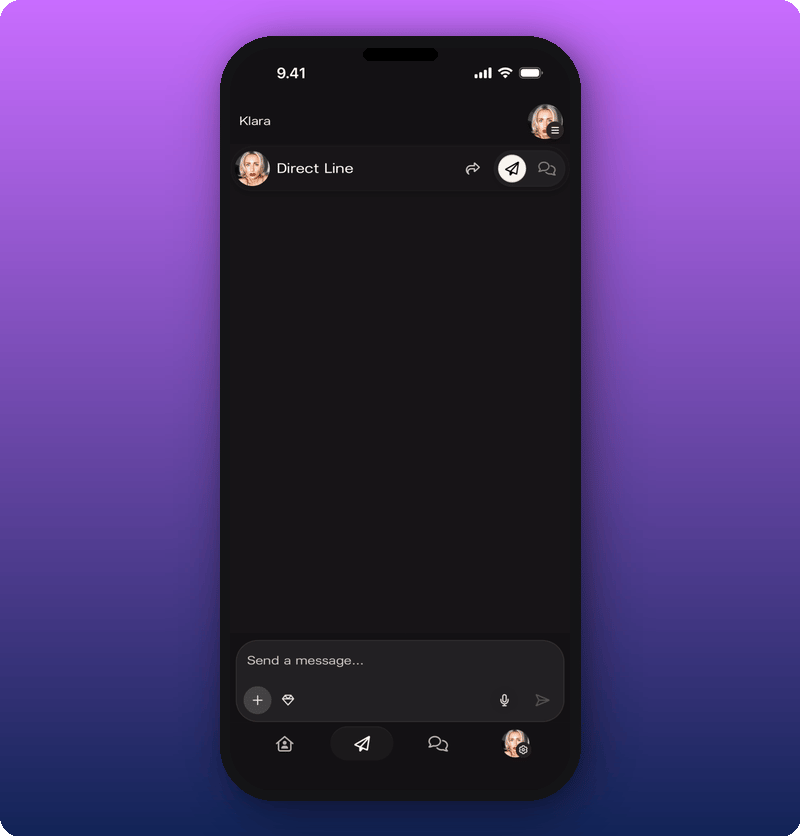
- Open Direct Line from the bottom nav.
- Tap the message input at the bottom.
- Type your message.
- Tap the send arrow.
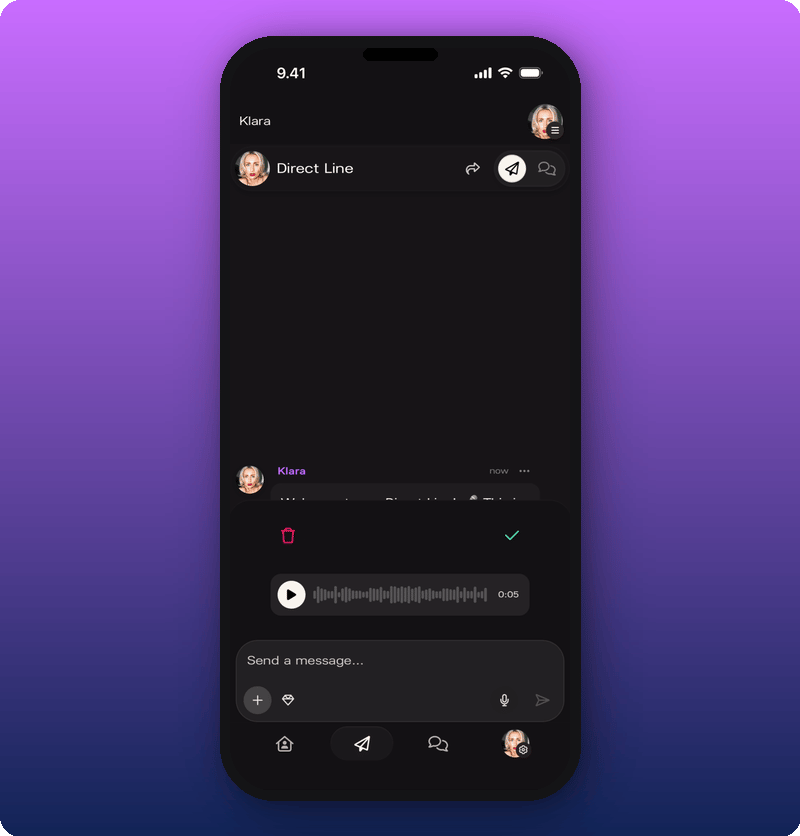
Record a voice message
Tap the microphone icon in the compose bar to start recording.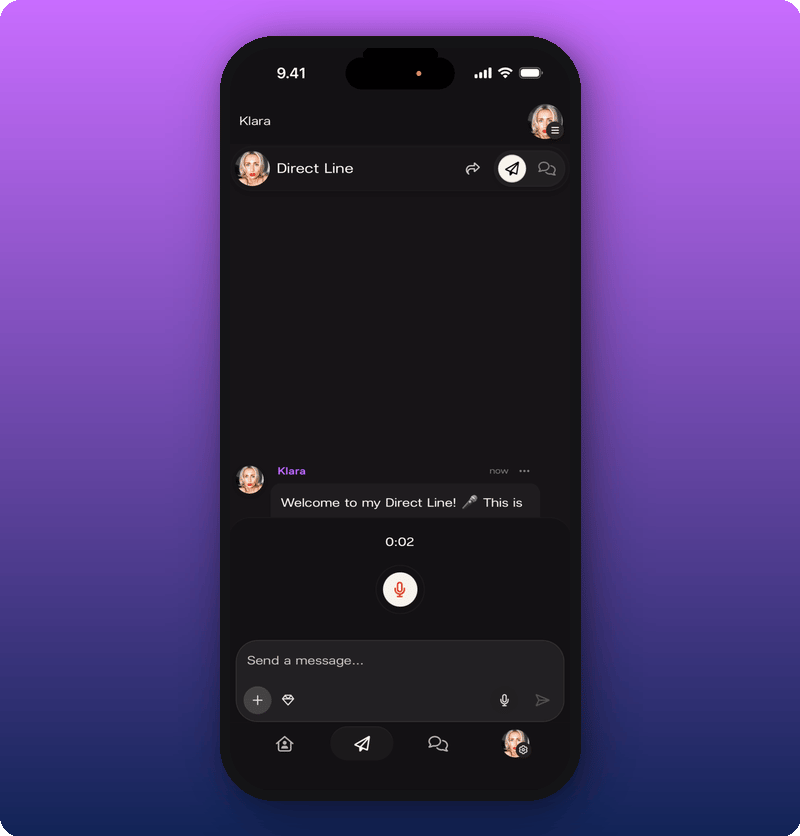
Attach photos, videos, or audio
Tap the + button in the compose bar. It’s to the left of the message input.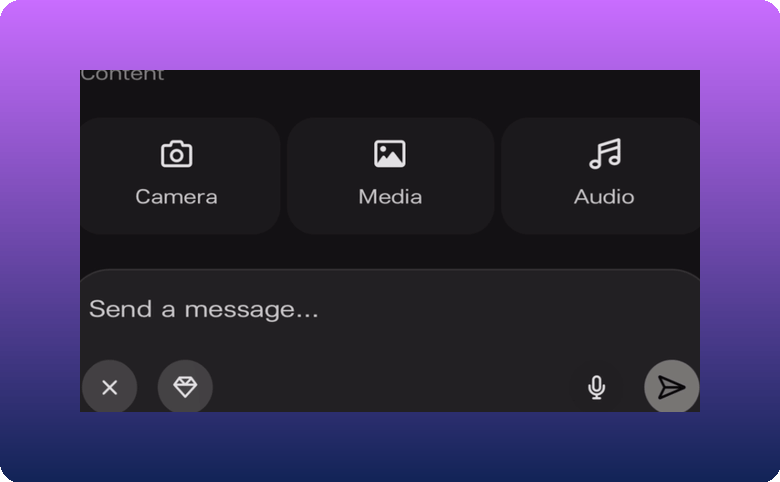
- Camera. Take a new photo.
- Media. Pick photos or videos from your library. You can select more than one at once.
- Audio. Upload an audio file from your phone.
Send multiple photos
Pick more than one photo from your library and they stack in the composer as a row with a count badge.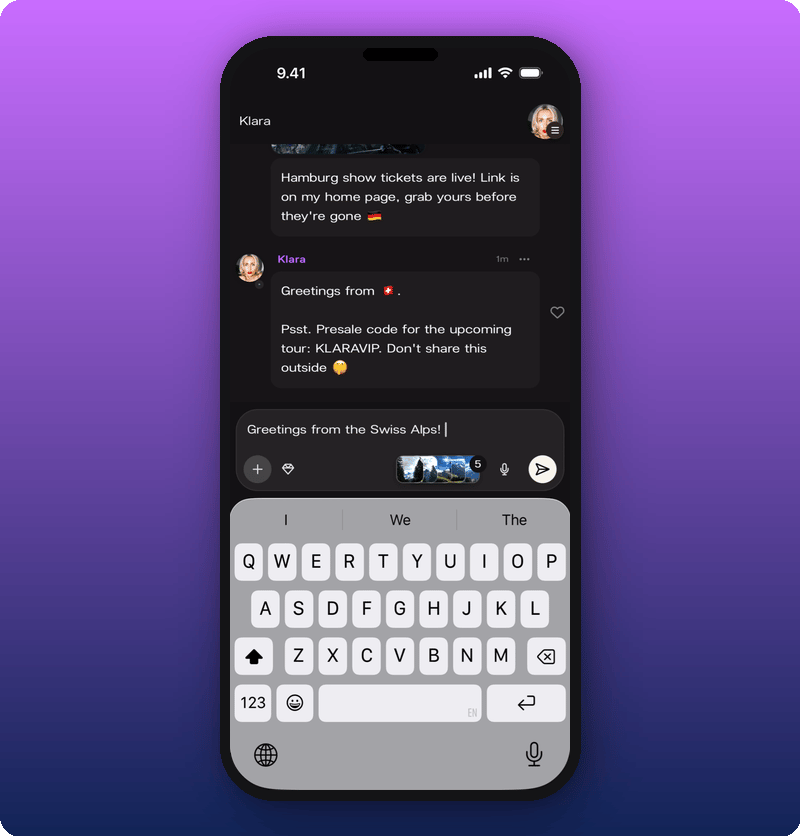
Delete a message
Tap the three-dot menu on any message you’ve sent and choose Delete Message.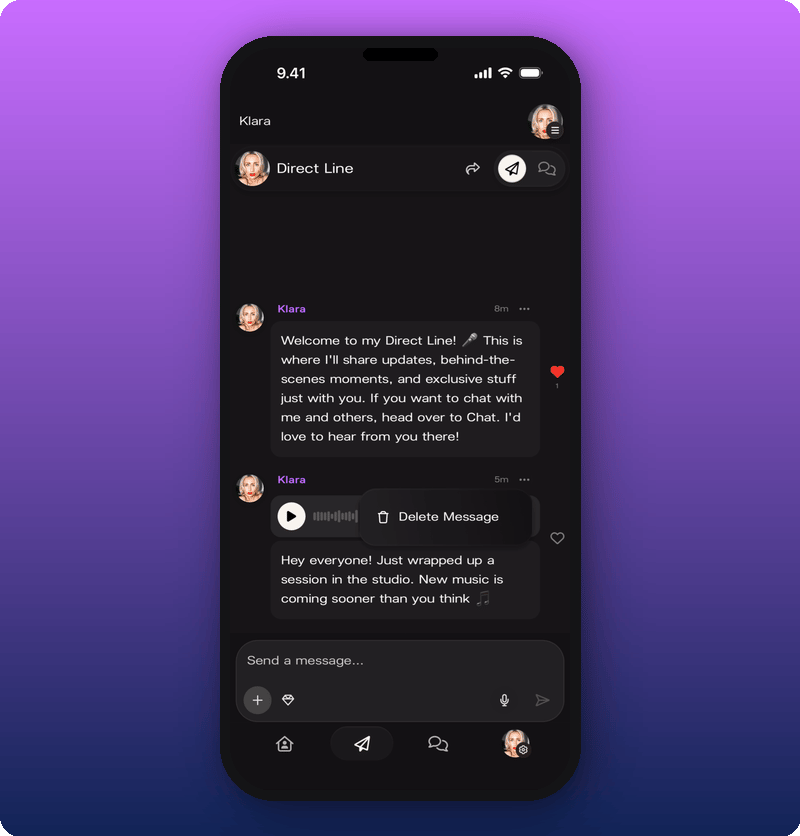
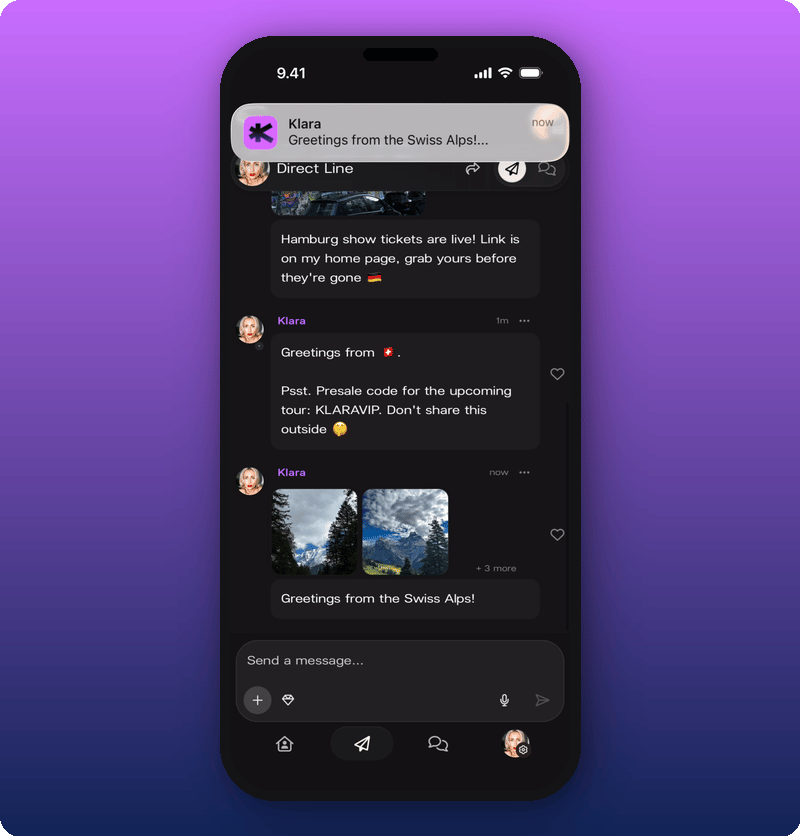
The push notification
Every Direct Line post sends a push notification to every member (or to subscribers only, if you used subscriber-only mode).